
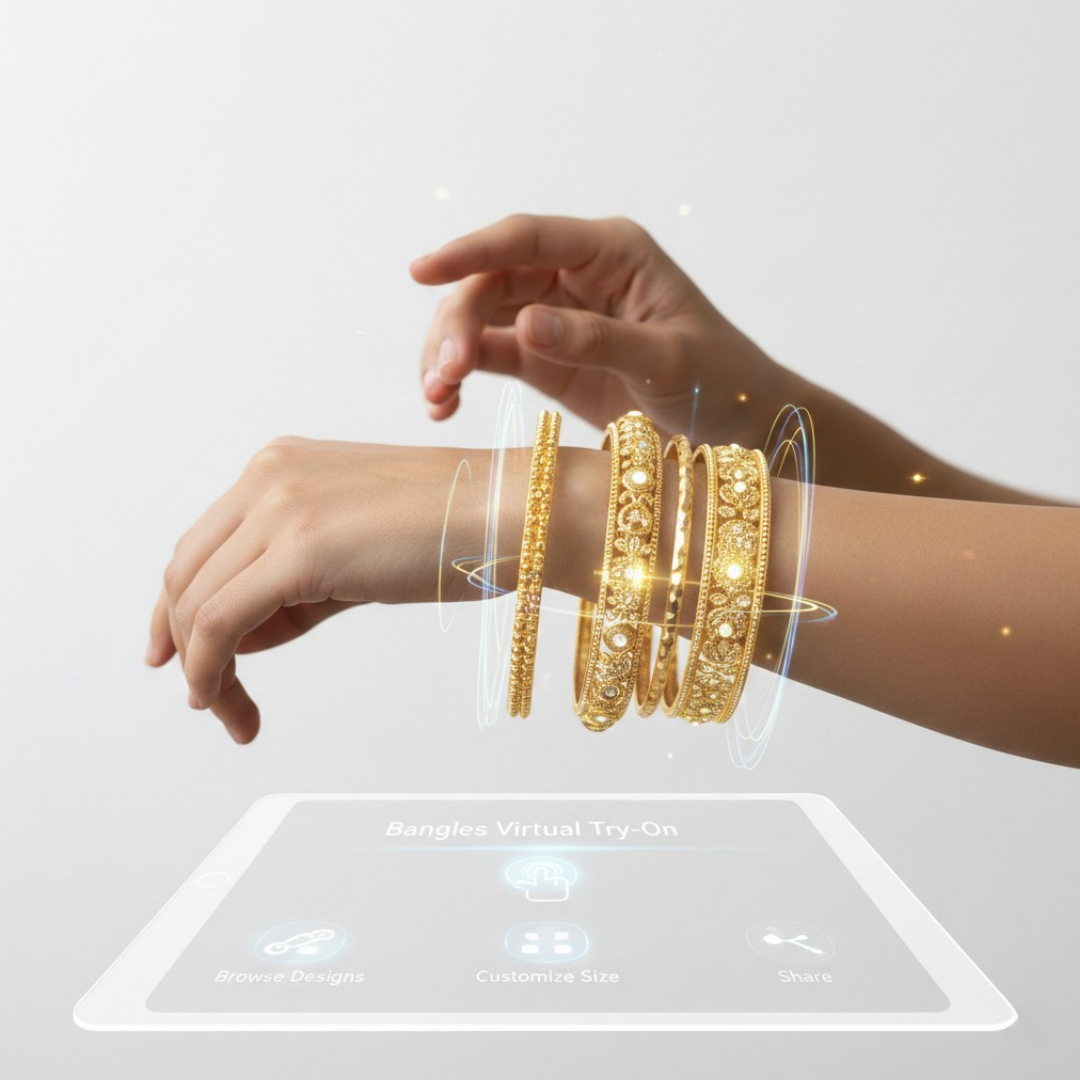
Jewelry Try On UX Squarespace: VTO Placement, CTAs & PDP Conversion Best Practices
Quick Summary
- Use link-based VTO (tryitonme.com) for zero-code implementation on Squarespace.
- Place Try-On as a secondary action near Add to Cart — don’t replace the buy button.
- Test placement and copy via A/B testing (CTA placement, overlay vs. underprice, modal vs. new tab).
- Include fallbacks (model imagery, 360° renders) and privacy microcopy to reduce friction.
Intro — What this guide covers
Jewelry try on UX on Squarespace matters because accessories are visual, emotionally driven purchases where small differences in scale, color and fit change buying decisions. This guide shows how to add a fast, zero-code virtual try-on (VTO) for jewelry on Squarespace using a link-based approach, improve on-page conversions, and run practical A/B tests. It assumes you’ll use tryitonme.com to generate shareable product try-on links and deploy them across product pages, collection cards, email, and social channels. For context on why AR matters for retail, see Think with Google’s augmented reality shopping research and this implementation reference: cermin.id: Jewelry Try-On Squarespace.
What to do next: Create a trial product link at tryitonme.com and plan one PDP to test a Try-On CTA this month.
Why jewelry try on ux matters for conversions
What is jewelry try on ux?
“Jewelry try on UX” is the customer journey that lets shoppers preview jewelry on themselves (camera-based VTO), on models, or via realistic renders. It reduces uncertainty about scale, metal tone, and styling—questions that frequently block a purchase.
Why it drives business results
Augmented reality and 3D previews have been shown to increase shopper confidence and engagement; retailers use AR to help customers visualize products on themselves and reduce returns — see Shopify’s AR & 3D overview. Product-page UX research also shows that clear product pages with relevant interactive tools increase the likelihood of purchase (see Baymard Institute: Product Page guidance). Use these resources to justify running a VTO pilot and to support stakeholder buy-in.
What to do next: Link stakeholders to the Shopify and Baymard pages cited and propose a VTO pilot hypothesis for one high-consideration SKU.
Squarespace try on ux — constraints & opportunities
How Squarespace product pages behave
Squarespace PDPs are gallery-first with prominent price and Add-to-Cart areas and limited native AR support. You can add buttons, code blocks, or custom HTML—but many merchants prefer zero-code solutions to avoid template edits. See the Squarespace Help Center for editing product blocks and adding custom code.
Why a link-based VTO fits Squarespace
A link-based VTO like tryitonme.com works well on Squarespace because it:
- requires no SDKs or complex theme edits,
- provides a shareable product link you paste into buttons, HTML blocks, collection cards, or emails,
- works cross-channel (web, mobile, SMS, social),
- keeps daily operations easy: update the link centrally at tryitonme.com rather than editing theme files.
What to do next: Review your PDP template and list 1–2 insertion points (button, HTML block, collection card) to drop a tryitonme.com link.
PDP conversion best practices for VTO
Core PDP hierarchy rules
Follow established PDP best practices and insert VTO where it supports the buying decision—not overwrites it. Recommended hierarchy:
- Product image gallery
- Price and variant selectors
- Add to Cart (primary)
- Try-On CTA (secondary)
- Reviews & trust signals
- Shipping/returns details
Why this order
Baymard’s product-page guidance emphasizes clear primary actions (buy) and supporting tools (try-on) placed near the decision moment — see Baymard. Use conversion optimization principles (Optimizely) when you plan experiments: Optimizely A/B testing guide.
Checklist (short)
- Ensure Add to Cart remains the primary visual weight.
- Place Try-On as a clear secondary action near price or under Add to Cart.
- Add trust microcopy near Try-On to reduce permission anxiety.
- Instrument analytics (see Analytics naming guide).
What to do next: Update a PDP wireframe to reflect the hierarchy above; run a 30-day CTR test on Try-On placement.
Try on CTA placement — patterns that work
Desktop placement patterns
Best practices:
- Secondary button immediately under Add to Cart (clear but visually secondary).
- Small inline link near the price for low-disruption placement.
- Gallery overlay CTA (“Tap to try”) for image-first engagement.
Annotated mockup ideas:
- Mockup A: left gallery, right column with price → Add to Cart → Try-On (secondary button).
- Mockup B: gallery overlay “See it on you” CTA in the top-right corner of hero image.
Reference: product CTA placement guidance from Baymard.
What to do next: Create a desktop mockup with Try-On under Add to Cart and schedule an A/B test comparing overlay vs under-price placement.
Mobile placement patterns
Best practices:
- Sticky bottom bar combining Add to Cart + Try-On (keeps both actions reachable in the thumb zone).
- Floating pill “Try On” button at lower right for persistent discoverability.
- Avoid burying Try-On below collapsible content.
Accessibility & reachability: place CTAs within comfortable thumb reach and ensure contrast and focus states (see mobile UX notes in Baymard).
What to do next: Implement a mobile sticky CTA on a test product and measure Try-On CTR over 30 days.
Collection cards, quick view & cross-channel CTAs
Lightweight placements:
- Collection overlay: small “Try On” badge on hover or tap.
- Quick view: include Try-On link adjacent to Quick View CTAs.
- Email/SMS/social: use the shareable tryitonme.com link in campaign CTAs.
Keep visual weight modest so Try-On doesn’t cannibalize Add-to-Cart; instead, use it to increase engagement before product clicks.
What to do next: Add Try-On overlays to 3 collection cards and track click-throughs.
Microcopy & CTA copy examples that convert
Top CTA variants to test
- Try On Virtually
- See It On You — Try Now
- Try — No App Required
Helper and permission microcopy (critical for trust)
- “Only your camera is used to show how this looks — we don’t store images.” (GDPR note: consult legal; see gdpr.eu.)
- “Camera access helps show a live preview. No photo is saved.”
- “No app download needed — try instantly in your browser.”
Permission best practices
Follow browser permission UX guidance so the camera request feels expected and clear: see the Permissions API guidance on MDN.
What to do next: Add your top CTA variant and one permission microcopy line to the PDP; run a 30-day engagement test.
Fallbacks & accessibility (critical)
Fallback ranking
- Live in-browser try-on
- Model try-on images on multiple body types
- 360° product renders
- Short product video preview
- Size/fit notes
- Static gallery
Camera-denied and no-camera cases
Present model imagery, 360 views, and “How it wears” notes. Provide transcripts/captions for videos and AR flow tips (WCAG guidance: W3C WCAG).
Low-bandwidth & progressive enhancement
Lazy-load media, serve compressed assets, and keep a lightweight link entry point (see web.dev progressive enhancement guidance).
What to do next: Create alternative assets (one model image set and a 360 render) for each product and wire them into the PDP as fallbacks.
Implementation on Squarespace with tryitonme.com (step-by-step)
Quick steps
- Create product try-on link at tryitonme.com and copy the URL.
- On Squarespace, edit the PDP and add a Button or Code/HTML Block.
- Paste the URL and include UTM or data attributes (see example below).
- Choose Open in New Tab for risk-free rollout or embed in a modal for a tighter experience.
- Test desktop, mobile, camera permissions, and fallback flows.
Example Squarespace button snippet
<a href="https://tryitonme.com/your-product-link?utm_source=squarespace&utm_medium=pdp&utm_campaign=tryon"
   class="sqs-block-button-element--medium"
   rel="nofollow noopener"
   target="_blank">
  Try On Virtually
</a>
Suggested analytics params: utm_source, utm_medium, utm_campaign, utm_content (placement name).
What to do next: Create a tryitonme.com product link now and paste it into a PDP button using the snippet above.
Measurement & A/B testing plan
Core KPIs
- Try-On CTA CTR (vto_cta_click)
- Try-On start (vto_start)
- Try-on-to-add-to-cart rate (vto_add_to_cart_after_try)
- PDP conversion and revenue per visitor
- Return rate and post-try repeat purchase
A/B testing ideas (6)
- CTA copy A vs B.
- Placement: under price vs gallery overlay.
- Flow: modal vs new tab.
- Onboarding tooltip vs direct launch.
- Sticky mobile bar vs floating pill.
- Privacy microcopy variants.
Use Optimizely best practices for experiment design. Evaluate at 30/60/90 days: CTR first 30 days, add-to-cart & conversion at 60, returns and revenue at 90.
What to do next: Define one hypothesis and run a CTA copy A/B for 30 days.
Design patterns & annotated examples to test
Three mockups to produce
- Desktop PDP: hero left, details right — Try-On secondary button under Add to Cart.
- Mobile sticky bar: bottom bar with Add to Cart + Try On (thumb-reachable).
- Collection card overlay: small Try-On badge on image hover/tap.
Do / Don’t bullets for each mockup
- Do keep Try-On visible but secondary.
- Don’t hide Try-On under tabs or long descriptions.
- Do show privacy microcopy close to the CTA.
- Don’t surprise users with unexpected permission dialogs.
Deliverables for designers/devs: PNG mockups for desktop and mobile, a GIF demo of the VTO flow, and a microcopy cheat sheet.
What to do next: Ask your designer for the three PNG mockups and one GIF demo for the test product.
Why tryitonme.com is the Right Fit for Your Business
- ZERO-CODE, LINK-BASED deployment — no SDKs or theme builds (tryitonme.com).
- Shareable product links for web, mobile, email, SMS and social.
- Fast turnaround: ready-to-use product try-on links in under 3 business days after you send standard product photos.
- Centralized updates — change assets at tryitonme.com, no per-page edits.
- Built for accessories (eyewear, jewelry, watches, hats) with accuracy-focused rendering.
Book a Demo.
What to do next: Book a tryitonme.com demo to generate your first product link and plan a 30-day pilot.
Implementation checklist for Squarespace stores (actionable)
- [ ] Create tryitonme.com link for each SKU (tryitonme.com)
- [ ] Add CTA to PDP near price/Add to Cart
- [ ] Add mobile sticky CTA
- [ ] Add privacy microcopy near CTA (GDPR note: gdpr.eu)
- [ ] Add analytics parameters and instrument events (see Google Analytics guide)
- [ ] Test camera-denied fallback and low-bandwidth experience
- [ ] Run A/B tests on CTA copy and placement (see Optimizely)
- [ ] Review CTR, add-to-cart, conversion, and returns after 30/60/90 days
What to do next: Walk through the checklist for one product this week and start tracking vto_cta_click events.
Conclusion & next steps
To win with jewelry try on UX on Squarespace, place a clearly labeled, trust-building Try-On CTA near the purchase decision, offer graceful fallbacks, and measure impact with A/B tests. With tryitonme.com’s link-based, zero-code approach you can launch quickly and iterate without engineering lift.
What to do next: Book a tryitonme.com demo and create one test product link to deploy on a single PDP this month.
Appendix / assets to include with post
Visual assets required
- 2 desktop PDP mockups (Try-On under Add to Cart; gallery overlay).
- 1 mobile mockup (sticky bottom bar).
- 1 GIF demo of the VTO flow (hero → click Try-On → camera permission → preview).
- Microcopy cheat sheet (CTA variants + permission lines).
- Analytics event naming guide and code-ready button snippet.
Analytics & event naming (copy-ready)
Suggested event names and properties (see Google Analytics guidance):
- Events:
- vto_cta_click {product_id, placement, cta_variant}
- vto_start {product_id, device_type}
- vto_camera_permission_granted {product_id}
- vto_camera_permission_denied {product_id}
- vto_complete {product_id, duration}
- vto_add_to_cart_after_try {product_id}
- vto_purchase_after_try {product_id}
- Required properties: product_id, sku, placement (pdp_hero, sticky_mobile, gallery_overlay), device_type, traffic_source
Final legal & accessibility note
Include clear permission microcopy and privacy reassurance near CTAs and consult legal for GDPR compliance (gdpr.eu). For accessibility follow WCAG standards: W3C WCAG and handle keyboard focus, ARIA labels, and captions for visual media.
FAQ
1) What is link-based VTO and why is it a good fit for Squarespace?
Link-based VTO is a flow where each product has a shareable URL that opens a try-on experience in a browser. It’s perfect for Squarespace because it doesn’t require an SDK or theme changes—just paste the URL in a button, code block, or email.
2) Will Try-On reduce Add-to-Carts or conversions?
Not if placed correctly. Make Try-On secondary—near Add to Cart—and use microcopy that emphasizes privacy. A/B test before full rollout.
3) What happens if a customer declines camera access?
Offer fallbacks: model images, 360° renders, or videos. Make sure the microcopy makes it clear that no photos are saved.
4) How do you measure the success of VTO?
Monitor KPIs like vto_cta_click, vto_start, vto_add_to_cart_after_try, PDP conversion, and return rate. Run A/B tests for copy and placement.
5) Do you need a developer to run this on Squarespace?
Not for basic implementation: paste the tryitonme.com link into a button or code block. Embedded modals or custom designs may require developer assistance.
6) How do I get started quickly?
Create an account at tryitonme.com, generate a product link, and place it on a PDP as a trial. Run a 30-day test on placement and copy.