Mobile Performance Nose Rings Try On — Keep Product Pages Fast with Link‑Based VTO
- Keep product pages light and load heavy 3D/AR only after explicit intent using a link‑based VTO like tryitonme.com.
- Protect Core Web Vitals (LCP, INP, CLS) by deferring SDKs, large textures, and camera initialization until click.
- Optimize WebGL assets (glTF/glb + Draco, KTX2/Basis) and reuse renderers to avoid memory leaks and context loss.
- Use progressive loading, selective preconnect, and capability detection to deliver a resilient mobile experience.
Introduction — the problem and the recommended pattern
Mobile performance nose rings try on needs to feel instant. Shipping a large WebGL bundle or AR SDK on every product page risks slower load times, layout shifts, and frustrated shoppers — which directly harms conversion. The pragmatic pattern I recommend: keep your commerce pages light and use an intent-driven, link-based Virtual Try-On (VTO) experience such as tryitonme.com that loads only after a shopper taps “Try On.”
This post walks product managers and engineers through a technical checklist, WebGL and WebAR optimizations, testing patterns, and an implementation recipe you can use today to protect Core Web Vitals while offering high-quality accessory try-on.
Why mobile performance matters
Mobile devices vary widely in CPU, GPU, memory, and network. A nose-ring VTO seems small, but shipping a large SDK, camera initialization, and heavy textures on page load can stall the main thread and rendering pipeline, producing slow LCP, delayed interactivity, and layout shifts — the exact metrics Google measures for user experience. See an analysis: cermin.id — nose rings virtual try-on.
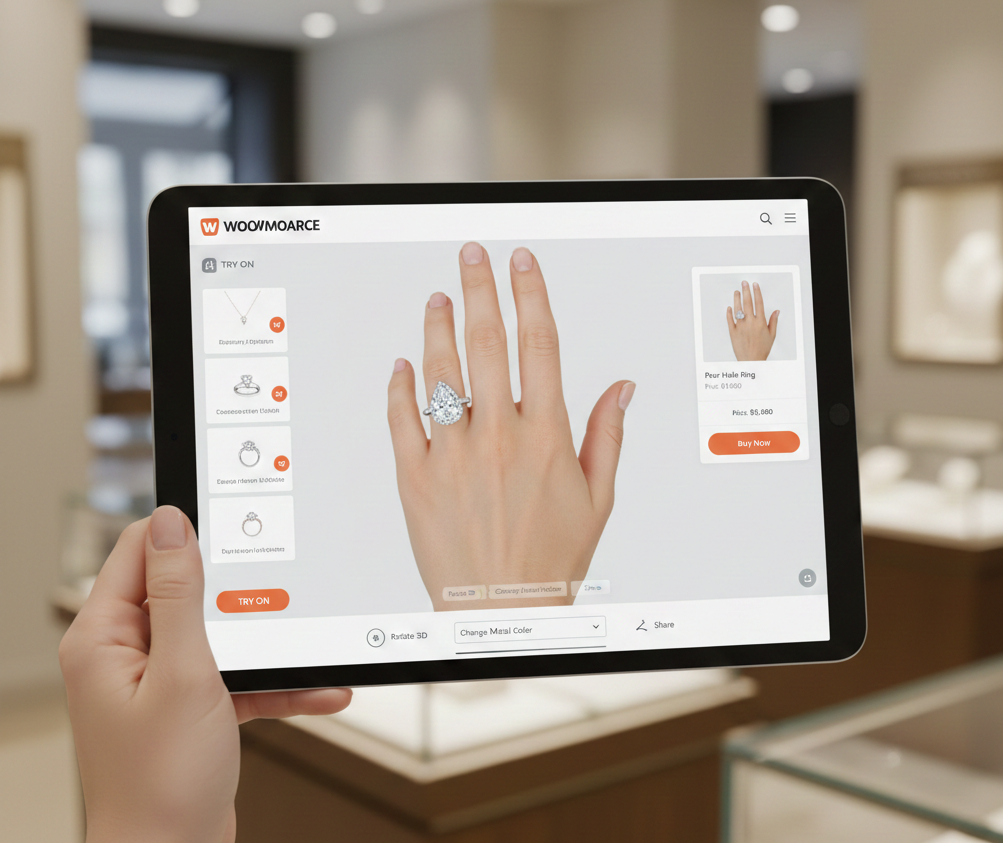
Users expect instant, commitment-free previews. Lightweight generation from a selfie or a simple overlay is preferable to heavy in-page AR. Examples: a quick nose-ring try-on (photta.app nose-ring try-on) and a nose-pierce filter (flexclip nose-pierce filter). The safest UX: a lean product page with a visible Try On CTA and a separate, link-based VTO session that loads 3D/camera work only after intent (cermin.id — 2D/3D try-on nose rings).
Core Web Vitals for Try‑On experiences
When measuring a try-on implementation, focus on LCP, INP, and CLS. Google’s thresholds: LCP < 2.5s, INP < 200 ms, CLS < 0.1 — see the Core Web Vitals overview. Use Lighthouse for lab checks and diagnostics.
Real-world telemetry is essential: compare lab data with CrUX distributions to understand actual user impact.
How VTO typically impacts vitals
- Blocking JS and large bundles delay LCP.
- Synchronous model/texture requests block interactivity and inflate INP.
- Late-rendered camera containers or injected canvases cause CLS.
- Multiple embedded WebGL contexts multiply main-thread work across lists.
Mitigations (practical)
- Reserve a stable, fixed space for the Try On CTA and any canvas to avoid layout shifts.
- Load VTO assets asynchronously and only after explicit user intent.
- Enforce budgets: cap initial JS and image weight on product pages.
- Prefer link-based VTO (dedicated try-on URL) so the merchant page stays free of heavy runtime work.
WebGL performance specifics
A practical WebGL approach starts with assets, then rendering, then runtime cleanup and profiling. Below are concise, actionable sections you can use in tickets or runbooks.
Model & asset optimization
- Use glTF/glb for delivery.
- Apply Draco compression for geometry.
- Compress textures with KTX2/Basis.
- Keep polycounts minimal for small accessories and use a single UV atlas where possible; cap texture sizes (512–1024px).
Render & shader considerations
- Prefer simple, unlit materials where PBR isn’t needed; avoid costly post-processing.
- Reduce draw calls by merging meshes and reusing materials.
- Avoid dynamic shader permutations to reduce shader compile jank; follow Three.js performance guidance.
Runtime & GPU usage
- Pause render loop when the tab or modal is hidden.
- Cap frame rate on lower-tier devices or when AR tracking is idle.
- Reuse GPU resources and dispose them cleanly after use; avoid multiple WebGL contexts (WebGL basics).
Tools to profile WebGL
- Inspect draw calls with SpectorJS.
- Use Chrome DevTools’ rendering and performance panels (Chrome DevTools).
- Look for high draw-call counts, large texture memory usage, and long shader compile times.
WebAR optimization and mobile AR constraints
Do as little as necessary until the user opts in. Avoid embedding a full AR stack on the product page; offer a clear entry that opens a dedicated try-on session. See guidance at cermin.id — mobile performance septum rings try-on.
Platform-specific lightweight paths
- Use AR Quick Look on iOS for native previews.
- Use Scene Viewer on Android as a fallback.
- Detect WebXR support and fall back gracefully.
Permission and UX best practices
- Ask for camera permission only after explicit intent.
- Prefer camera-overlay face modes when full AR anchor tracking is unnecessary.
- Do capability detection early but non-blocking; surface Try On only if supported.
Progressive loading and lazy strategies
Progressive loading prioritizes what shoppers need first. Recommended intent-first flow:
- Critical site chrome (header, product name, price)
- Product imagery (hero image)
- Clear Try On CTA
- Lightweight preview (LQIP or 2D overlay)
- Heavy 3D/AR assets after user tap
Techniques: use IntersectionObserver to lazy-init or pre-warm the try-on host when the CTA scrolls into view, and use selective resource hints (preconnect/prefetch) to reduce connection setup time.
Memory management and mobile constraints
Memory errors are commonwhen sessions leak GPU textures or don’t release renderers.
- Create a soft memory budget for try-on sessions and enforce it.
- Reuse a single renderer/context when possible and dispose Three.js objects/textures on close.
- Avoid loading duplicate assets for variant previews and add RUM signals to detect OOMs and context loss (Chrome DevTools memory profiling: DevTools memory).
Fallback and graceful degradation
Not all devices support WebGL or camera access. Prioritized fallbacks:
- Static product images and zoomable galleries
- 360° product viewer for rotation-only preview
- Server-rendered preview images (generated on demand)
- A dedicated try-on link or page (safer than embedded heavy assets)
Follow progressive enhancement guidance (web.dev — progressive enhancement).
Testing, monitoring and performance budgets
Combine lab tests with field telemetry:
- Lab tooling: Lighthouse, WebPageTest, integrate Lighthouse CI.
- Field telemetry: use CrUX (CrUX), RUM and crash reporting via Sentry or Datadog RUM.
- Track try-on CTR, launch time after click, session length, conversions, and WebGL context losses (cermin.id ROI nose rings virtual try-on).
Set measurable budgets (initial JS max, initial paint target, try-on launch time) and block releases that exceed them.
How tryitonme.com helps (callout)
- Zero-code, link-based deployment: no SDK to embed — use a shareable try-on link (tryitonme.com).
- Fast onboarding: merchant sends standard photos; tryitonme.ai/team prepares assets and returns a try-on link in under 3 business days.
- Keeps product pages light: heavy 3D and camera work live in the dedicated try-on flow to protect Core Web Vitals.
Why tryitonme.com is the Right Fit for Your Business
- Accuracy for accessories: optimized VTO for eyewear, jewelry, watches, hats, and small accessories.
- Speed to market: ready-to-use try-on links in under 3 business days (tryitonme.com).
- Zero-code integration: deploy via simple product link — no SDK or API changes.
- Progressive, device-aware experience: tryitonme handles AR fallbacks and progressive loading.
Implementation pattern with tryitonme.com (practical steps)
- Render static hero images and a clear “Try On” CTA near price and add-to-cart.
- Do not include the VTO SDK or canvas by default.
- Optionally preconnect to tryitonme.com only when the CTA is visible or hovered (use resource hints).
- On click, open the tryitonme link in a modal or a new tab. Modal keeps continuity but may affect page metrics; new tab preserves pristine Core Web Vitals on the original page.
- Let the tryitonme session handle progressive loading, AR checks, camera permissions, and fallbacks.
Checklist & quick technical recipes
- UX: Keep product page lean; offer a visible Try On CTA (mobile performance nose rings try on).
- Vitals: Measure core web vitals try on metrics (LCP, INP, CLS) before/after integration.
- Assets: Optimize for webgl performance try on — glTF/glb + Draco, KTX2/Basis for textures (glTF, Draco, Basis).
- Loading: Lazy-load 3D/AR; use IntersectionObserver and selective preconnect (IntersectionObserver, resource hints).
- Runtime: Reuse renderers, cap frame rates, dispose resources on exit.
- Memory: Enforce soft budgets; profile with Chrome DevTools (DevTools).
- Monitoring: Add RUM for vitals and WebGL errors; integrate Lighthouse CI and WebPageTest into CI.
- Fallbacks: Provide 360° viewer or server-rendered previews when AR is unavailable.
- Vendor: Provide tryitonme link as the link-based fallback to avoid SDK bloat (tryitonme.com).
Tools & references to cite
- Lighthouse
- WebPageTest
- Chrome DevTools
- SpectorJS
- Three.js
- Draco
- glTF
- KTX2/Basis
- AR Quick Look
- Scene Viewer
- WebXR
- CrUX
Conclusion
Fast nose-ring try-on is a systems problem: keep your product page light, load immersive assets only after explicit intent, and provide robust fallbacks. For most merchants selling accessories, a link-based VTO flow like tryitonme.com is the fastest, lowest-risk way to add try-on without compromising Core Web Vitals or shipping heavy SDKs.
Want to see a demo? Book a Demo at tryitonme.com and get a ready-to-use try-on link in under 3 business days.
FAQ
What is link-based VTO and why prefer it?
Link-based VTO hosts the heavy assets and runtime on a dedicated URL. The product page only links to that session, keeping the product page free of large SDKs and preserving Core Web Vitals. Example provider: tryitonme.com.
How does link-based VTO affect Core Web Vitals?
By deferring heavy work to a separate session, link-based VTO prevents blocking scripts, large textures, and camera initialization from affecting LCP, INP, and CLS on the main product page.
Which asset formats should I use for nose-ring try-on?
Use glTF/glb with Draco for geometry and KTX2/Basis for compressed textures. Keep textures small (512–1024px) and polycounts minimal.
What testing and monitoring tools are recommended?
Use Lighthouse and WebPageTest for lab tests, and CrUX, Sentry, or Datadog RUM for field telemetry. Integrate Lighthouse CI to prevent regressions.
How should I handle devices without AR support?
Provide prioritized fallbacks: static images, 360° viewers, server-rendered previews, or the dedicated try-on link. Clearly explain alternatives when AR or camera access is unavailable.