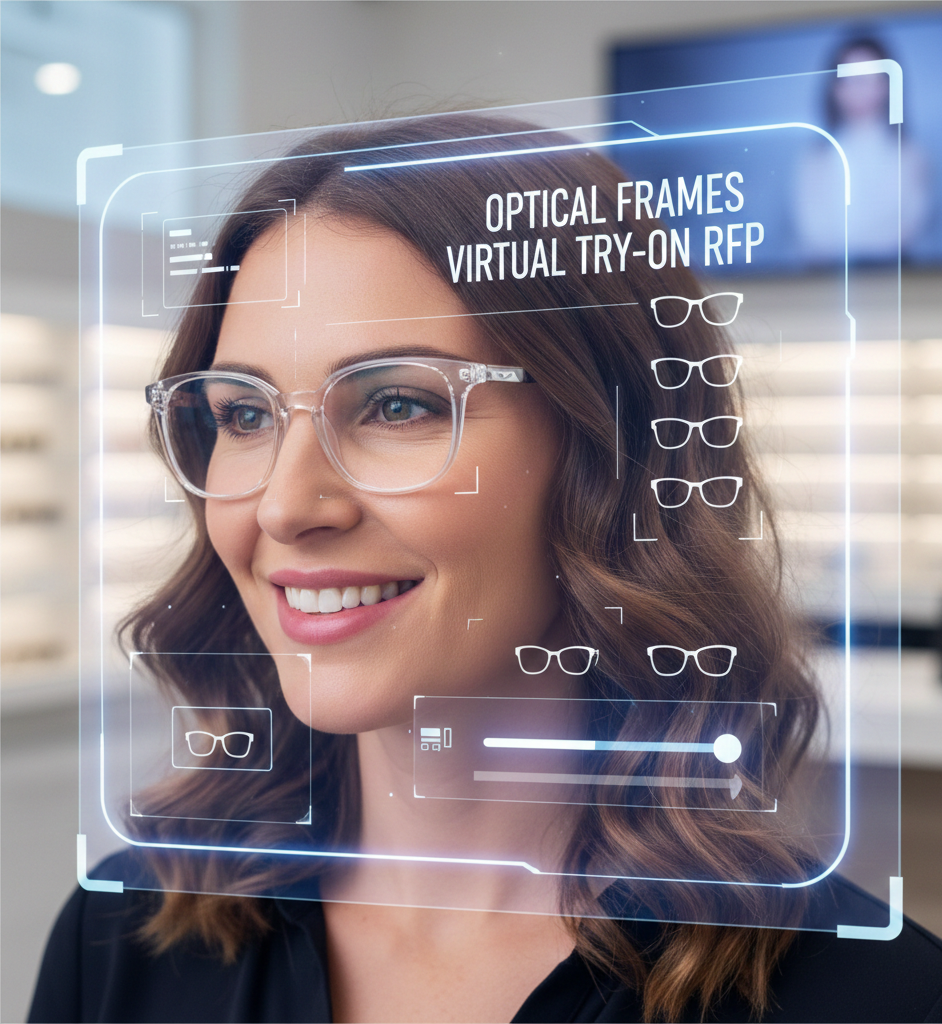
Optical Frames Virtual Try On: How It Works, Benefits, and Best UX Practices
Quick Summary
- Optical frames virtual try on lets shoppers preview frames on their face via camera or uploaded photo to improve confidence and speed purchase decisions.
- Implementation options range from SDK integrations to link-based, zero-code tools like tryitonme.com for fast deployment.
- Key UX: prominent CTA, camera/photo fallback, clear privacy copy, and performance optimizations (lazy-load, CDN).
- Track CTR, try-on sessions, conversion after try-on, and return rates to measure impact.
Introduction
Optical frames virtual try on gives shoppers a fast, in-browser way to preview eyeglass styles on their face before buying — improving confidence and speeding purchase decisions. This guide focuses on eyewear: what VTO does, how optical frames AR try on works, where to deploy it, and a practical, zero-code launch path using link-based tools like tryitonme via cermin.id and tryitonme.com. If you manage ecommerce, product, or UX for an optical brand, read on for checklists, test ideas, and deployment copy you can use right away.
What is virtual try on for optical frames?
At its simplest, it’s a digital experience that overlays eyeglass frames onto a shopper’s face using a live camera or uploaded photo so they can preview shape, color, and proportion before purchase — see an overview from Lensmart and retailer examples like MOSCOT.
A short history
- Image overlays: early solutions placed flat frame graphics over a photo.
- 3D models: added geometry for better scale and rotation.
- Real-time AR: combines live face tracking and rendering for the most natural preview (demo flow: YouTube).
Practical distinction: image overlays are useful for quick previews, 3D adds realism, and real-time AR gives users movement and proportion feedback. Important note: VTO shows appearance, not clinical fit — it doesn’t replace pupillary distance (PD) measurements or professional fitting guidance (Lensmart, PD guide: cermin.id PD guide).
Benefits of optical frames virtual try on
Why add virtual try-on to your optical store? For ecommerce teams, the benefits are concrete and operational:
- Faster decisions and higher engagement: shoppers experiment with more frames and stay on your site longer (examples: Lensmart, Americas Best).
- Increased conversion potential: try-on reduces hesitation by showing how a frame looks on a real face.
- Reduced returns risk: better pre-purchase expectations can lower mismatched style returns.
- Better cross-sell opportunities and fewer basic support questions.
KPIs to track (quick list)
- Try-on click-through rate (from product page CTA)
- Session length inside the try-on experience
- Conversion rate for users who tried-on vs. didn’t
- Return rate among try-on users vs. non-users
- Average order value for try-on sessions
Interpretation tip: don’t rely on a single metric. Look for combined wins — more engagement plus improved conversion and stable or lower returns is the strongest signal (Lensmart, ROI notes: cermin.id ROI).
How optical frames AR try on works (high level)
Optical frames AR try on starts with face detection and landmarking. In plain terms:
- Camera capture: the user allows camera access or uploads an image.
- Face detection: the software identifies eyes, nose bridge, and facial boundaries.
- Landmark mapping: key points establish scale and orientation for the frame.
- Model placement & rendering: the frame model is scaled and positioned, then rendered so it appears to sit naturally on the face.
- Real-time tracking: as the user moves, the render updates to maintain alignment (technical flow: Lensmart, demo: YouTube).
Two common implementation models
- SDK integrations: embed a vendor SDK into your app/site — offers deep control but requires developer time and product-feed mapping (checklist).
- Link-based no-code VTO: vendor generates a shareable try-on link you can use anywhere (web, mobile, social) with no developer work — see cermin.id pricing notes and tryitonme.com.
Why AR matters: compared with static photos, AR adds a sense of proportion and motion that helps shoppers judge fit and style more reliably — useful for a visually driven product like eyewear.
Why tryitonme.com is the Right Fit for Your Business
If you want a fast, no-dev path to VTO, tryitonme.com provides a link-based, zero-code option for accessory try-on. Key value points:
- Zero-code, link-based deployment — no SDK or heavy engineering required (tryitonme.com).
- Fast onboarding: package model based on SKU count, you send standard photos, their team/AI handles AR processing and returns a shareable try-on link in under 3 business days (cermin.id notes).
- Accurate accessory VTO tailored for eyewear, jewelry, watches, and hats; easy cross-channel distribution.
- Privacy-minded: video/camera is used only for in-browser try-on; see privacy details at tryitonme.com/privacy.
Book a demo: tryitonme.com — review privacy at tryitonme.com/privacy.
Optical frames online try on — deployment options and channels
Optical frames online try on should live wherever shopping intent appears. Channels to consider:
- Product pages (primary): add a clear try-on CTA near “Add to cart” (shopify guide).
- Mobile web: optimize the CTA and in-browser flow for phones.
- PWA / native app: include try-on links in saved wishlists and recommendations (see Warby Parker app: Warby Parker).
- Social stories & posts: add the same try-on link in stories, bios, and paid ads (MOSCOT, Americas Best).
- DMs and sales follow-ups: sales reps or opticians can send the link during virtual appointments.
Example flow (simple)
- Product page CTA: “Try frames on now”
- Button opens shareable try-on link (in-browser)
- Shopper tries frames, saves a screenshot or shares the link
- Shopper returns to product page to purchase
Deployment suggestions: place the primary CTA above the fold, include a sticky “Try On” button on mobile, and use the same link across email, QR codes, and social to keep the experience consistent.
Step-by-step: How to add a no-code virtual try-on to your store with tryitonme.com
Step 1 — Prepare product assets (checklist)
- Front-facing frame photo (high-resolution, neutral background)
- Side/angled photo (if available)
- Product name and variant names (color/size)
- Frame measurements: lens width, bridge, temple length, frame width
- Material and color details; fit notes (e.g., “narrow fit”)
Photography best practices and requirements: see photo requirements.
Step 2 — Upload & configure in dashboard
- Upload each SKU and map variants clearly (use consistent naming: [Model] — [Color] — [LensWidth]/[Bridge]).
- Tag frames by face-shape suggestions and double-check color variant mapping.
Step 3 — Generate the shareable link and deploy
- Create the product try-on link in the dashboard.
- Suggested placements: product page CTA (“Try frames on now”), email, social story sticker, QR codes, sales follow-ups.
Privacy note (place near CTAs): “Camera used only for in‑browser try‑on; no images stored without consent.”
Step 4 — Test & QA checklist
- Test on iOS Safari, Android Chrome, Desktop Chrome/Firefox (camera-supported).
- QA items: camera permission prompt, correct variant loading, session load time target < 5s, photo-upload fallback, save/share screenshot functionality.
Step 5 — Tracking & analytics
Suggested UTMs and events: utm_source=product_page, utm_medium=tryon_link; events: try_on_click, try_on_start, try_on_complete, try_on_share, add_to_cart_after_try_on. Track try-on link clicks and sessions for the first 90 days and compare conversion & return rates (see ROI notes).
UX and design considerations for optical frames online try on
- Placement and visibility: Primary CTA above the fold; sticky CTA on mobile; use a visual thumb or micro-animation.
- Onboarding microcopy: “Enable your camera to see this frame on your face.” “Bright, natural light gives the best result.” “No camera? Upload a photo instead.”
- Accessibility and trust: Include short privacy copy near CTA and ensure buttons meet contrast/size guidelines.
- Performance & micro-interactions: Lazy-load engine, provide loading skeleton, add lightweight controls (fit indicator, size toggle, color switch, save/share).
- Photo fallback: Offer upload option with alignment guide if camera access is denied.
Product & content preparation (photography, metadata, copy)
Good prep improves perceived accuracy for optical frames AR try on.
Photography best practices
- Neutral, consistent background and lighting.
- Use the same scale across product photos; front and side views.
Required metadata
- Frame width, lens width, bridge width, temple length.
- Variant names and color codes; PD-related notes where applicable.
Alt text examples (SEO-friendly)
- “optical frames virtual try on demo on mobile”
- “optical frames ar try on in-browser preview”
- “optical frames online try on product page CTA”
Conversion optimization & A/B tests
Suggested experiments:
- CTA wording: “Try frames on now” vs. “See on your face”.
- Placement: sticky CTA vs. inline button.
- Onboarding flow: camera-first vs. explanation-first.
- Visuals: big AR preview vs. gallery-first layout.
- Social proof overlays: “Loved by X customers”.
Core KPIs: Try-on CTR, try-on start rate, conversion after try-on, time-to-purchase, return rate, share rates. Example hypothesis and test window included in the original brief.
Examples and mini case studies
Hypothetical retailer example: a medium-sized eyewear brand used a single try-on link across product pages and Instagram stories to simplify A/B testing and campaign reporting.
Boutique optician example: uses try-on link in virtual appointments and follows up with fit notes to improve assisted conversion.
Common problems & troubleshooting
- Poor lighting: prompt users to face natural light and avoid backlight.
- Permission denied: show pre-permission explanation and fallback upload option.
- Wrong variant mapping: verify SKU-to-asset mappings in the dashboard.
- Slow loads: enable CDN, compress assets, lazy-load engine.
- Perceived fit mismatch: update product copy with bridge/width notes and add a size guide.
FAQ
- What is virtual try on for optical frames?
- It is a digital experience that lets shoppers preview eyeglass frames on their face using a camera or uploaded photo before buying (source: Lensmart).
- How accurate is optical frames AR try on?
- It is generally strong for assessing style, shape, and color, but it does not replace precise fit or PD measurement (see Lensmart and PD guidance: cermin.id).
- Can I add optical frames online try on without developers?
- Yes — link-based solutions like tryitonme.com enable zero-code deployments across product pages and campaigns.
- Does it work on all devices and browsers?
- Most modern phones, tablets, and desktop browsers support virtual try-on, but performance depends on camera access and browser/device capabilities (see Americas Best).
- What about privacy and image storage?
- Video/camera is used only for in-browser try-on; no personal images are stored without consent — review tryitonme.com/privacy for details.
Conclusion & CTA
Optical frames virtual try on can make shopping more visual, reduce uncertainty, and improve engagement across channels. If you want to launch quickly without developer work, tryitonme.com offers link-based, zero-code try-on links you can deploy across product pages, email, and social. See a live demo at tryitonme.com and review privacy at tryitonme.com/privacy. Remember the mandatory privacy line near CTAs: “Camera used only for in‑browser try‑on; no images stored without consent.”
Visuals and assets to include (production checklist)
- Hero GIFs: mobile + desktop showing the in-browser try-on flow (alt text examples provided).
- Dashboard screenshots or labeled mockups; before/after product page screenshots.
- Icons for benefits and KPI metrics; optional 30–60s demo video.
SEO, schema & on-page instructions
Suggested meta title: Optical Frames Virtual Try On — How It Works & How to Add It. Suggested meta description: Add a zero-code, link-based virtual try-on for optical frames to increase engagement and help customers choose styles faster. Include the FAQ JSON-LD above and ensure target keywords appear in headings and body: optical frames virtual try on, what is virtual try on for optical frames, optical frames ar try on, optical frames online try on.
Measurement & analytics (what to track post-launch)
90-day measurement plan core events: try_on_click, try_on_start, try_on_complete, try_on_share, add_to_cart_after_try_on. Track try-on link CTR, session length, conversion after try-on, returns by try-on usage, and segment by device, utm_source, and user type.
Technical & privacy considerations (short checklist)
- Camera permission UX: show short pre-permission explanation.
- Explicit privacy copy near CTAs: “Camera used only for in-browser try-on.”
- Minimal data retention policies and opt-in for storing images (if applicable).
- GDPR/CCPA: have legal verify requirements and compliance.
- Performance: lazy-load engine, use CDN, compress images, test on low-bandwidth mobile.
Internal linking & distribution plan (tactical)
- Link from product pages to tryitonme demo/product pages and internal VTO posts (examples: pricing, 2D/3D try-on, checklist).
- Distribution assets: 30s demo clip, before/after carousel, Instagram story sticker linking to the try-on link, email snippet.
Production notes & final checklist for writer/designer
- Use primary keyword in the first 1–2 intro sentences; mention tryitonme.com in intro, implementation, and CTAs.
- Insert research links where indicated (Lensmart, MOSCOT, Americas Best, YouTube, Warby Parker).
- Include the FAQ JSON-LD and image alt text examples; ensure privacy/legal line near try-on CTAs.