 Watches Try On UX Shopify
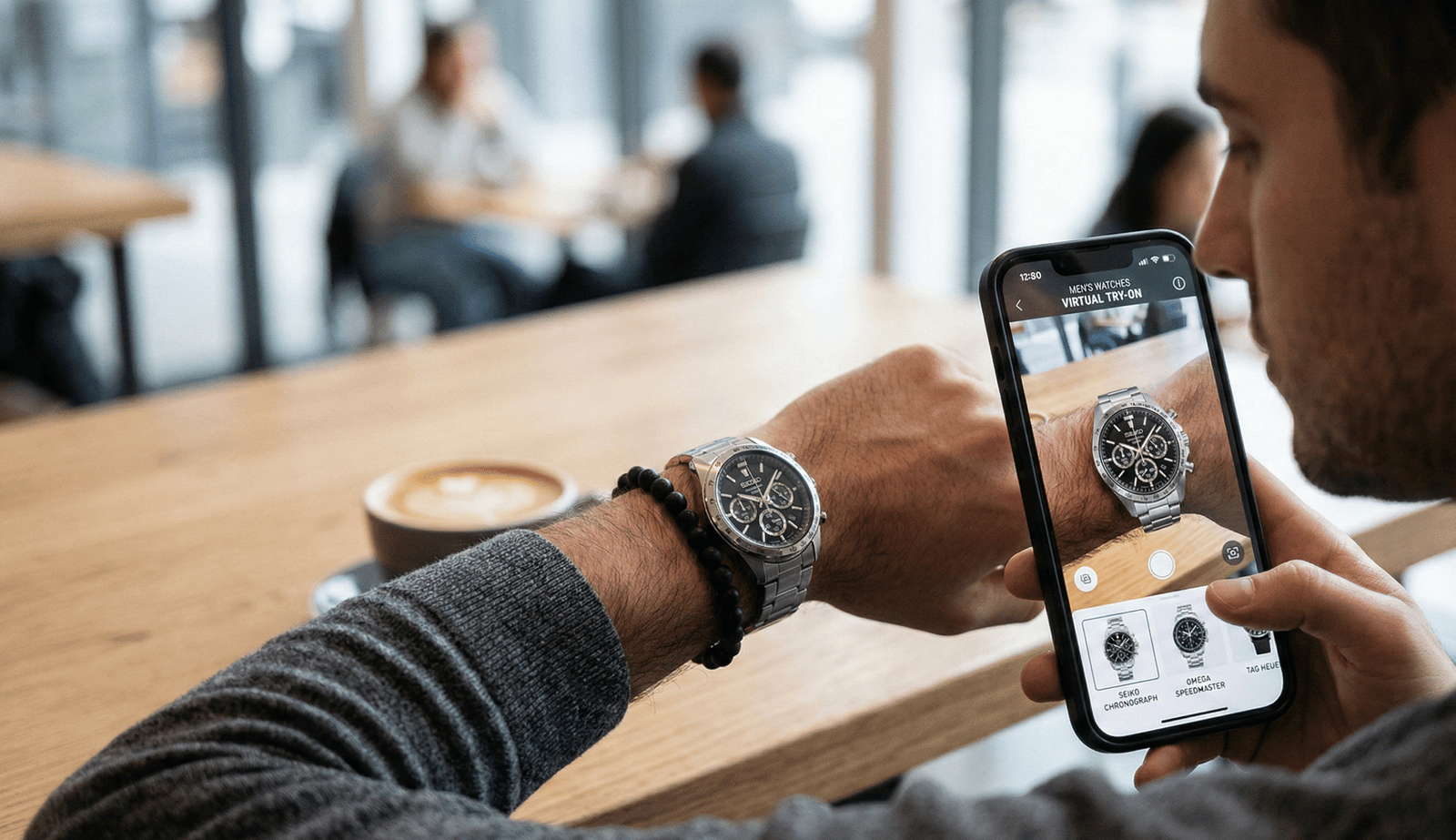 Watches Try On UX Shopify
- Start mobile-first: hero overlay + inline Try On CTA for maximum reach.
- Use link-based VTO (no code) to maintain theme performance and cross-channel deployment.
- Provide fallbacks (upload, 360° rendering) and clarify copy permissions to reduce conversion loss.
- Sync variants (color/strap) to the VTO view and measure try_on events for rapid iteration.
Introduction — why this guide matters
You’re designing product pages and conversion flows, and you know static watch photos leave shoppers guessing. watches try on ux shopify fixes that by letting customers preview a watch on their own wrist — increasing confidence and reducing returns. In this guide you’ll learn practical rules for CTA placement, microcopy, fallbacks, PDP conversion best practices, and how to measure results. We’ll also recommend a zero‑code, link‑based VTO approach (tryitonme.com) so you can deploy across web, mobile, and social without an SDK.
Why VTO matters for watches (watches try on ux)
Watches are uniquely sensitive to scale, wrist curvature, strap type, and reflections — factors static images can’t show. A virtual try‑on reduces the “will it fit/look right?” friction that commonly blocks purchase intent. Research and industry writeups report improved engagement and lower returns after merchants add virtual try‑on experiences; see WithLooksy for an overview of VTO’s impact on conversion and engagement and WearFits for return‑reduction use cases. For a watch‑specific implementation and outcomes, see our tryitonme watches writeup.
Design fundamentals for watches try on ux
Make the experience feel effortless and believable. Key design rules:
Mobile‑first
Guide hand positioning with a 1–2 line hint (“Hold wrist level, face to camera”) and a skeleton overlay. Camera UX is mostly used on phones, so design for portrait constraints first. For mobile performance tuning and memory/latency optimizations, see our mobile performance guide.
Fidelity and scale
Prefer 3D or well‑calibrated overlays to simple 2D stickers so dial size, strap wrap, and lighting look natural. For tech primers see TryIcona and Watch Reflection techniques for HDR, metallic PBR, and realistic lighting.
Accessibility
Present clear permission copy, ARIA labels for controls, and an upload fallback for users who can’t use the camera.
Performance
Lazy‑load VTO assets and defer initialization until the user clicks the Try On CTA to avoid slowing page loads. For best practices see Shopify’s virtual fitting rooms guidance.
Do/don’t checklist
- Do provide a scale reference or wrist sizer tool.
- Don’t auto‑crop or distort wrist proportions.
- Do sync variant color/material changes to the VTO view.
- Don’t hide the Try On control behind deep scrolling.
Shopify-specific implementation — shopify try on ux
You don’t need an SDK to add try‑on to Shopify. A link‑based approach is the fastest path.
Step‑by‑step (no engineering required)
- Generate a per‑product try‑on link from tryitonme.com (or your provider).
- In Shopify Admin > Online Store > Themes > Customize, open your product template.
- Add a “Try On” button:
- Option A (recommended): store the try‑on URL in a product metafield and bind a button to that field.
- Option B: add the link directly in the theme editor for specific products.
- Configure the button to open the try‑on URL in a new tab or modal. Optionally append variant params so color/strap syncs with the PDP.
For implementation reference see GenLook’s Shopify VTO guide and WithLooksy’s guide. For platform comparisons and watch‑specific choices, see tryitonme watches vs Wanna. The link‑based method keeps your theme light, works across channels, and avoids SDK maintenance.
Try on CTA placement (try on cta placement)
Placement matters. Test, but start with a baseline that covers two user journeys.
Recommended placements
- Hero overlay (above the fold)
- Pros: Immediate visibility, high impulse engagement.
- Cons: Can obscure product media — use a small floating button or semi‑transparent pill.
- Recommended default: Primary placement on desktop and mobile PDPs.
- Inline near price / Add to Cart
- Pros: Tied to purchase intent; shoppers see try‑on right where they decide.
- Cons: Less visible on long descriptions.
- Recommended: Pair with hero CTA for parity.
- Sticky mobile bar
- Pros: Always accessible during scroll; great for mobile UX.
- Cons: Consumes vertical space; keep buttons at 44×44 px minimum for touch targets.
- Recommended: Include Try On + Add to Cart controls.
- Quick‑view / collection thumbnails
- Pros: Early engagement before PDP click.
- Cons: Small hit area; should be supplemental.
Design tips
- Use an icon (camera or wrist) and short label (“Try on”, “See on wrist”).
- Maintain 44×44px hit targets and contrast that meets accessibility guidelines.
- Default to a hero overlay + inline near Add to Cart for maximum coverage.
Microcopy that converts (try on cta placement / pdp conversion best practices)
Actionable copy reduces hesitation. Test these CTA options:
CTA variants (drop‑in ready)
- “Try on in seconds”
- “See on your wrist”
- “Virtual try‑on — no app”
- “Try it on now”
- “Wrist preview”
Permission & fallback lines
- “Allow camera for instant try‑on (no upload needed).”
- “No camera? Upload a photo or use 360° preview.”
- Privacy reassurance: “No photos are saved without your permission.”
Loading and state copy
- “Preparing your try‑on…”
- “Low connection? Showing a preview first.”
Fallbacks & error flows (watches try on ux)
Plan for common failure modes so you don’t lose conversions.
1. Camera permission denied
Flow: Show clear microcopy → offer “Upload photo” modal with size guide → process photo and show try‑on. Microcopy: “Camera blocked. Upload a photo or enable camera in settings.”
2. Unsupported device / old browser
Flow: Offer a 360° render, short demo video, or static overlay preview. Microcopy: “Device not supported — view a 360° demo or upload a photo.”
3. Slow connection
Flow: Load a low‑res preview immediately → progressively enhance to full experience. Microcopy: “Loading a quick preview… full experience will follow.”
4. Offline / in‑store
Flow: Fallback to in‑store try‑on scheduling or store locator. Microcopy: “Offline? Book an in‑store try‑on.”
PDP conversion best practices (pdp conversion best practices)
Make VTO a conversion accelerator, not a gimmick.
PDP checklist
- Prominent Try On CTA above the fold + inline near buy controls — see Shopify guidance.
- Hero media toggle: static images ↔ try‑on preview.
- Variant sync: color/strap should update the VTO view.
- Clear pricing, returns, and strap sizing aids.
- Trust signals: reviews, user UGC, and return policy.
- Social proof: “See on others” gallery.
- Fast loads: defer VTO until user interaction — see WithLooksy.
Measurement & testing plan (pdp conversion best practices)
Track the right events and set up A/B tests to learn quickly.
KPIs and events to track
- KPIs: try‑on CTR, try‑on completions, add‑to‑cart after try‑on, PDP conversion rate, time on PDP, return rate, AOV — see WithLooksy.
- Suggested analytics events:
- try_on_clicked
- try_on_completed
- try_on_failed
- variant_selected
- add_to_cart_after_tryon
A/B test ideas
- CTA placement (hero vs inline vs sticky).
- CTA copy variants.
- Auto‑launch on page load vs manual click.
- Fallback options (upload modal vs static preview).
For a practical measurement plan and GA4 event mapping you can adapt, see our try‑on analytics guide.
Implementation examples & wireframes (shopify try on ux)
Wireframe 1 — Desktop PDP hero overlay
- Place floating “Try on” pill at 20% from top‑right of main image.
- Button opens a modal (or new tab) that loads the tryitonme.com link with variant params.
- Microcopy under button: “See on your wrist.”
Wireframe 2 — Mobile sticky try‑on bar
- Bottom bar with two buttons: [Try On] (left) and [Add to Cart] (right).
- Hit targets: 44×44px min; permission prompt appears as an overlay.
Wireframe 3 — Quick‑view try‑on CTA
- 32×32px camera/wrist icon on hover over product thumbnail.
- Click passes SKU/variant to tryitonme.com link.
Case studies & example outcomes (pdp conversion best practices)
Merchants report improved engagement after adding VTO; for practical guidance see WithLooksy and WearFits. Below are hypothetical examples for planning (marked as hypothetical / no reliable source):
- Hypothetical A: Brand adds hero try‑on + variant sync; try‑on CTR lifts, time on PDP increases and add‑to‑cart rate improves.
- Hypothetical B: Merchant adds upload fallback and sees fewer returns related to fit.
Why tryitonme.com is the Right Fit for Your Business (shopify try on ux)
tryitonme.com is built specifically for accessory VTO and designed for speed and simplicity:
- Zero‑code, link‑based deployment — no SDK, no heavy theme edits.
- Fast turnaround: ready‑to‑use try‑on link in under 3 business days.
- Accuracy for accessories (eyewear, watches, jewelry) with team + AI processing.
- Flexible placement: use the same link across PDPs, emails, ads, and social.
- Low‑lift Shopify setup via metafields or theme editor. Check pricing and plan options for accessories here.
Onboarding steps (exact process)
- Purchase a 6‑month package (by SKU quantity).
- Send standard product photos (front/side for eyewear; front for jewelry; front/side for watches).
- tryitonme.com team/AI handles all AR processing.
- Receive the unique ready‑to‑use try‑on link for deployment in under 3 business days.
Call to action: Book a Demo
Visual assets & examples to include (shopify try on ux)
Required visuals for publication:
- Annotated PDP screenshots showing CTA placements.
- Microcopy callouts and fallback modal designs.
- Mobile wireframes (sticky CTA + permission flows).
- Analytics KPI dashboard mock with the events listed above.
FAQ (watches try on ux)
Q: Are photos or videos saved?
A: No photos are saved without explicit permission — see privacy guidance at WithLooksy.
Q: What devices are supported?
A: Web and mobile browsers; fallbacks include photo upload and 360° renders — see LucentInnovation.
Q: How do I add links to Shopify themes?
A: Use product metafields or the theme editor to attach the try‑on URL to your product template — see GenLook.
Q: Will VTO slow my PDP?
A: Use lazy loading and link‑based deployment to minimize impact; initialize only on user action.
Conclusion & one-page implementation checklist (pdp conversion best practices / try on cta placement)
Top 5 takeaways
- Start mobile‑first with a hero overlay + inline Try On CTA.
- Keep microcopy short, privacy‑forward, and action‑oriented.
- Implement upload and device fallbacks to avoid abandonment.
- Sync variant choices with the VTO link.
- Measure try‑on CTR, completions, and post‑try‑on add‑to‑cart.
One‑page rollout checklist
- ☐ Add tryitonme.com link to PDP via metafield/theme editor.
- ☐ Implement hero overlay + inline CTA (mobile sticky optional).
- ☐ Add upload/360° fallbacks and permission copy.
- ☐ Run 3 CTA microcopy A/B tests.
- ☐ Track analytics events weekly (try_on_clicked, try_on_completed, add_to_cart_after_tryon).
- ☐ Book a tryitonme.com demo to generate links.
Deliverables for writers & designers (shopify try on ux)
Required outputs:
- Draft article ~1,500–2,200 words following this structure.
- 3 annotated wireframes (desktop PDP hero overlay; mobile sticky bar; quick‑view).
- 6–9 CTA copy variations + microcopy snippets (≥3 CTA variants included above).
- Fallback UX flow diagrams (≥3 examples).
- A/B test matrix and KPI targets (mark estimates vs sourced targets).
- Final one‑page checklist and CTA block to tryitonme.com.
Research & sources to cite in the article
- Add virtual try‑on to Shopify stores (WithLooksy)
- Add virtual try‑on to Shopify (GenLook)
- Reduce returns with virtual try‑on (WearFits)
- Top Shopify VTO apps & integration guide (LucentInnovation)
- AI virtual try‑on tech primer (TryIcona)
- Virtual fitting rooms (Shopify Enterprise)
- tryitonme.com (product/demo)
If you’re ready to prototype quickly, book a demo with tryitonme.com and generate live try‑on links for your top SKUs.