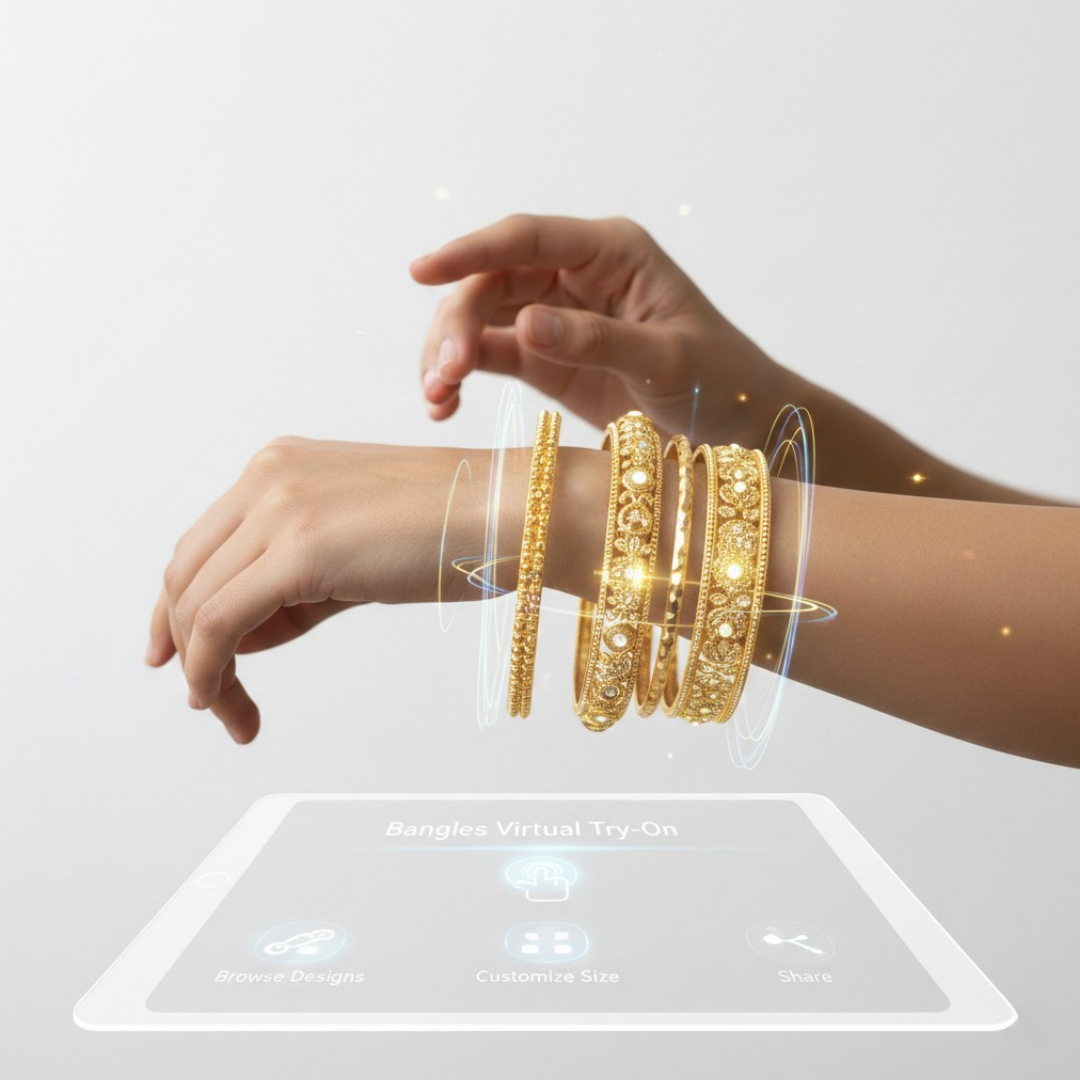
- Place a clear “Try On” CTA (hero + gallery + sticky mobile) and open the try-on link in a new tab to ensure camera reliability.
- Provide a fallback path (upload photo, GIF, sizing guide) to prevent users from dead-ending when the camera is unavailable.
- Use a concise and transparent permission pre-prompt for better acceptance rates.
- Implement link-based VTO (e.g., tryitonme.com) via Webflow CMS without the need for an SDK/API.
Introduction / TL;DR
You’re reading this to make jewelry try on UX webflow pages that actually move the needle — not just add a gimmick. This guide shows Webflow designers and e‑commerce PMs how to place Try On CTAs, design permission-safe flows, provide fallbacks, and measure outcomes — all with a zero‑code, link-based VTO option (tryitonme.com).
Augmented reality and virtual try-on help shoppers visualize products and build confidence — see Shopify’s overview of how AR supports commerce. Below you’ll get a prescriptive checklist, layout wireframes (desktop + mobile), CTA microcopy you can paste, and an implementation playbook for Webflow that uses a shareable try-on link — no SDKs or APIs required.
Why jewelry try on UX matters for conversion
Jewelry is judged by scale, shine, placement and subtle proportion — not broad silhouette. That means a jewelry try on UX must communicate size, reflectivity, and how the piece sits on a body part or face. When done well, virtual try-on reduces doubt so shoppers move from curiosity to add-to-cart with less friction.
The business case is also practical: augmented reality and virtual-try on are proven ways to increase shopper confidence and engagement; Shopify’s summary explains how AR supports buying decisions and product visualization. Pair that with microcopy and UX persuasion principles (see NN/g on microcopy) and you get a clearer path from try-on to purchase.
Quick snapshot: TL;DR checklist (pdp conversion best practices)
- Above-the-fold Try On near title/price.
- Gallery hotspot on the main image.
- Sticky mobile bar (Try On + Add to Cart).
- Permission pre-prompt copy before camera access.
- Lightweight loading state and clear exit back to PDP.
- Photo-upload fallback and sizing guide for unsupported devices.
- Track events at SKU level and reuse one try-on link across channels.
Core UX principles for jewelry VTO
Make try-on discoverable and low commitment (try on cta placement)
Why it matters: If shoppers can’t find the Try On control within 2–3 seconds, usage drops. Placements hierarchy: primary hero CTA near title/price, secondary gallery overlay, tertiary sticky mobile bar. Example: On a ring PDP, the Try On button sits to the right of price (hero), a 40px circular hotspot appears over the gallery, and a 56px sticky bar appears on mobile. All three open the same try-on link.
Preserve visual clarity and product fidelity (jewelry try on ux)
Keep chrome light and don’t occlude the product. Jewelry relies on small visual cues, so maintain high-fidelity images, minimal UI chrome, and clean contrast with CTAs that don’t block product details. Follow web performance guidance so visuals load fast: web.dev/fast.
Respect device constraints (webflow try on ux)
Mobile-first design is required. Consider thumb reach and network variance: thumb targets 44–56px (see web.dev mobile guidance), provide GIF previews for slow networks, and prefer opening try-on links in a new tab for permission reliability.
Be privacy-first and permission-safe (jewelry try on ux)
Camera permissions are a major drop-off point. Use pre-prompts and transparent language (see MDN guidance on getUserMedia and the Permissions API).
Try on CTA placement that converts (try on cta placement)
Below are specific placements, microcopy labels, specs and quick pros/cons.
Above-the-fold hero CTA (near title/price)
- Labels: “Try it on”, “See it on you”, “Try with your camera”.
- Specs: 44–56px tap target; min 12px spacing from price; accessible contrast.
- Pros: immediate discovery. Cons: if styled too big it competes with Add to Cart.
Gallery overlay hotspot (image-level)
- Icon: circular ~40px with 2–3px shadow; place in right third of image, avoid covering product.
- Labels (on hover): “Try” / “Try it on”.
- Pros: contextual. Cons: needs contrast tuning over bright imagery.
Sticky mobile try-on bar (webflow try on ux)
- Height: 56px; pair with Add to Cart; leave space above native UI.
- Labels: “Try on”, “Try it now”, “See it on you”.
- Pros: persistent access. Cons: conflict with other sticky elements.
Near Add-to-Cart / Buy buttons
Use as last reassurance: “Try it on before you buy” / “Confirm your look.” Best for higher-priced items where shoppers want final assurance.
Quick View / Collection grid try icons
Add a small “Try” icon to product cards; ensure it’s not visually noisy and open the try-on link in a new tab for reliability.
Social & share placements
Link-based VTO means the same try-on link can be used across Instagram, stories, WhatsApp, SMS and paid ads — no SDK deployment needed, expanding acquisition and lowering friction.
Microcopy bank & permission flows (jewelry try on ux)
Microcopy you can paste directly. Keep strings short and A/B testable.
Primary CTAs
- Try it on
- See it on you
- Try with your camera
Hint / helper text
- Takes 3 seconds
- No camera? Upload a photo
- Works best on mobile
Permission pre-prompt (show this before browser dialog)
- “Allow camera access to try this on — we won’t save any photos.”
- “We’ll only use your camera to preview this piece on you.”
Loading / progress
- “Preparing your try-on experience…”
- “Almost ready — hold tight.”
Errors & fallbacks
- “Camera not available — try uploading a photo.”
- “This device doesn’t support camera try-on. See sizing guide instead.”
Rationale: NN/g’s microcopy guidance recommends clarity, brevity and user control (NN/g on microcopy).
Fallbacks & progressive enhancement (pdp conversion best practices)
Always provide a non‑camera path:
- Photo upload fallback (user uploads a face or hand photo).
- Sizing guide and measurement overlays.
- Static GIF previews or short 3D render loops.
- Lifestyle & model shots for scale context.
- Live stylist chat or “View on model” short clips.
Accessibility & progressive enhancement guidance: W3C WCAG. Ring-specific guidance: ring-specific VTO guide.
Webflow try on UX: zero-code implementation with tryitonme.com
This is a practical, no-code blueprint for adding a link-based try-on to Webflow.
Step-by-step (no-code)
- Create a try-on link per product via tryitonme.com.
- Add a CMS field in Webflow for the try-on URL (see Webflow CMS docs).
- Bind your Try On button to that CMS field on the PDP.
- Use Webflow Interactions to open a modal or trigger an external link. For camera reliability, open the try-on URL in a new tab. See MDN notes on iframe allow/limitations and getUserMedia.
- Reuse the same try-on link in collection cards, landing pages, and social posts.
Modal vs New Tab tradeoffs
New tab: more reliable for camera permissions and in-app browsers; recommended for most implementations. Modal/iframe: keeps users on PDP but camera prompts and cross-origin iframe permissions can be unpredictable — test across Chrome, Safari, and in-app browsers before shipping.
Visual PDP pattern & interaction wireframe (jewelry try on ux)
Provide annotated wireframes and GIFs to designers. Suggested assets: desktop wireframe, mobile wireframe, CTA placement overlays.
Desktop wireframe (annotations)
- Left — Product gallery (main image + thumbnails). Alt: “Product gallery with gallery overlay hotspot.”
- Right — Meta stack: title, price, rating, hero Try On CTA (positioned next to price).
- Add to Cart button under CTAs, short reassurance line (“Free returns | 30‑day trial”).
- Secondary CTA row under gallery: shareable Try On link + wishlist.
Mobile wireframe (annotations)
- Hero image top. Caption: “Main image first for context.”
- Sticky bottom bar (Try On + Add to Cart).
- Collapsible product details under fold.
- Permission pre-prompt overlays before opening camera.
PDP conversion best practices (pdp conversion best practices)
- Reduce clicks: one-tap Try On from PDP.
- Keep price, reviews, and Add to Cart visible while the try-on loads.
- Add trust signals: free returns, warranty, sizing help (NN/g ecommerce checklist).
- Surface UGC and styled images near the Try On control.
- Track SKU-level behavior and device split to prioritize merchandising updates.
Measurement, KPIs & prioritized A/B tests (pdp conversion best practices)
Suggested KPI list:
- tryon_impression (UI rendered)
- tryon_start (user taps Try On)
- tryon_complete (session ends with try-on completed)
- tryon_add_to_cart (add to cart after try-on)
- tryon_permission_denied (user rejects camera permission)
- tryon_fallback_used (photo upload or sizing guide chosen)
For A/B testing fundamentals see Optimizely’s primer and analytics guidance from Google Analytics developer docs.
Accessibility, privacy & legal considerations (jewelry try on ux)
- Pre-prompt messaging reduces surprise and improves permission acceptance (Permissions API).
- For modals: manage keyboard focus and ARIA roles per W3C dialog guidance (W3C dialog/modal).
- Make ARIA labels for Try On controls, e.g., aria-label=”Try this necklace on”.
- Only claim “No images saved” if backend retention policies are confirmed with legal.
Implementation checklist & launch playbook (webflow try on ux)
Pre-launch
- Purchase a 6-month package (see pricing). Reference: tryitonme pricing.
- Send standard product photos and create try-on links in tryitonme.com.
- Add CMS field in Webflow for the URL and bind Try On buttons.
- Design CTAs, permission microcopy and fallbacks.
QA
- Test on iOS/Android, Chrome/Safari, and in-app browsers.
- Test modal vs new tab for camera success.
- Verify analytics events fire for tryon_start, tryon_complete, tryon_add_to_cart.
Post-launch
- Monitor tryon permission denials and fallback usage.
- A/B test CTA placement and copy.
- Refresh images, CTA wording, and UGC placement monthly.
SEO & meta recommendations (jewelry try on ux webflow)
Suggested title tag: Jewelry Try On UX Webflow — PDP Conversion & CTA Best Practices
Meta description (short): Practical guide for Webflow teams — design Try On CTAs, permission copy, fallbacks, and zero‑code implementation with tryitonme.com.
Suggested URL slug: /jewelry-try-on-ux-webflow
Alt text ideas for visuals: “Desktop PDP wireframe showing gallery, Try On CTA and Add to Cart”, “Mobile PDP with sticky Try On bar”, “Webflow CMS binding screenshot showing try-on URL field”.
Closing CTA: Get a demo / build a test link (webflow try on ux)
Ready to add link-based, zero-code try-on to your Webflow products? Tryitonme.com can create a ready-to-use try-on link in under 3 business days — purchase a 6‑month package, send standard product photos, your AR is processed by the tryitonme team/AI, and you get the shareable link to add to CMS fields and CTAs. Get a free demo: tryitonme.com.
Appendix / Resources
- Shopify — Augmented Reality for commerce
- MDN — getUserMedia (camera permissions)
- MDN — iframe attributes (allow)
- Webflow University — CMS basics
- NNGroup — Microcopy and UX
- W3C — WCAG
- Optimizely — A/B testing primer
- Web.dev — Performance & mobile guidance
- MDN — Permissions API
FAQ
Q: Does tryitonme require an SDK or API integration?
A: No. tryitonme provides a zero-code, link-based try-on URL you can add to Webflow CMS fields and CTAs without SDK or API work. See tryitonme.com.
Q: What if the user denies camera permission?
A: Provide a clear pre-prompt and a fallback path (photo upload, sizing guide, GIF preview). Track tryon_permission_denied to measure and optimize pre-prompt copy and placement.
Q: How do I add try-on links to Webflow?
A: Add a CMS field for the try-on URL on your product collection, bind the Try On button to that field in the product template, and use Interactions to open the link (recommended: new tab). See Webflow CMS docs.
Q: Should the try-on open in a new tab or modal?
A: New tab is generally more reliable for camera permissions (especially in-app browsers). Modal/iframe can feel native but may have cross-origin permission issues — test both and track tryon_complete for each.
Q: Which KPIs should we prioritize?
A: At minimum track tryon_impression, tryon_start, tryon_complete, tryon_add_to_cart, tryon_permission_denied, and tryon_fallback_used to evaluate discovery, permission flow, and conversion impact.