How to Add Jewelry Try On to Squarespace: A Step‑by‑Step Guide to Jewelry Try On Squarespace
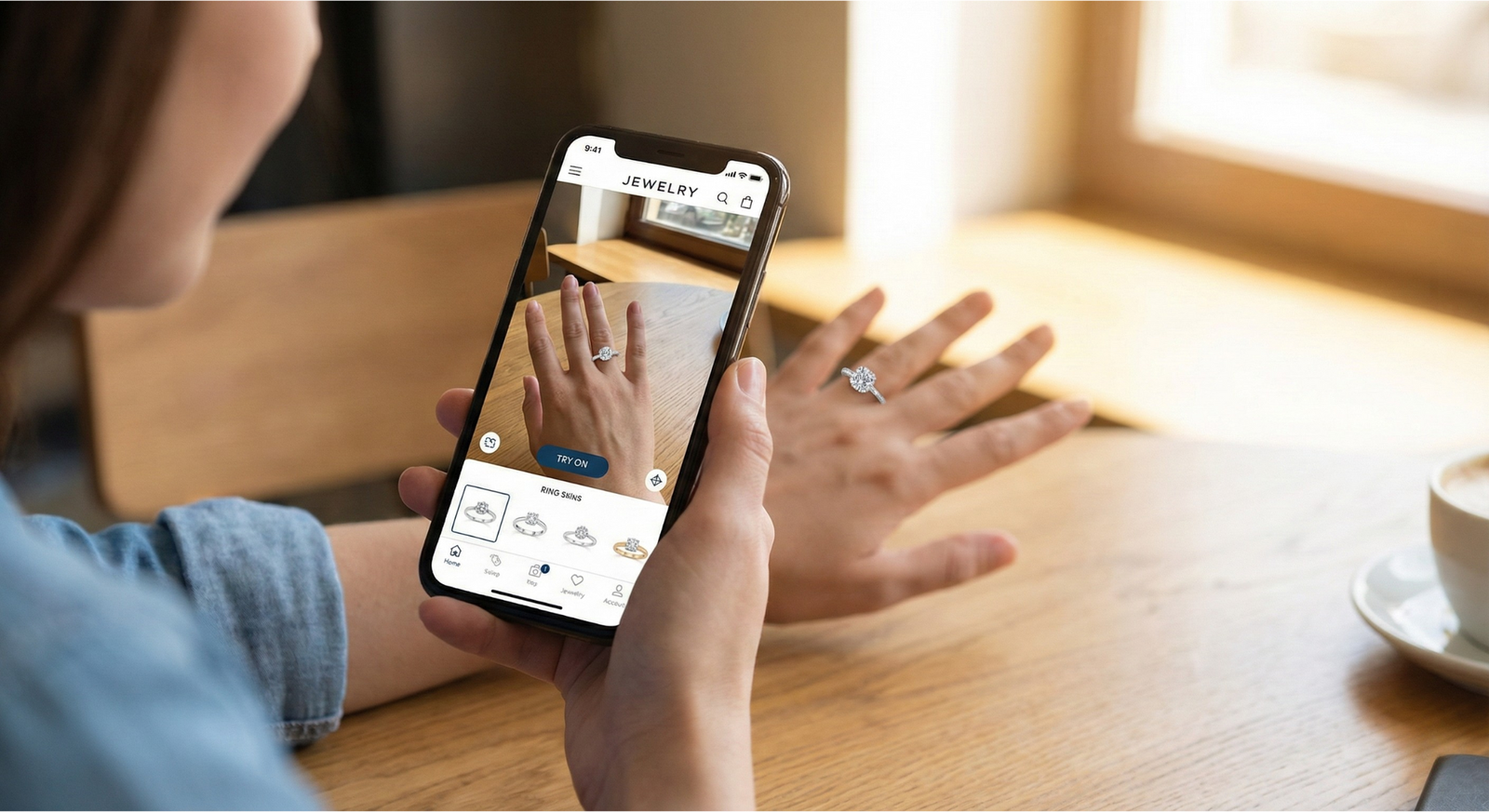
You want shoppers to feel confident buying jewelry online. A virtual try‑on solution closes the gap between static photos and how a piece looks on a real person. This guide shows how to add a link‑based VTO using tryitonme.com, a zero‑code platform that delivers shareable try‑on links for web, mobile, and social (see a writeup at cermin.id).
Read on for prerequisites, SKU mapping, no‑code button embeds, optional theme edits, QA checks, tracking tips, troubleshooting, and a rollout plan so you can launch quickly.
Jewelry is an intensely visual purchase. A good try‑on experience helps shoppers:
For rings, earrings, necklaces, bracelets, and watches, previewing a product on yourself closes the gap between curiosity and conversion.
tryitonme.com is built for retailers who want fast, low‑effort VTO:
Want a demo or sample links? Book a demo or see the accessory pricing page via cermin.id.
Checklist before you start:
Create one try‑on URL per SKU or per variant if assets differ. Keep a master CSV or spreadsheet with:
Best practices: use SKUs for reliable mapping, store try‑on URLs in a custom product field in Squarespace for future automation, and version your sheet. For link generation help, contact tryitonme or review pricing notes at cermin.id.
This is the fastest, no‑developer approach.
Suggested labels: “Try On”, “See It On You”, “Try It Virtually”.
Placement affects usage and conversions. UX research from the Nielsen Norman Group shows clear, prominent CTAs perform best.
A/B test button color, label, and position to find what converts best for your store.
Two scalable paths:
Add a small script to Settings > Advanced > Code Injection. The script can read a SKU or custom field and inject the correct try‑on button into the PDP (see Squarespace Code Injection docs here).
Edit product templates to render a shared button partial that pulls try‑on links from a custom field for robust automation. See the Squarespace developer docs.
Version note: selectors and template HTML vary between Squarespace 7.1 and 7.0 — test selectors in the browser console before publishing.
<script>
document.addEventListener("DOMContentLoaded", function () {
  var productDetails = document.querySelector(".ProductItem-details"); // adjust selector
  var tryOnUrl = "https://tryitonme.com/try/abc123"; // replace per SKU or inject dynamically

  if (!productDetails || document.querySelector(".tryon-button")) return;

  var button = document.createElement("a");
  button.href = tryOnUrl;
  button.target = "_blank";
  button.rel = "noopener noreferrer";
  button.className = "tryon-button";
  button.textContent = "Try On";
  button.setAttribute("aria-label", "Try this jewelry item on virtually");

  productDetails.appendChild(button);
});
</script>New tab:
Modal/overlay:
Recommendation: launch using new tab behavior for speed and reliability. If you want a modal later, contact tryitonme to confirm embed options.
Design for clarity and accessibility:
Keep icons optional and only if they add clarity.
Track impact with UTMs and an event. Example UTM:
https://tryitonme.com/try/abc123?utm_source=squarespace&utm_medium=pdp&utm_campaign=tryon_launchGTM event push example:
<script>
document.addEventListener("click", function (e) {
  var link = e.target.closest(".tryon-button");
  if (!link) return;
  window.dataLayer = window.dataLayer || [];
  window.dataLayer.push({
    event: "try_on_click",
    tryon_url: link.href
  });
});
</script>
KPIs to monitor: Try‑on CTR, add‑to‑cart and conversion lift for users who used try‑on, and return rate differences for enabled vs non‑enabled SKUs. For a measurement plan, see an analytics example at cermin.id.
Prepare these assets for the post: before/after PDP screenshots (desktop + mobile), code blocks (HTML/CSS/JS + GTM snippets), sample button copy variations, alt text suggestions, and product structured data reference at Google Developers. Add captions calling out CSS selectors and where code should be placed.
No. You can start with a Button Block and a link. Code is optional for site‑wide automation; developer help is useful for large catalogs or template edits. See a no‑code case study at cermin.id.
A simple link/button has minimal impact. If you add scripts, keep them lightweight and test performance.
Yes — shareable try‑on links are designed to work across social and email clients. Test in in‑app browsers to confirm behavior.
Use UTMs on the try‑on links and push click events to your dataLayer or GA via GTM. Example event push is included above.
Create a separate try‑on URL per variant and store it by SKU in your spreadsheet or a custom product field so the correct link is used for each option.
Ready to try it? Generate demo links and see how a try‑on experience performs on your best‑selling pieces. Visit tryitonme.com to request a demo or start onboarding. For pricing and accessory examples, see cermin.id.