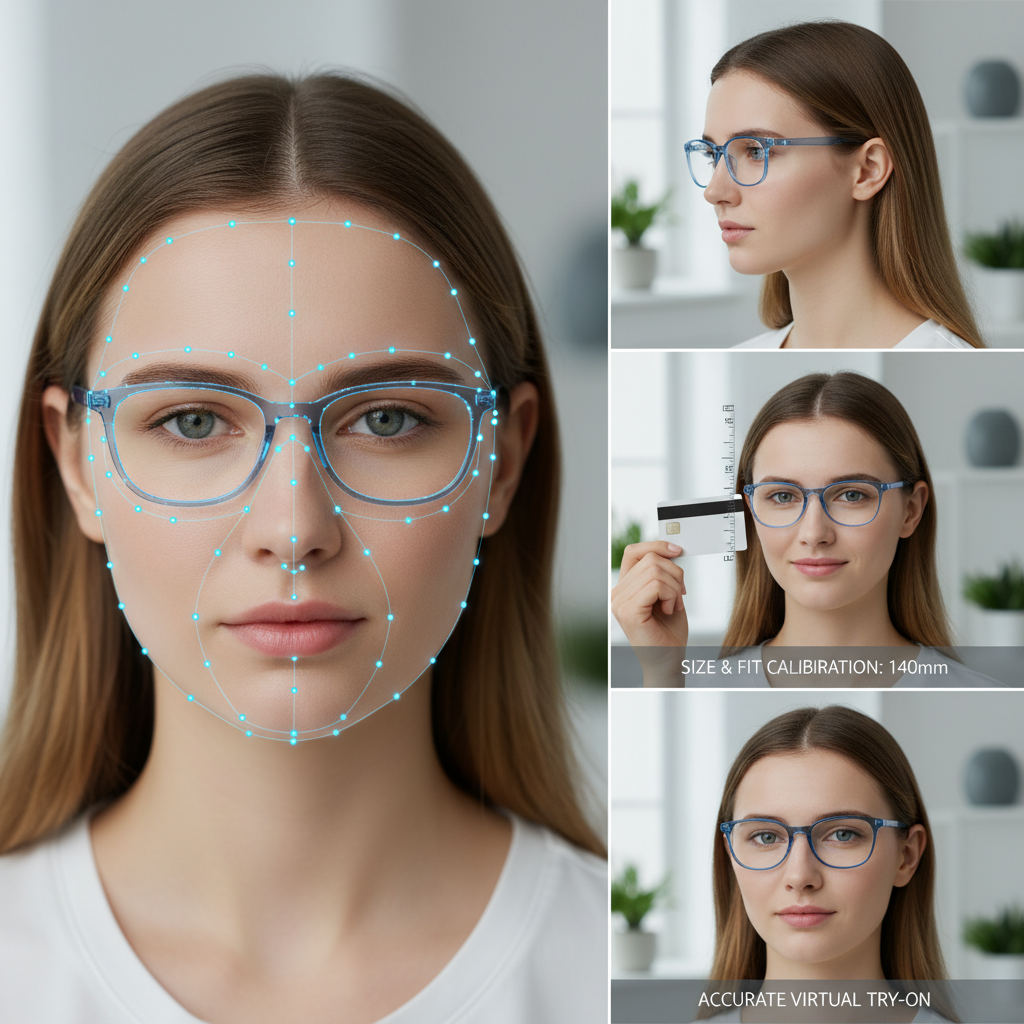
Eyewear Try On Wix: How to Add a Virtual Try-On Button to Your Product Pages
- Add a zero-code, link-based virtual try-on button to Wix PDPs in minutes using tryitonme links.
- Recommended flow: add a PDP Try On button → open in new tab or lightbox → map SKUs to try-on URLs.
- Test camera behavior across iOS/Android/desktop and in-app browsers; prefer link-based iframes cause issues.
- Measure clicks, session starts, add-to-cart impact, and return-rate changes to prove ROI.
Introduction: What this guide covers
You’ll learn how to add an eyewear try on wix feature to your Wix product detail pages (PDPs) using a no-code, link-based virtual try-on.
This guide walks you step-by-step, from prep to QA so you can add a pdp try on button and launch a working try-on in under an hour (implementation only) — no SDKs, no heavy dev work.
Want to skip ahead? See a demo — tryitonme.com/demo.
Why add virtual try-on to your Wix store?
If you sell glasses, sunglasses, or other face-worn accessories, adding a virtual try-on gives shoppers the confidence to buy by letting them see frames on their own face in real time.
AR try-on tools overlay product models onto a live camera feed using facial mapping and often increase engagement and conversions for eyewear retailers — industry overviews: KiksarVR and Perfect Corp.
Aside from conversion uplift, virtual try-on reduces returns because buyers make better purchase decisions when they can preview fit and style, and it lengthens session time and product consideration (integration notes: Zakeke guide).
For a Wix store, a simple link-based VTO is often the fastest path—no app installs or custom SDKs required. See a pupillary-distance guide: cermin.id.
Why tryitonme.com is the Right Fit for Your Business
tryitonme.com provides a zero-code, link-based accessory VTO that works across web, mobile, and social channels — you get unique, ready-to-use product try-on links to paste into PDPs.
It’s designed for fast time-to-market with minimal technical overhead. Learn more: tryitonme product detail.
Core value props
- Zero-code, link-based deployment: shareable product links — not an SDK or API integration.
- Fast onboarding: unique try-on links delivered in under 3 business days after assets are provided. See demo: tryitonme demo.
- Works across channels: links open in browsers and in most in-app social browsers.
- Team/AI processing: tryitonme handles AR asset processing — no need to build 3D/AR workflows. More: product detail.
Book a Demo — tryitonme.com/demo
tryitonme onboarding (concise steps)
- Purchase a 6-month package based on the number of SKUs you need. See pricing: tryitonme pricing.
- Send standard product photos (e.g., front/side for eyewear). Photo guide: image requirements.
- The tryitonme team and AI handle all AR processing.
- You receive the unique, ready-to-use try-on link for deployment in under 3 business days.
Sign up or request a demo: tryitonme signup and tryitonme demo.
Options to embed try-on on Wix (quick comparison)
Choose the approach that matches your technical ability and UX goals:
Link-based (recommended — tryitonme)
- Pros: Zero code, fastest to implement, most reliable across browsers and social apps.
- Cons: Opens in a new tab or lightbox; less “native” than inline.
- Best for: Small teams and stores that need speed.
Iframe embed
- Pros: Keeps user on PDP for seamless UX.
- Cons: Camera/cross-origin and mobile in-app browser issues are common; requires testing. See details: Zakeke blog.
- Best for: Stores that can thoroughly test across devices.
SDK/JS integration
- Pros: Full inline control, advanced customization.
- Cons: Requires developer work (Velo or external), more maintenance; some providers rely on SDKs (see FittingBox FAQ: FittingBox FAQ).
- Best for: Enterprise setups or highly customized UX. Compare options: tryitonme vs FittingBox.
Before you edit your Wix site: prep checklist
- Create a tryitonme account: tryitonme signup and request demo if needed.
- Gather product photos per SKU (front/side/angle as required).
- Build a spreadsheet mapping SKU → tryitonme try-on URL.
- Note your Wix PDP template name and backup your theme in Wix Editor: Wix support.
- Prepare an assets folder with product images, SKU codes, and quick specs.
- Decide placement: adjacent to Add to Cart, under product gallery, or as a sticky CTA.
How to embed try-on on Wix — Step-by-step methods
Below are quick, numbered implementations you can do in the Wix Editor. Aim to complete Method A in under 30 minutes.
Method A — Add a PDP Try On Button (recommended)
- Open Wix Editor > Pages > Product Page (your PDP template).
- Drag a Button element to the desired spot (next to Add to Cart or under price). Help: Wix help.
- With the button selected: Link > Web Address > paste the tryitonme product link (e.g.,
https://tryitonme.com/try/your-sku). Choose “Open in new tab” (or lightbox if you prefer). - Edit label to a concise microcopy (examples below). Save and Preview. The button should launch the try-on link.
Quick screenshot checklist: Editor > Product Page > Button > Link.
Method B — Open try-on in a Lightbox / Modal (better UX)
- In Editor: Add > Lightbox > Choose a blank lightbox and name it “TryOnModal” (Wix Lightbox docs: Wix support).
- Inside the Lightbox add an Embed HTML element and paste sample iframe code (placeholder below).
- On your PDP add a Button > Link > Lightbox > select “TryOnModal.”
- Test camera permissions and that the modal displays correctly on mobile.
Sample iframe snippet (placeholder tryitonme URL):
<iframe src="https://tryitonme.com/try/{SKU}?embed=lightbox" width="100%" height="600" style="border:none;" allow="camera; microphone; autoplay"></iframe>Method C — Inline iframe embed (full in-page try-on)
- Edit PDP template > Add > Embed Code > HTML iframe.
- Paste responsive iframe code (use the same pattern as above, adjusting height).
- Test thoroughly; if Wix blocks camera access or strips scripts, revert to link or lightbox. Iframe caveats: Zakeke blog.
PDP placement, dynamic mapping & theme edits
Best placements: adjacent to Add to Cart, directly below gallery, or as a persistent sticky CTA near price. These positions maximize visibility and clickthroughs (industry patterns: KiksarVR).
No-code dynamic mapping (recommended)
- Create a Wix Data Collection with fields: SKU, tryOnUrl.
- Populate the collection with your spreadsheet mapping.
- Bind the button’s link field to the tryOnUrl dataset in the Editor (dataset binding UI in Wix). No Velo required.
Tiny Velo code snippet (optional)
(Optional for developers; test in your environment)
$w.onReady(function () {
  const sku = $w("#productSku").text;
  wixData.query("TryOnLinks").eq("sku", sku).find()
    .then(res => {
      if(res.items.length) $w("#tryonButton").link = res.items[0].tryOnUrl;
    });
});
Note: adapt to your dataset names and fields. See Wix Velo reference: Wix Velo docs.
Design & copy best practices for the PDP Try On button
Microcopy options:
- Try On
- Try On Virtually
- See It On You
- Try Glasses On — Free
Iconography: small glasses icon or camera icon to the left of the label. Accessibility: add aria-label (e.g., aria-label="Launch eyewear try on with camera") and ensure the button is keyboard focusable.
QA checklist before publish
- Functional: Button opens the correct try-on URL and loads the right model.
- Devices: Test iOS Safari, Android Chrome, desktop Chrome/Edge/Firefox. Mobile testing guidance: cermin.id mobile.
- In-app browsers: Test Instagram, Facebook, TikTok in-app browsers for camera behavior (provider notes: Perfect Corp and Zakeke).
- SKU mapping: Verify 10 random SKUs load correct frames.
- Performance: Try-on loads in reasonable time; provide fallback message if camera or permission is denied.
- Legal & Privacy: Confirm tryitonme privacy practices with your product/legal team and link to their privacy page: tryitonme privacy.
- User messaging: Add an unobtrusive “Camera access required for virtual try-on” note.
Troubleshooting & common gotchas
- Iframe camera blocked: switch to lightbox or open in new tab (use the shareable link). Reference: Zakeke guide.
- Wix strips scripts or blocks payload: use tryitonme link instead of inline scripts.
- Dynamic mapping mismatch: ensure SKU strings match exactly (case and spacing).
- Social in-app browsers: some restrict camera; advise users to open in Safari/Chrome if needed.
Analytics & measuring success
Track these KPIs: try-on analytics
- Try-on button clicks (Wix Events or GA event).
- Try-on session starts vs completions.
- Add-to-Cart rate for users who used try-on vs those who didn’t.
- Post-purchase return rate changes over time.
Industry reports show AR try-on often improves engagement and can lift conversions — see KiksarVR and Perfect Corp. A/B test placement and copy to optimize CTR.
Assets to include in the article (editor checklist)
- tryitonme dashboard showing generated product link (demo / signup).
- Wix Editor: product page with button placement and link panel open (Wix support).
- Lightbox configuration with iframe embed.
- Mobile & desktop preview of live try-on modal.
- Downloadable QA checklist (attach in CMS when publishing).
SEO & on-page elements (meta, schema, keywords)
Suggested meta title:
Eyewear Try On Wix — Add Virtual Try On to Product Pages | tryitonme
Suggested meta description:
Embed eyewear try on Wix PDPs with a no-code link. Add a pdp try on button, map SKUs, and launch a virtual try-on in days — no SDK required.
Add Product schema on PDPs (https://schema.org/Product) and ensure primary keyword appears in the H1 and within the first 50–100 words. Use event tracking for the try-on clicks.
CTA & next steps
Recap: Adding an eyewear try on wix experience to your PDPs is low friction when you use link-based VTO. Start with a pdp try on button, test via lightbox, and roll out across your catalog with SKU→link mapping.
See a demo: https://tryitonme.com/demo
Get started — no code required: https://tryitonme.com/signup
Appendix: quick reference snippets & microcopy
Velo mapping (optional)
$w.onReady(() => {
  const sku = $w("#skuText").text;
  wixData.get("TryOnLinks", sku).then(item => $w("#tryonButton").link = item.tryOnUrl);
});
Sample inline iframe (placeholder tryitonme URL)
<iframe src="https://tryitonme.com/try/GL123" style="width:100%;height:500px;border:none;" allow="camera; microphone; autoplay"></iframe>Button text ideas
- Try On
- See It On You
- Try Glasses On — Free
Tooltip copy
Opens virtual try-on in a new tab. Camera access required.
Publication QA checklist for this blog post
- All target keywords used naturally: eyewear try on wix, virtual try on wix, embed try on wix, pdp try on button.
- Screenshots include tryitonme branding and Wix Editor walkthrough.
- CTA to tryitonme appears within the first 300 words and again at the end.
- All claims about AR benefits are cited with the research links used above.
Estimated timeline & checkpoints for content production
- Draft + screenshots: 2 business days.
- Review with tryitonme product team (verify product details & privacy statements): 1 business day.
- Final edits & publish: 1 business day.
Final note
Embedding an eyewear try on wix experience doesn’t need to be complex. Start with a pdp try on button using tryitonme’s shareable links, validate across devices, and measure the business impact. Ready to see it live? Book a demo: https://tryitonme.com/demo — or get started now: https://tryitonme.com/signup.
FAQ
How does the link-based try-on work?
The provider (e.g., tryitonme) generates a shareable URL per SKU that opens a web-based AR try-on session. You paste that URL into a PDP button or lightbox; no SDK or script is required on your site.
Will the camera work in social app browsers (Instagram, TikTok)?
Some in-app browsers restrict camera access. Link-based try-on is most reliable—test in the most common apps and advise users to open in Safari/Chrome if needed. See provider notes: Perfect Corp.
Can I map thousands of SKUs without coding?
Yes. Create a spreadsheet SKU → tryOnUrl and import to a Wix Data Collection, then bind the button link to the dataset. For automation, use CSV import or a short Velo script.
What privacy considerations should I check?
Confirm the try-on provider’s privacy policy (e.g., tryitonme privacy), verify camera permission flows, and update your site privacy notice if sessions collect any biometric or analytics data.
How do I measure success for try-on?
Track try-on button clicks, try-on session starts/completions, add-to-cart lift for try-on users, and post-purchase return-rate changes. Use GA/Wix Events and compare cohorts over time.