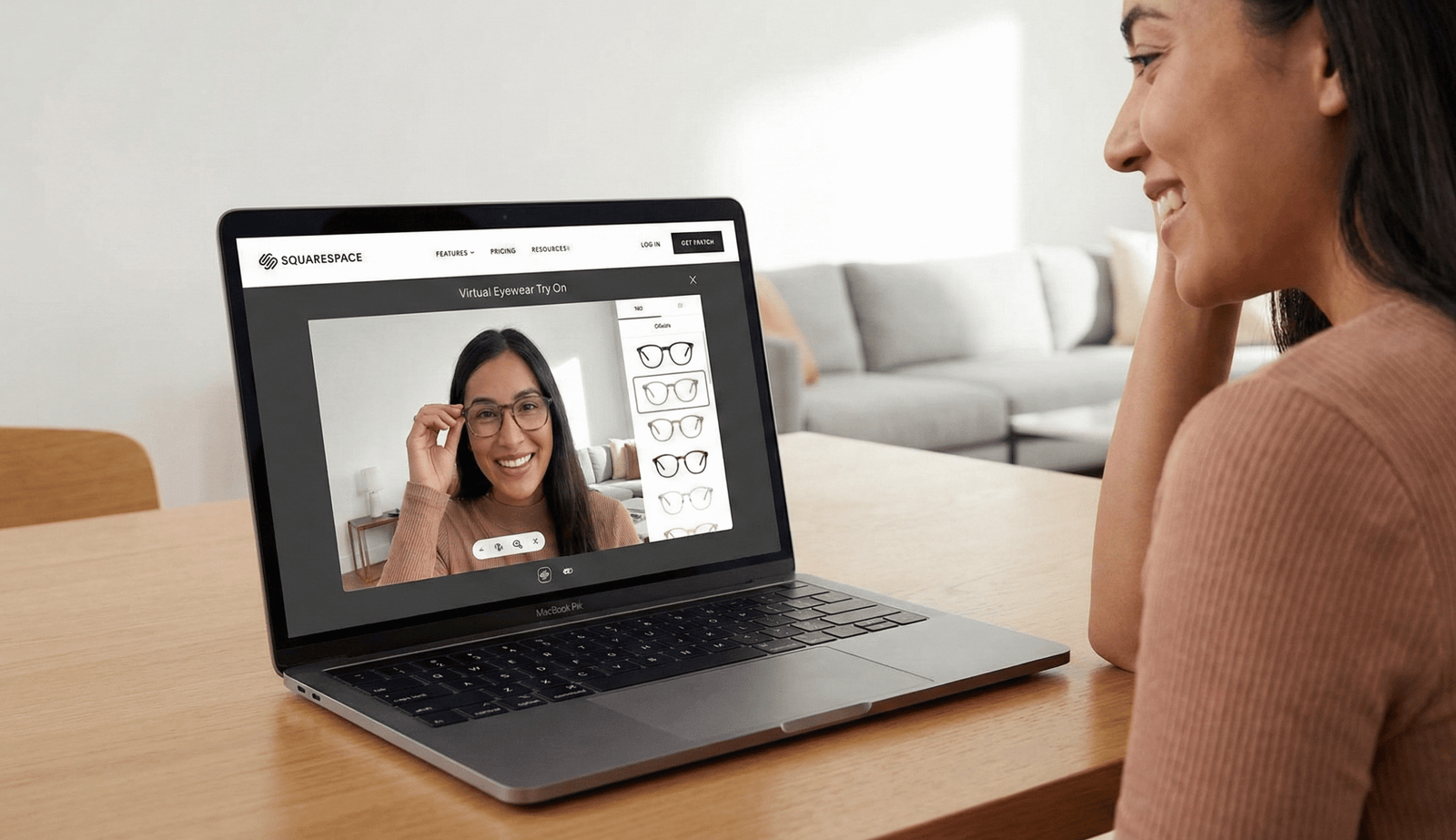
You’re adding an eyewear try on VTEX experience to your product pages; this guide walks through choosing an embed approach, getting your try‑on link, adding a PDP try on button, theme edits, QA checks, analytics, and a recommended rollout timeline. For VTEX developer context and design guidelines see the VTEX IO documentation and design guidelines. For UX reference and examples, see the implementation notes.
Eyewear try on VTEX brings camera‑based AR previews into VTEX product detail pages so shoppers can see frames superimposed on their face in real time. For a technical and industry overview of virtual glasses try‑on technology see this virtual glasses try‑on overview and general industry context at AR Shades VTO industry guide.
Two common technical approaches:
For many VTEX merchants, the link‑based route gives the quickest ROI by avoiding SDK overhead while delivering a seamless experience.
Choose the lowest‑effort path that meets your UX goals.
What it is: A PDP button opens the tryitonme shareable URL in a modal or new tab. Why use it: Lowest implementation effort, fastest to launch, minimal theme work. See similar integration choices at Zakeke’s guide.
What it is: An iframe loads the try‑on session directly within the PDP. Use when you need an inline experience and can handle sizing/performance. Tip: lazy‑load the iframe after click; test responsive sizing and camera permissions.
What it is: Full SDK or API integration with custom AR components. Offers deep control but adds development time and complexity — see a related explainer and examples at explainer video and industry blog. For most tryitonme customers this is unnecessary overhead.
Add a lightweight anchor or button in your product template. Example snippets (adapt placeholders):
Simple anchor (opens new tab)
<a href="https://tryitonme.com/product/YOUR_SHAREABLE_LINK?utm_source=vtex_pdp&sku=12345"
   target="_blank" rel="noopener noreferrer"
   class="pdp-tryon-button"
   data-product-id="{{productId}}"
   data-sku-id="{{skuId}}"
   aria-label="Try on virtually with AR">Try On Virtually</a>
Modal (iframe-on-click, basic)
<button class="pdp-tryon-button" onclick="openTryOnModal('https://tryitonme.com/product/YOUR_LINK')">Try It On</button>
<script>
function openTryOnModal(url){
  const iframe = document.createElement('iframe');
  iframe.src = url;
  iframe.style.width='100%'; iframe.style.height='100vh'; iframe.style.position='fixed';
  iframe.style.top='0'; iframe.style.left='0'; iframe.style.zIndex='10000';
  document.body.appendChild(iframe);
  // Add close logic in production
}
</script>
Place these in your product template block (product‑template or Store Framework PDP). VTEX theme editing docs: VTEX IO docs.
Push a dataLayer event on click and add UTM parameters to the shareable link to track sessions → conversions. Example:
window.dataLayer = window.dataLayer || [];
dataLayer.push({
  event: 'pdp_tryon_button_click',
  product_id: '{{productId}}',
  variant_id: '{{skuId}}',
  channel: 'tryitonme'
});
For event and funnel guidance see our analytics reference at try‑on analytics guide and integration attribution best practices at Zakeke’s guide.
.tryitonme- to avoid theme collisions; VTEX guidance: VTEX IO docs.Dependencies: product photos/shareable links from tryitonme and engineering review for theme changes. Planning notes and deeper reading: Zakeke and Kiksar VR.
Ready to add eyewear try on VTEX with minimal engineering overhead? Onboard with tryitonme onboarding, check VTEX integration docs at tryitonme docs for VTEX, or contact support at tryitonme support. Book a Demo.
Add a simple anchor or button in your product template that points to the shareable tryitonme URL and include data attributes for SKU/product; see VTEX developer intro: VTEX introduction.
No — tryitonme uses a zero‑code, link‑based approach so you don’t need SDKs or APIs. Integration notes and best practices: Zakeke integration guide.
Use UTM parameters on the tryitonme link and push dataLayer events on click to correlate try sessions to product SKUs and conversions; see analytics guide: try‑on analytics.
Provide clear UX instructions for granting camera permission, test on multiple browsers/devices, and offer a fallback to open the session in a new tab or retry button.
Detect if modal creation is blocked and fallback to opening the tryitonme URL in a new tab; always include rel=”noopener noreferrer” and UTM parameters for tracking.
Further reading & resources