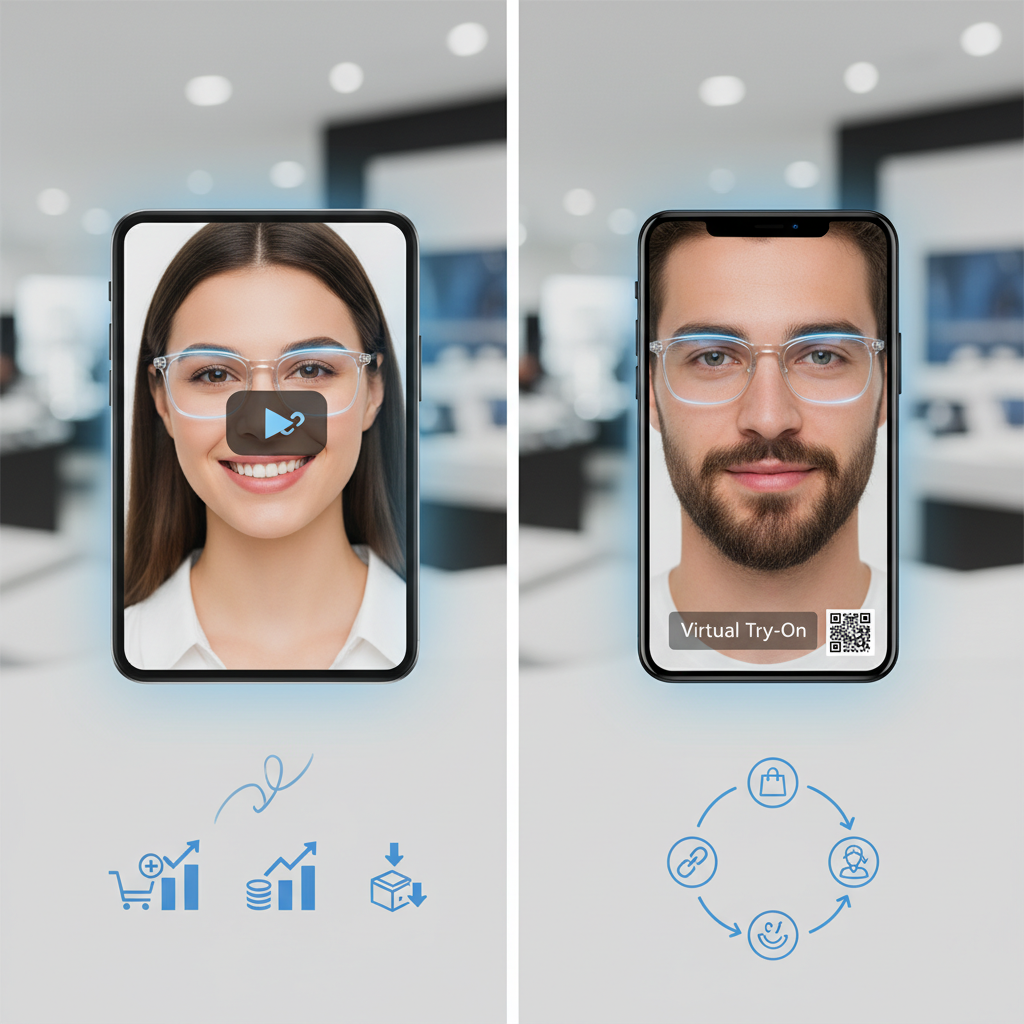
Eyewear Try On Shopify: What this guide will teach you
Try a live demo — this guide shows you, step-by-step, how to add an eyewear try on Shopify experience to your product pages, place a PDP try on button, edit your theme safely, and run a thorough QA. You’ll learn two zero-code implementation flows (link button and inline embed), the exact metafield and Liquid patterns to use, QA and analytics checks, and quick troubleshooting. For an overview post see this writeup.

Quick Summary
- Deploy link-based virtual try-on (VTO) quickly using tryitonme links or an embed script.
- Add a conditional PDP Try On button (metafield driven) or an inline iframe embed for a seamless experience.
- Follow the QA checklist for functional, privacy, performance, and analytics checks before publishing.
Why Virtual Try‑On Matters for Eyewear & Conversions
Virtual try‑on reduces uncertainty for purchases that depend on fit and look — especially eyewear. For merchants this typically translates into higher shopper confidence, stronger add‑to‑cart intent, and fewer returns compared to static images alone. The underlying value is well summarized by the TryItOn Shopify app listing and a focused discussion on virtual glasses try‑on. For practical ROI examples and metrics on link‑based VTO, see this analysis: ROI analysis.
Quick benefits for business owners
- Better product visualization: customers can see fit, frame size, and style in context.
- Reduced hesitation: an interactive preview replaces part of the in‑store try‑on experience.
- Cross‑channel consistency: link-based VTO works across web, mobile, and social without extra development (see the TryItOn app listing).
Overview — VTO Options for Shopify: SDK/API vs Link/Embed
When evaluating VTO providers you’ll encounter two main approaches:
SDK / API integrations
- Pros: deep customization, full control of UI and events.
- Cons: require developer hours, ongoing maintenance, and longer time‑to‑market.
Link / Embed (shareable link or iframe/script)
- Pros: zero‑code or minimal edits, fast deployment, works across channels, low maintenance.
- Cons: slightly less UI control than a full custom SDK.
If you want the fastest path to live, a link/embed option is recommended — tryitonme.com offers a link‑based zero‑code workflow. See the Shopify listing for details and pricing and plan options.
Why tryitonme.com is the Right Fit for Your Business
Keywords: embed try on shopify, virtual try on shopify
- Zero‑code, link‑based VTO: deploy via a shareable product link or simple embed script — no SDK/API needed (tryitonme, app listing).
- Fast onboarding: product links ready in under 3 business days once you submit product photos and order a package.
- Accurate accessory VTO: built for eyewear, jewelry, watches, and hats.
- Works across web, mobile and social — a single VTO link can be shared anywhere. Compare platforms in head-to-head reviews.
Onboarding (4 simple steps)
- Purchase a 6‑month package based on the number of SKUs you need.
- Send standard product photos (front/side for eyewear).
- tryitonme team/AI processes AR assets.
- You receive a unique, ready‑to‑use try‑on link for each SKU in under 3 business days. Ready to see it live? Book a Demo.
Prep Checklist — What You Need Before Embedding
Before you start editing themes or metafields, prepare these items:
- Product catalog hygiene — Ensure SKUs and variants are correct and consistent.
- Product photos — Provide clear front and side shots (for eyewear). tryitonme will process backgrounds and AR assets. See detailed product photo requirements.
- Shopify metafields plan — Decide where to store the tryitonme link (example key: product.metafields.custom.tryitonme_link). See Shopify metafields docs.
- Create tryitonme project — Sign up at tryitonme.com and request product links or embed codes.
- Privacy & camera consent copy — Short microcopy to explain camera access and how you use face data (GDPR/CCPA considerations). Example: “We only use your camera for this try‑on preview — no photos are stored without your consent.”
Step-by-Step — How to Embed Try‑On on Shopify Product Pages
Choose one of two flows below. Both assume you’ve added tryitonme links to product metafields.
Option A — PDP Try On Button (link)
Flow
- Generate individual VTO links in tryitonme for each product (tryitonme).
- Add a product metafield (e.g., product.metafields.custom.tryitonme_link).
- Insert a conditional button in your product template that reads the metafield and opens the link in an overlay or new tab.
Liquid (conditional button)
{% raw %}{% if product.metafields.custom.tryitonme_link %}
{% endif %}{% endraw %}Minimal JS click handler (example)
document.addEventListener('click', function(e){
  const btn = e.target.closest('#pdp-tryon-button');
  if(!btn) return;
  const url = btn.dataset.tryonUrl;
  // open in overlay or new tab - example opens new tab
  window.open(url, '_blank', 'noopener');
});
Copy suggestions for the button: “Try On”, “See it on your face”, “Try on with AR”.
Microcopy for camera permission: “This experience uses your camera for a live try‑on only. No images are stored without your permission.”
Option B — Inline Embed (iframe / script)
Flow
- Add tryitonme’s embed script once in
theme.liquid(async/defer). - Render an iframe placeholder on product pages when the metafield exists.
- Lazy‑load the iframe on click or when the PDP is visible to preserve performance.
Async script tag example (place in theme.liquid)
<script async defer src="https://tryitonme.com/embed.js"></script>Iframe placeholder snippet (lazy‑load recommended)
{% raw %}{% if product.metafields.custom.tryitonme_link %}{% endif %}{% endraw %}
Performance note: inline embeds give a seamless experience but should be lazy‑loaded to avoid slowing initial page render. See the TryItOn app listing for embed guidance.
PDP Try On Button — Placement, Copy & Accessibility Best Practices
Placement recommendations
- Primary: next to Add to Cart (high visibility at conversion point).
- Secondary: under product title or beneath the image gallery.
- Mobile: ensure button is thumb‑reachable (sticky CTA can work well).
Button copy examples: Short: “Try On”. Descriptive: “Try on with AR”. Benefit: “See it on your face”.
AR affordance microcopy (small text under the button): “Live preview — uses your device camera.” Camera permission microcopy: “We use your camera only for the try‑on preview.”
Accessibility essentials: use aria-label on the button, ensure keyboard focus enters any modal and returns to the button when closed, and provide a text fallback link to product images or a video demo.
Theme Edits & Example Liquid Snippets (Dawn/OS2 + Classic)
Where to edit: Dawn / OS2: sections/main-product.liquid or templates/product.json / sections blocks. Classic: product.template.liquid.
Script insertion: Add the async script once in theme.liquid (head or just before </body>), on a duplicated theme for safety.
Example safe snippet (Dawn/OS2)
{% raw %}{%- comment -%} Insert near the Add to Cart block in sections/main-product.liquid {%- endcomment -%}
{% if product.metafields.custom.tryitonme_link %}{% endif %}{% endraw %}
Best practice: duplicate your live theme and test changes on an unpublished copy before going live. See Shopify themes documentation.
QA Checklist — Functional, Visual, Performance, Privacy & Analytics
Use this compact QA checklist before you publish:
Functional
- Button shows only on products with a tryitonme link.
- Clicking opens the correct product VTO.
- Variant-specific links load correct frames/accessories.
Cross‑device
- iOS Safari, Android Chrome, and desktop browsers function correctly.
- Camera permission prompt is displayed and accepted flows work.
Performance
- Script is async/deferred; iframe is lazy‑loaded. See mobile performance notes.
- No console errors or blocking scripts.
Privacy
- Camera permission microcopy is visible.
- Privacy policy updated to mention camera use.
Analytics (example)
Track try‑on click events via dataLayer or GA4. Suggested event names (example only): tryon_click, tryon_session_start, tryon_session_end. See a practical measurement plan: analytics guide.
Example GA4/dataLayer snippet (example — update to match your analytics)
window.dataLayer = window.dataLayer || [];
window.dataLayer.push({
  event: 'tryon_click',
  product_id: '{{ product.id }}',
  product_sku: '{{ product.selected_or_first_available_variant.sku }}'
});
Advanced Tips — A/B Testing, Analytics Tracking & Fallbacks
- A/B test button placement (next to Add to Cart vs under gallery) and copy (“Try On” vs “See it on your face”).
- KPIs to track: try‑on click rate, add‑to‑cart after try‑on, conversion lift, and return rate. For ROI benchmarks see: ROI benchmarks.
- Use UTM parameters appended to tryitonme links for accurate cross‑channel attribution.
- Fallbacks: supply high‑quality static product images or a pre‑recorded video demo if the camera is denied.
Common Issues & Troubleshooting
Q: Button not showing — Cause: metafield missing or namespace mismatch. Fix: confirm metafield exists for the product and Liquid references the correct namespace/key.
Q: Camera blocked or permissions denied — Cause: browser settings or user declined. Fix: show microcopy explaining how to enable the camera or offer static fallback.
Q: Wrong variant loads — Cause: link per product vs per variant mismatch. Fix: request variant‑level links from tryitonme or store variant identifier in metafield. Guidance on frame fit: frame fit guide.
Q: Slow load — Cause: embed loaded synchronously. Fix: move script to async/defer and lazy‑load iframe on click/visibility.
Visuals & Downloadables to Include in the Post
Prepare the following assets for the article (also useful as downloadable attachments):
- Hero GIF: PDP -> click Try On -> camera permission -> live try‑on. Alt text: “eyewear try on shopify — PDP try‑on flow GIF.”
- Annotated screenshot 1: Shopify admin — product metafield editor. Alt text: “Add product.metafields.custom.tryitonme_link in Shopify.”
- Annotated screenshot 2: In‑theme placement of Try On button in main-product.liquid. Alt text: “Insert Try On button snippet in Dawn/OS2.”
- Annotated screenshot 3: Camera permission microcopy in modal. Alt text: “Camera permission microcopy for eyewear try on Shopify.”
- Downloadable: QA checklist PDF (condensed version of the QA checklist above).
FAQs
How long does setup take?
After you order a package and provide photos, tryitonme processes assets and delivers per‑SKU links in under 3 business days. Learn more.
Do I need a developer or SDK?
No — tryitonme uses shareable links and an optional embed script, so you can implement a PDP try on button with minimal theme edits. See the app listing.
Is face data stored?
The try‑on is a live preview; you should add camera consent language and update your privacy policy. See the app listing for privacy notes: TryItOn privacy.
Can I track try‑ons?
Yes — push events to dataLayer or GA4 as shown in the QA examples and instrument tryitonme link UTM parameters for channel attribution. See analytics examples.
What if a user denies camera permission?
Provide a static image fallback or a video demo and show microcopy explaining how to enable camera permissions in their browser or device settings.
Conclusion & Call to Action
Adding eyewear try on Shopify to your PDPs is a high‑value, low‑friction upgrade that increases shopper confidence and modernizes the buying experience. With a link/embed approach you can be live quickly and without a full SDK build. To get started, request a demo and rapid onboarding at tryitonme.com. Also download the QA checklist and quickstart assets to keep your launch smooth.
Appendix / Developer Resources (code snippets & tracking)
Example — Conditional button (update namespace/key to match your store)
{% raw %}{%- comment -%} Example — update 'custom' and 'tryitonme_link' to your store's metafield {%- endcomment -%}
{% if product.metafields.custom.tryitonme_link %}
{% endif %}{% endraw %}Example — Async embed script (place in theme.liquid)
<script async defer src="https://tryitonme.com/embed.js"></script>Example — dataLayer GA4 event (example — update keys)
// example — update to match your analytics implementation
function trackTryonClick(productId, sku){
  window.dataLayer = window.dataLayer || [];
  window.dataLayer.push({
    event: 'tryon_click',
    ecommerce: {
      items: [{
        item_id: productId,
        item_sku: sku
      }]
    }
  });
}
Notes
- Always test on a duplicated unpublished theme.
- Confirm metafield namespace and key in Shopify admin and match them in Liquid.
- For additional implementation guidance see Shopify docs and the tryitonme demo/help.