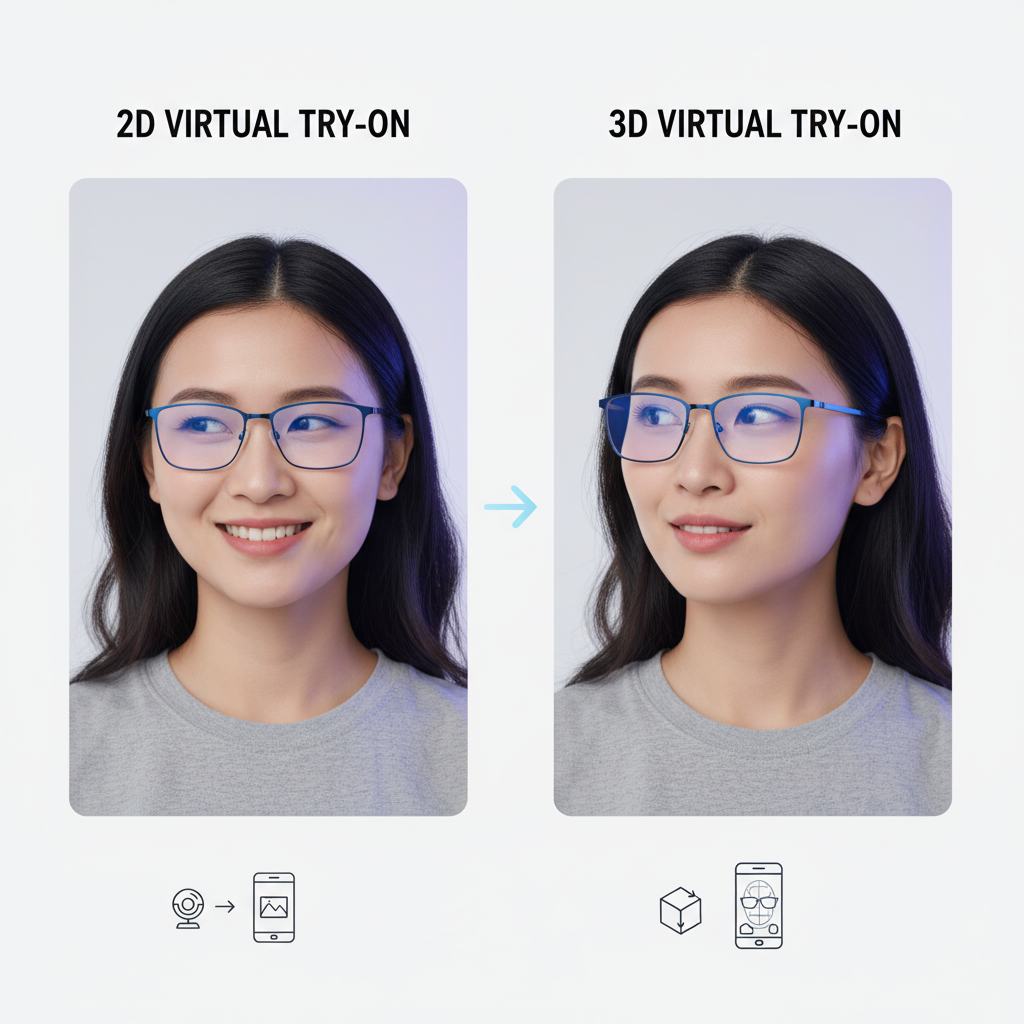
Eyewear Try On Prestashop — How to Embed a Zero-Code Virtual Try-On On Your PDP
Quick Summary
- Install a tryitonme link per SKU in PrestaShop PDP for code-free VTO — no SDK or backend integration required.
- Quick implementation: a button that opens a link (new tab/modal) as a pilot; an inline iframe for a smoother experience.
- Prepare product photos and SKU mapping, use staging, and run cross-browser and device QA before publishing.
- Add event tracking (try_on_click, try_on_start, try_on_complete) and UTM to measure conversion lift.
Introduction — Eyewear try on PrestaShop: How to embed a zero‑code virtual try‑on on your PDP
Eyewear try-on on PrestaShop means adding a shareable, link-based virtual try-on experience directly to the product page, allowing shoppers to try on glasses using their camera or upload photos. This post is a practical guide for merchants: a step-by-step guide to deploying tryitonme.com zero-code VTO on a PrestaShop PDP, a guide to theme editing and QA, and a developer-free alternative. For PrestaShop technical references, see the PrestaShop developer docs and product UX examples on Cermin.id.
Quick overview / value proposition — virtual try on prestashop
What is virtual try-on? Virtual try-on (VTO) allows customers to see products on their face or body using AR or photo overlays — this is especially valuable for eyewear because customers need to visually assess fit, size, and style.
Why add VTO to PrestaShop?
- Reduce style/fit uncertainty without heavy development work.
- Increase engagement on PDPs and help customers decide faster.
- Works across web, mobile, and social media when deployed as a shareable link.
Core tryitonme.com benefits:
- ZERO-CODE, LINK-BASED: No SDK or API required — tryitonme provides shareable product links.
- Fast onboarding: Choose a 6-month plan, submit a standard product photo (e.g., front/side), tryitonme’s team and AI will process the AR, and you’ll receive a product link within ~3 business days.
- Works on any channel: web, mobile, and social via a single link.
Why tryitonme.com is the Right Fit for Your Business — virtual try on prestashop
- Zero-code deployment: shareable try-on link per SKU — no integrations or SDKs.
Speed to market: product links sent ~3 business days after onboarding. - Simple onboarding: purchase a 6-month plan, submit product photos, and the tryitonme team/AI will prepare the assets.
- Cross-channel: links work across browsers and mobile for PDPs, ads, and social posts.
Register or learn more: tryitonme signup — documentation: tryitonme docs.
What you’ll need before you start
PrestaShop version & theme considerations
Checklist before editing:
- Admin or developer access to your PrestaShop instance.
- Access to the theme editor or staging site—always test on a staging site first.
- Familiarize yourself with your theme’s product template file—a common file is: product.tpl or templates/catalog/product.tpl. See the PrestaShop developer docs.
Product images & SKU mapping for eyewear
- Prepare standard photos per SKU as requested by Tryitonme onboarding (usually front and side views). Example photo guidelines: cermin.id photo guide.
- Ensure SKUs are consistent so that each SKU can be mapped to the Tryitonme link correctly. Pupillary mapping guide: pupillary distance guide.
- Optimize images for web performance; see best practices image optimization.
tryitonme account & product links
After onboarding, tryitonme provides a unique try-on link per SKU—this zero-code asset that you place on your PDP. Create an account or request a demo/sign up at tryitonme signup and read the onboarding docs at tryitonme docs.
Implementation options (high level) — embed try on prestashop
Two main approaches to deploying tryitonme product links:
A) PDP try‑on button that opens link in a new tab or modal
Pros:
- Quick to implement (no heavy template editing).
- Simple fallback: open in a new tab if the modal is blocked.
- Suitable for quick pilots.
Cons:
- New concepts (new tab/modal) can break the continuity of the experience.
- Modals require minimal styling/JS to be consistent across themes.
B) Inline embed (iframe atau embed block)
Pros:
- A smoother, more integrated in-page experience.
- Improved layout and behavior control.
Cons:
- Requires template editing and attention to responsive behavior.
Potential cross-origin issues or the need for postMessage if a return event is needed. See MDN postMessage. - If using iframes, consider the advantages/disadvantages of iframes: MDN iframe element.
Step‑by‑step: Add a PDP try on button (recommended quick win)
Langkah tercepat: tambahkan CTA klik yang membuka tryitonme link.
Where to place the button on PDP
- Di atas tombol Add to Cart — visibility tinggi.
- Di dekat gambar produk — konteks visual jelas.
- Di dekat selector varian agar pelanggan mencoba varian yang dipilih.
Suggested copy + accessibility microcopy
Contoh teks tombol: “Try On”, “Try these glasses”, “Virtual Try‑On — See them on you”.
Tips aksesibilitas: gunakan aria-label seperti aria-label="Try on [Product name] with your camera", pastikan fokus keyboard dan kontras memadai.
Minimal HTML snippet (link that opens a tryitonme shareable link)
<a href="TRYITONME_LINK" class="try-on-btn" target="_blank" rel="noopener" aria-label="Try on PRODUCT_NAME in a new tab">Try On</a>Catatan: gunakan target="_blank" + rel="noopener" untuk keamanan. Untuk modal, gunakan JS untuk membuka modal dan memuat link (lihat bagian inline embed).
Step‑by‑step: Inline embed (iframe/modal) — theme edits
Untuk pengalaman in‑page, edit template produk.
Files to edit & code pattern
File yang biasa diedit: product.tpl atau templates/catalog/product.tpl tergantung tema. Tambahkan blok dekat gambar produk atau tombol:
<div id="tryitonme-container" data-tryit-link="{{ product.tryitonme_link }}">
  <button id="open-tryitonme">Try On</button>
  <div id="tryitonme-embed" style="display:none;">
    <iframe id="tryitonme-iframe" src="" frameborder="0" loading="lazy" style="width:100%;height:640px;"></iframe>
  </div>
</div>
JS to open the iframe (simplified)
document.getElementById('open-tryitonme').addEventListener('click', function(){
  var link = document.getElementById('tryitonme-container').dataset.tryitLink;
  var iframe = document.getElementById('tryitonme-iframe');
  iframe.src = link;
  document.getElementById('tryitonme-embed').style.display = 'block';
});
Hooks, overrides & best practices
- Gunakan child themes atau PrestaShop overrides untuk menghindari edit core. Lihat PrestaShop devdocs.
- Clear cache PrestaShop setelah edit.
- Isi TRYITONME_LINK dari metadata produk atau custom product field agar setiap SKU memetakan linknya.
- Gunakan postMessage jika membutuhkan komunikasi antara iframe dan halaman parent.
No‑code alternative for non‑developers — eyewear try on prestashop
Jika Anda tidak memiliki developer:
- Gunakan modul Custom HTML PrestaShop atau page builder untuk menyisipkan link/tombol tryitonme di template produk. Lihat contoh no-code di Shopify guide atau WooCommerce guide.
- Tambahkan link di deskripsi produk atau custom product field melalui editor admin.
- Uji di staging lalu publish.
QA checklist before launch — pdp try on button
Functional
- Setiap SKU membuka tryitonme link yang benar.
- Modal/iframe memuat dan menutup dengan benar.
UX
- CTA terlihat dan dapat diakses (keyboard + aria labels).
- Tombol tutup modal jelas; perilaku tombol back masuk akal.
Cross‑browser/device
- Uji Chrome, Firefox, Edge, Safari (iOS Safari punya perilaku kamera berbeda).
- Uji responsiveness mobile dan akses kamera di iOS/Android.
Performance & privacy
- Lazy‑load iframe atau tunda loading sampai aksi pengguna. Lihat panduan mobile performance: mobile performance.
- Pesan perizinan kamera: jelaskan alasan permintaan dan apa yang/tidak disimpan (privacy section).
Fallbacks & analytics
- Tetapkan fallback bila akses kamera diblokir: izinkan upload foto atau preview statis.
- Lacak event: try_on_click, try_on_start, try_on_complete, add_to_cart_post_tryon. Panduan GA4: GA4 event tracking.
Troubleshooting common PrestaShop theme issues — embed try on prestashop
- Try‑on link not updating
- Clear cache & cek mapping metadata produk; periksa overrides produk.
- JS conflicts break modal
- Gunakan ID unik, cek console untuk error, debug dengan browser dev tools (MDN JS debugging).
- Modal z‑index issues
- Tingkatkan z-index pada container modal dan verifikasi CSS tema.
- Webcam permission failing on iOS
- Pastikan origin HTTPS dan uji di Safari iOS; lihat getUserMedia.
- Mixed content (http vs https)
- Pastikan tryitonme links HTTPS.
Conversion & UX best practices — eyewear try on prestashop
- Tempatkan CTA above the fold untuk SKU penting.
- Tambahkan social proof (review, “tried by X customers”).
- A/B test copy tombol dan metode (modal vs new tab); pelajari A/B testing di Optimizely guide.
- Ukur lift add-to-cart dan conversion untuk SKU dengan try‑on vs kontrol.
Measurement and analytics — pdp try on button
Event naming rekomendasi:
try_on_click(user clicks the CTA)try_on_start(tryitonme session begins)try_on_complete(session ends / user confirms)add_to_cart_post_tryon(adds item after try‑on)
Gunakan UTM tags pada tryitonme links untuk tracking campaign. Panduan implementasi GA4: GA4 event tracking.
KPI yang dipantau: try‑on engagement rate, conversion lift, add‑to‑cart lift, AOV, return rate.
Security, privacy, accessibility considerations — virtual try on prestashop
Privacy & legal
Jelaskan penggunaan kamera: “This tool uses your device camera to show how frames look on you. We do not store your camera stream without consent.” Patuhi regulasi privasi seperti GDPR.
Accessibility
Implement ARIA labels dan pastikan operasi keyboard. Ikuti WCAG: WCAG.
Camera permissions
Berikan pesan jelas sebelum memanggil getUserMedia.
Estimated timeline & resources — eyewear try on prestashop
- No‑code (Custom HTML/module): 1–2 jam (pasang link + test).
- Minimal dev edits (button + modal): 2–6 jam (dev + QA).
- Full inline embed + analytics + A/B testing: 1–3 hari (dev, QA, analytics).
Peran: merch (content & SKU mapping), dev (template edits), QA (cross‑device testing), analytics (event tracking).
Example launch checklist (pre‑publish)
- Tambahkan tryitonme links ke 10 SKU teratas.
- Implement tombol dan copy aksesibilitas.
- QA: browser, device, camera flows.
- Tambahkan analytics events & UTM tagging.
- Siapkan FAQ dan training CS.
- Mulai pilot, kumpulkan data, lalu rollout site‑wide.
Appendix / resources to include in the final post — embed try on prestashop
SEO and keyword usage plan — eyewear try on prestashop
Letakkan keyword utama di judul dan intro: eyewear try on prestashop. Gunakan kata terkait secara natural: virtual try on prestashop, embed try on prestashop, pdp try on button. Meta description saran: “Add zero‑code eyewear try on to your PrestaShop PDPs with tryitonme’s link‑based VTO — fast setup, no SDK, demo available.” Gunakan alt text berkeyword untuk gambar seperti “try-on modal for eyewear on PrestaShop PDP”.
Closing / CTA — eyewear try on prestashop
Tryitonme membuat cepat dan sederhana menambahkan eyewear try‑on ke PDP PrestaShop Anda dengan zero code dan deployment berbasis link. Siap pilot VTO untuk top SKUs Anda? Request demo atau dapatkan product link gratis: tryitonme signup.
Why tryitonme.com is the Right Fit for Your Business (recap)
- Akurasi VTO ditangani oleh tim/AI tryitonme.
- Kecepatan: product links dikirim ~3 hari kerja setelah onboarding.
- Mudah integrasi: zero‑code, link‑based — tanpa SDK atau API.
- Cross‑channel links: gunakan di web, mobile, dan sosial.
Book a demo: https://tryitonme.com/signup
FAQ
1. How do I map each SKU to a tryitonme link?
Isi field custom pada produk atau gunakan metadata produk sehingga setiap SKU memuat tryitonme_link. Saat template dirender, keluarkan data tersebut ke atribut seperti data-tryit-link dan gunakan pada CTA/iframe.
2. Can I use tryitonme without a developer?
Ya — gunakan modul Custom HTML atau page builder untuk menambahkan link di deskripsi produk atau field custom admin. Ini cocok untuk pilot cepat tanpa edit template.
3. What are the best practices for accessibility and privacy?
Gunakan ARIA labels, pastikan fokus keyboard, dan jelaskan penggunaan kamera secara jelas. Ikuti WCAG dan kepatuhan privasi seperti GDPR.
4. How do I track try-on events in analytics?
Lacak event di klik CTA (try_on_click), awal sesi (try_on_start), selesai (try_on_complete), dan post-tryon add-to-cart. Gunakan UTM pada tryitonme links dan implementasikan event ke GA4; lihat panduan GA4.
5. What should I do if the iframe doesn’t load on mobile?
Periksa mixed content (pastikan HTTPS), lazy-loading behavior, dan memori perangkat. Sebagai fallback, buka link di tab baru atau tawarkan upload foto. Juga uji di iOS Safari karena perilaku kamera berbeda.