
Jewelry Try On VTEX: How to Embed a No‑Code Virtual Try‑On and Add a PDP Try‑On Button
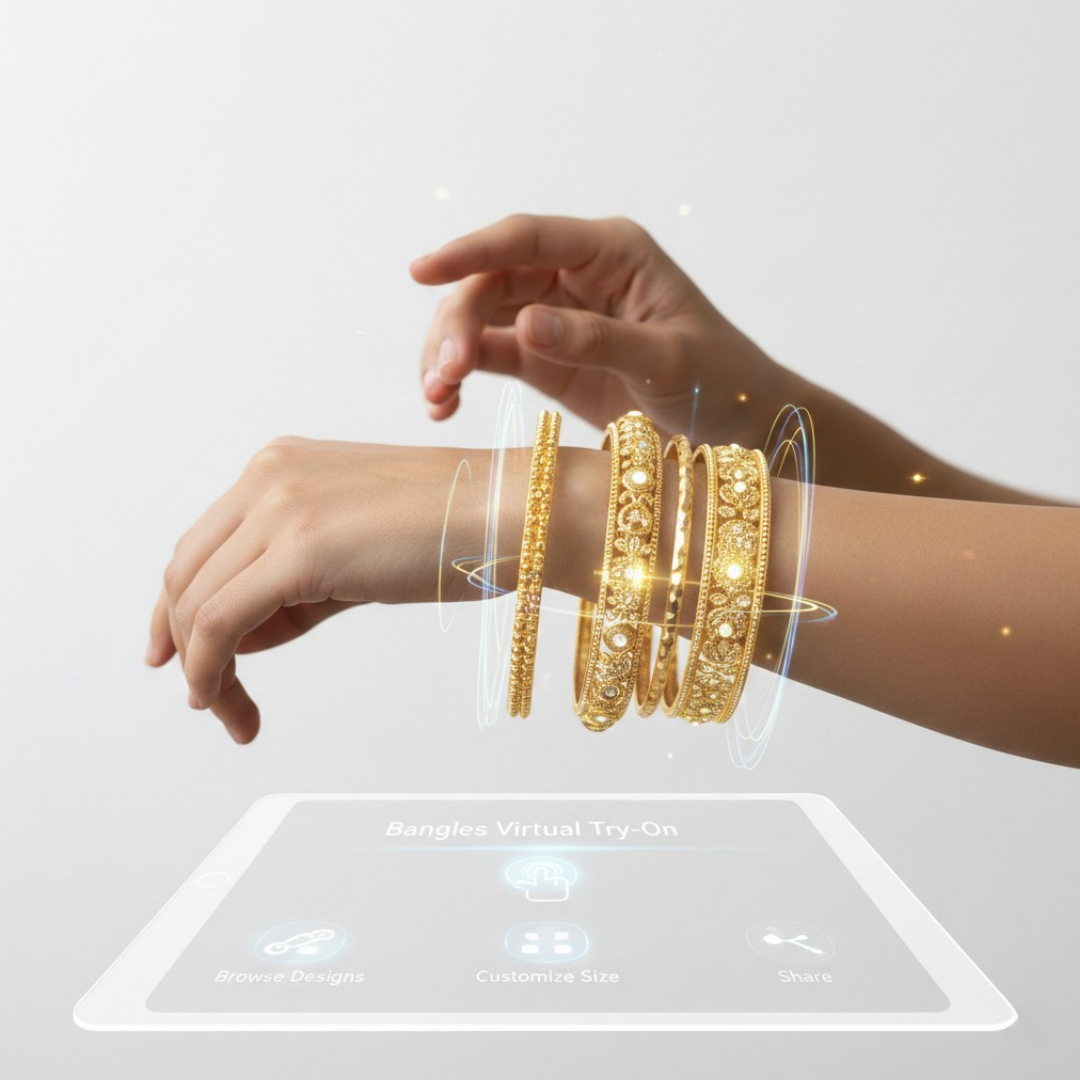
- Quickly add zero‑code virtual try‑on links (tryitonme.com) to VTEX PDPs for rings, necklaces, bracelets, watches, and eyewear.
- Three embedding options: PDP Try On button (fastest), inline iframe (immersive), and cross‑channel shareable links.
- Prepare SKU→asset mapping, product metadata, and consistent photos before onboarding.
- Measure impact with click‑to‑try, try‑to‑add‑to‑cart, conversion lift, and return-rate KPIs.
Introduction
Jewelry try on VTEX lets you give shoppers a try‑before‑they‑buy experience directly from your VTEX product pages. For merchants selling rings, necklaces, bracelets, watches or eyewear, a virtual try‑on can reduce uncertainty and make buying decisions easier. This post shows a practical, step‑by‑step, zero‑code way to embed try‑on experiences using tryitonme.com shareable links and how to add a prominent PDP try‑on button.
What is virtual try on for VTEX stores?
Virtual try on VTEX refers to adding a visual, AR‑like experience to VTEX product pages so shoppers can see accessories on themselves before purchasing. For jewelry, the experience varies by category:
- Rings: scale and finger placement are critical; use finger‑level overlays and sizing prompts.
- Necklaces: placement relative to the neckline and chain length visualization matter.
- Earrings & studs: ear placement and size comparison are the UX focus.
- Watches & bracelets: wrist sizing and orientation matter.
- Eyewear: face fit and frame scale are central.
Augmented reality and 3D product visualization are widely used in retail to increase shopper confidence and engagement — see Shopify’s AR overview and merchant use cases on Perfect Corp for background on how AR helps shoppers interact with products and make more confident decisions.
Business benefits for merchants
A virtual try on VTEX implementation can deliver clear commercial benefits you should measure. Common outcomes include higher conversion, lower returns, more time on page, and increased engagement from product pages into social sharing or email. For background on AR impact, refer to Shopify and Perfect Corp. Avoid assuming fixed uplift numbers — run A/B tests to measure impact on your catalog.
Link‑based vs SDK/API: tradeoffs
When adding virtual try‑on to VTEX you’ll choose between a link/embed approach and an SDK/API integration.
Link‑based (no‑code) — example: tryitonme.com
- Pros: near zero dev time, one shareable URL per product, works across web, mobile, email and social, no SDKs to update.
- Cons: slightly less control for deeply customized UI/UX compared with a full SDK.
SDK/API integrations
- Pros: maximum control and deeper technical integration into the storefront and data layer.
- Cons: require developer work, ongoing maintenance, and longer delivery cycles — see VTEX developer docs. For practical VTEX examples and UX patterns, reference the eyewear guide.
If you need a fast rollout that’s easy to reuse across marketing channels, a link‑based model is usually the quickest path to test value; use SDKs later for deeper customization if needed.
Why tryitonme.com is the Right Fit for Your Business
tryitonme.com is built around zero‑code, link‑based deployment — no SDKs or APIs required. Key merchant benefits:
- ZERO‑CODE, LINK‑BASED deployment: add try‑on via a simple product URL that you paste into VTEX or marketing channels. See a jewelry‑focused overview: Tryitonme jewelry no‑code solution.
- Fast time‑to‑market: unique try‑on links are produced during onboarding and are ready in under 3 business days.
- Simple onboarding: purchase a 6‑month package → send standard product photos → assets processed by team/AI → receive shareable links.
- Cross‑channel reuse: same link can be used on PDPs, emails, SMS, and social ads.
- Accuracy for accessories: built for small, scale‑sensitive items (rings, earrings, watches).
Book a Demo with tryitonme.com to see a sample link and timeline.
Pre‑implementation checklist (what you need before embedding)
Prepare these items before adding a PDP try on button or embed:
Product & catalog
- SKU‑to‑asset mapping spreadsheet (SKU, VTEX Product ID, tryitonme link).
- Confirm product IDs and variant IDs in VTEX — see VTEX developer docs.
Metadata & fields
- Fields to store the tryitonme link (e.g., a custom product metafield or CMS block).
- Variant‑level mapping if you have size/color variants.
Assets & photo guidance
- Clean photos of each product (front/side for eyewear; multiple angles for rings/earrings).
- Consistent lighting and neutral backgrounds.
- Follow tryitonme.com asset guidance.
Stakeholders
- Merchandising: prepares SKU list and photos.
- Front‑end/dev: adds button/embed to VTEX.
- QA: cross‑device testing.
- Marketing: plans campaigns and reuse of links.
How to generate tryitonme links for products
Use tryitonme.com onboarding and dashboard to generate product links. Basic workflow:
- Purchase a 6‑month package with tryitonme.com and create your account. See pricing for accessories: pricing.
- Upload product photos per tryitonme guidance and provide SKU/Product ID mapping.
- The tryitonme team/AI processes assets and returns a unique shareable try‑on link for each product.
- Store those links in VTEX (product metafield or CMS block) so front‑end code can render them on PDPs.
Best practices
- Keep a single spreadsheet or CSV with SKU → tryitonme URL → date/version.
- Use predictable naming for assets and links (e.g., SKU_123_tryon_v1).
- Have a fallback link or help copy if an asset is missing.
How to embed try on VTEX: approaches and tradeoffs
You have three practical options depending on desired UX and technical effort.
Option A — PDP try on button (recommended primary approach)
- Where: near Add to Cart or product actions block (high visibility).
- Behavior: open tryitonme link in a new tab, modal, or lightbox.
- Pros: easiest to implement, minimal performance impact, works great on mobile.
- UX tips: label clearly (“Try On”, “See It on You”), add an icon, keep it close to price and purchase CTAs. See jewelry UX patterns: jewelry UX guides.
Option B — Inline embed (iframe) on PDP or dedicated try‑on block
- Where: dedicated block under gallery or a full‑width section.
- Pros: immersive, keeps users on page.
- Cons: performance impact if not lazy‑loaded; requires responsive container and QA. Use lazy loading per MDN guidance: MDN lazy loading and iframe best practices: MDN iframe docs.
Option C — Social & email shareable links for cross‑channel try on
- Use the same tryitonme link in Instagram ads, Facebook, emails, and SMS.
- Pros: single asset to maintain; easy to A/B test different copy and landing contexts.
- Tip: use UTM parameters to track campaign performance and landing attribution.
Step‑by‑step: Adding a PDP try on button to VTEX (theme edits)
Where to edit
For Store Framework and VTEX IO stores, add a custom block or edit the product-actions block; see VTEX docs.
Minimal CTA code snippet (pdp try on button)
Replace the URL placeholder with your tryitonme link.
<a href="https://tryitonme.com/your-product-link" target="_blank" rel="noopener noreferrer" class="pdp-try-on-button" aria-label="Try on this product virtually">Try On</a>Accessibility tips
- Add aria-labels and ensure keyboard focus visible.
- Don’t rely on color alone; use icons or secondary text.
- Follow ARIA guidance: WAI‑ARIA.
Step‑by‑step: Embedding tryitonme link via iframe (if chosen)
Responsive container and iframe (example):
<div class="tryon-embed">
  <iframe src="https://tryitonme.com/your-product-link" title="Virtual try on experience" loading="lazy" allow="camera; fullscreen"></iframe>
</div>
Use CSS to maintain aspect ratio and responsiveness (see MDN iframe patterns). Always include loading=”lazy” for performance and test CSP settings if your site has a strict content‑security‑policy: CSP reference.
QA checklist before launch
- Functionality: Each SKU opens the correct tryitonme link; variants map correctly; camera permission flow works on iOS Safari and Chrome Android.
- Cross‑browser/device: Chrome, Safari (iOS), Firefox, Edge; Android and iPhone devices.
- Performance: Button/iframe does not block page render; iframe is lazy‑loaded.
- Accessibility: Keyboard operable controls, ARIA labels, WCAG checks: WCAG.
Analytics & instrumentation
Track events such as try_on_click, try_on_open, try_on_session_start, try_on_add_to_cart, try_on_conversion. Use GA4 event wiring: GA4 guidance and push events via dataLayer or GTM. For a practical measurement plan and event map applied to try‑on flows, see our analytics guide: analytics guide.
Launch checklist & rollout strategy
- Start small: 10–20 SKUs (top sellers).
- Expand to a full category based on early signals.
- Inform support and fulfillment teams.
- Monitor CTR on try‑on, try‑to‑add‑to‑cart, conversion and return trends.
Copy & microcopy guidance for PDP try on button and modal
CTA options: “Try On”, “See It on You”, “Virtual Try‑On”. Modal microcopy example:
“Allow camera access to see this piece on you. Camera use is only for the try‑on experience.” Keep privacy short and link to your site’s privacy policy.
Troubleshooting and common issues
- CSP blocks iframe — check site Content Security Policy: CSP reference.
- Mixed content warnings — ensure your site and tryitonme links use HTTPS.
- Wrong SKU mapping — verify CSV or field entries and confirm in tryitonme dashboard.
Support template: include product ID, SKU, tryitonme link, screenshots, browser/device, and reproduction steps when filing tickets.
SEO and product page considerations
- Keep core product copy indexable and visible; don’t hide primary content behind iframes.
- Use rel=”noopener” on external links to protect performance and security.
- Avoid heavy scripts that delay main content render.
KPIs and success metrics to monitor
- Click‑to‑try rate (try button clicks ÷ PDP views).
- Try‑to‑add‑to‑cart rate.
- Conversion lift (vs A/B control).
- Return rate for try‑on vs non‑try‑on SKUs.
- Average try‑on session duration and social share rate.
Example timeline and resource estimate
- Zero‑code PDP try on button: 1–3 days (add link, QA, rollout).
- Inline embed with theme edits and full QA: 1–2 weeks.
- Asset processing and link delivery from tryitonme: under 3 business days as part of onboarding (tryitonme.com).
Appendix / assets to include in your implementation
- VTEX CTA snippet (above).
- Responsive iframe snippet (above).
- QA checklist printout and suggested analytics event map.
- Hypothetical ROI example — label as hypothetical unless you have client data.
Resources
- tryitonme.com
- VTEX developer docs
- Shopify AR overview
- Perfect Corp business overview
- MDN iframe & MDN lazy loading
- CSP reference
- GA4 event tracking
- ARIA guidance
- WCAG accessibility
- Additional vendor comparisons: tryitonme vs Perfect Corp and watches guidance.
CTA / Next steps
Ready to add jewelry try on VTEX without SDKs or custom app work? Tryitonme’s zero‑code, shareable link model gets you live fast — assets processed by team/AI and unique try‑on links delivered quickly. Book a Demo to see a sample link and timeline for your catalog.
FAQ
1. Does tryitonme.com require an SDK for integration into VTEX?
No. tryitonme.com offers a zero-code, link-based model so you can simply paste the product URL into a VTEX (metafield or CMS block) or add a PDP button that opens the link.
2. How to save tryitonme link for each SKU in VTEX?
Store links in a custom product metafield or CMS block per product/variant. Maintain a spreadsheet of SKU → tryitonme URL → version for easy management.
3. Is there any performance impact if using inline iframes?
This can occur if the iframe is fully loaded during rendering. Use loading=”lazy”, lazy-load the container, and ensure the iframe isn’t blocking critical content to reduce the performance impact.
4. How do I measure the success of try-on in my store?
Set up event tracking for try_on_click, try_on_session_start, try_on_add_to_cart, and conversions. Compare these metrics against a control group to calculate uplift.
5. What are the photo requirements for generating an accurate tryitonme link?
Use clean photos with consistent lighting and a neutral background. For eyewear, include the front and side; for jewelry, capture multiple angles according to the tryitonme guidelines.
6. What if my site’s CSP blocks iframes from tryitonme?
Add the tryitonme.com domain to the Content Security Policy (frame‑ancestors / connect‑src as needed) or use the button that opens the link in a tab/modal as an alternative.