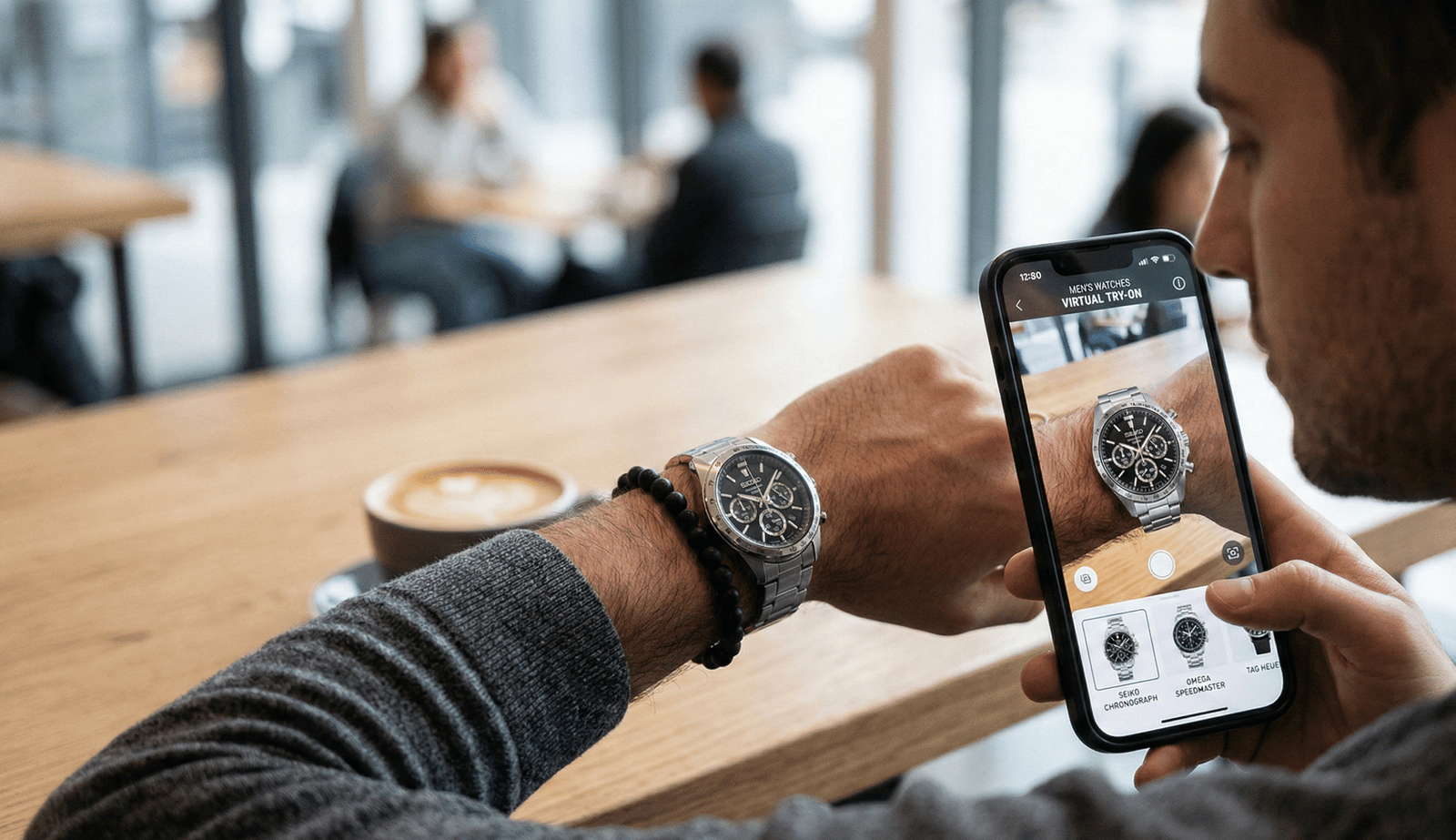
Watches Try On Shopify: How to Embed a No‑Code Virtual Try‑On and Add a PDP Try On Button
Quick Summary
- Install a try-on link without coding with a shareable link from tryitonme.com.
- Add a “Try On” button to the PDP via the description (zero code) or HTML block/theme editing for better visibility.
- Use variant-aware metafields for per-variant links if straps or sizes change the appearance.
- Perform cross-device QA, including testing in in-app browsers; prepare a fallback if the camera is blocked.
Introduction — what “watches try on shopify” means and what you’ll learn
If you’re searching for “watches try on Shopify,” the goal is a simple, merchant-friendly solution that lets customers see your watch on their wrist without heavy engineering. This guide shows you how to add a code-free, link-based virtual try-on to Shopify product pages, the option to add a PDP Try On button, minor theme edits for visibility, and a QA checklist before launch.
tryitonme.com provides code-free Virtual Try-On (VTO) for accessories (eyewear, jewelry, watches, hats) through shareable product links—not an SDK/API. Onboarding involves purchasing a 6-month SKU package, submitting standard product photos, the AR/AI team processes it, and you receive a ready-to-use try-on link in less than 3 business days. Read the case study and details.
Why add virtual try‑on for watches (business benefits)
Adding virtual try-on to the watch aims to reduce uncertainty and improve product visualization. Practical benefits:
- Higher purchase confidence — the size and scale of the watch are visual; try-ons help preview the size, finish, and strap combination.
- Fewer pre-purchase questions — customers will ask for fewer details if they can see the watch in person.
- Increased engagement — interactive experiences increase time on page and engagement signals.
- Reduced returns due to mismatched expectations — previews reduce “looks different in photo” dissatisfaction.
For a guide to PDP UX and CTA placement, see PDP UX Guide for clocks in Shopify.
Why tryitonme.com is the Right Fit for Your Business
tryitonme.com is built for fast, no-code deployment of VTO accessories. Key values:
- Zero-code, link-based VTO — you get a shareable URL per product/variant, no SDK/API integrations.
- Fast setup — AR processing (team + AI) and ready-to-use links in less than 3 business days.
- Simple onboarding — purchase a 6-month plan based on the number of SKUs, send product photos, and the team takes care of the rest. See pricing & plans.
- Multi-channel ready — use the same link in email, social media, QR codes, or embed in PDPs.
Request a demo or create the first link at tryitonme.com.
Pre‑requirements and preparation (what you need before embedding)
Checklist before embed:
- Shopify admin with theme editing permissions — see how to customize themes.
- Plan your SKU/variant mapping — decide on one link per SKU or per variant (recommended: one link per variant if straps/sizes vary significantly).
- Determine link locations: product description, bullet, dedicated button, modal, or iframe.
- Expect assets from tryitonme.com: VTO link, demo screenshot/GIF.
- Plan variant-specific links using Shopify metafields: Shopify metafields.
Simple examples: “One link per SKU” is easiest; “One link per variant” is recommended when the strap/size changes appearance.
Two embed options overview — link vs inline embed
Option 1 — Shareable product link (no code)
The fastest option. Paste the tryitonme.com link into product descriptions, bullet points, emails, or social media. Perfect for fast rollouts and omnichannel marketing.
Option 2 — Inline embed / PDP button (minimal edits)
Requires minimal work but increases discoverability and conversion. Add a button that opens the VTO in a new tab, modal, or iframe. Recommended for high-traffic catalogs.
Step‑by‑step — Add a PDP Try On Button (zero‑code / minimal code)
Option A: Zero‑code — add a link in product description or feature bullets
Where to paste:
- Shopify Admin > Products > select product > Product description (HTML editor) or featured bullet list.
Microcopy recommendations:
- “Try this watch on — opens in new tab and uses your camera.”
- “See it on you — Tap to open camera try‑on.”
Copy + paste (HTML editor):
<a href="https://tryitonme.com/your-product-link" target="_blank" rel="noopener noreferrer">Try it on — uses camera</a>Option B: Minimal theme edit (recommended for visibility)
Why: The Add to Cart button is more visible and converts better.
High-level steps:
- Duplicate the live theme for a test copy.
- Online Store > Themes > Customize (OS 2.0) > add a Custom HTML block to the product template, or
- Edit the product template file (product-template.liquid) and insert an anchor/button.
- Use target=”_blank” rel=”noopener noreferrer” for security — see MDN rel=”noopener noreferrer”.
Anchor example:
<a href="{{ product.metafields.vto.link }}" class="btn btn--primary try-on-btn" target="_blank" rel="noopener noreferrer">Try On</a>Recommended placement: above the fold, near Add to Cart, or below variant selectors. Always test in preview.
Option C: Embed as inline iframe or modal (if supported)
Tradeoffs:
- Modals/iframes keep shoppers on the PDP and feel seamless.
- In-app browsers (Instagram/TikTok) sometimes restrict the camera or block iframes — test first.
When selecting:
- Modal/iframe for environments you control (web desktop).
- New tab for broader compatibility across platforms and in-app browsers.
Placement & UX recommendations for the PDP try on button
- Primary placement: next to Add to Cart and below variant selectors.
- Alternative: Overlay in the product gallery with a small camera/watch icon. Reference overlay.
- Button text: “Try On,” “See It On You,” “Try On — Uses Camera.”
- Microcopy: “Opens camera — no account needed.” or “Works on mobile camera; allow camera access.”
- Accessibility: Ensure tap target is 44x44px and high contrast.
- Always include rel=”noopener noreferrer” for external links: MDN.
Theme edits — step‑by‑step for common Shopify themes
Online Store 2.0 (recommended)
- Online Store > Themes > Customize.
- Open the Product template and add a Custom HTML block in the desired position.
- Paste the anchor/Liquid snippet and save. Reference: Shopify sections & blocks (OS 2.0).
Traditional themes: Liquid file edit (product-template.liquid)
- Duplicate theme.
- Online Store > Themes > Actions > Edit code.
- Open product-template.liquid and look for the Add to Cart area.
- Insert snippet and preview button.
Theme editing guide: Shopify theme editing.
Variant‑aware links using metafields or product tags
Save links per variant: use the product/variant metafield for try-on links (recommended): Shopify metafields.
Liquid example (variant aware):
{% raw %}{% assign vto = product.metafields.vto[variant.id] %}
{% if vto %}
  <a href="{{ vto }}" class="btn try-on" target="_blank" rel="noopener noreferrer">Try On</a>
{% endif %}{% endraw %}
Alternative: store JSON or mapping via product tags — verify ID to avoid mismatch.
QA checklist before launch
Validate each item:
- Functionality: Link opens the correct tryitonme.com link; variant mapping works.
- Cross-browser/device: tested on Chrome, Safari, Firefox desktop; iOS & Android mobile; in-app browsers (Instagram/TikTok).
- Visual/responsiveness: button doesn’t overlap gallery; scales well on mobile.
- Performance: button doesn’t block rendering.
- Accessibility: keyboard focus, ARIA label, WCAG-compliant contrast.
- Analytics: UTM, click events in GA/Shopify/FB Pixel.
- Security: rel attributes on external links: MDN.
- Fallback: copy or GIF if the try-on link fails.
Testing & QA scenarios (detailed test cases)
- Variant switching: Select a different variant and confirm the try-on link displays the appropriate watch face.
- Mobile/in-app behavior: Tap try-on in Safari/Chrome and in Instagram/TikTok webviews; note whether the camera is allowed.
- Camera permission flow: Open try-on and deny camera, then grant; verify microcopy is clear. See getUserMedia guidance.
- Funnel impact: Start with try-on, then add to cart; ensure add-to-cart entries after Try-On are trackable.
- Modal vs. new tab: In low-bandwidth scenarios, does the iframe/modal fail? Ensure a fallback to a new tab is present.
Tracking, analytics & conversion measurement
Implement tracking to measure impact:
- Add UTM parameters to the tryitonme.com link for your campaign: GA UTM guide.
- Recommended events: TryOnStarted, TryOnCompleted (if tryitonme.com supports return URLs), ClickOnPDPTryOnButton, AddToCartAfterTryOn.
- Capture clicks in Shopify analytics and external tools: Shopify analytics.
- Compare funnel metrics for users using try-on vs. control (A/B test).
Troubleshooting & common issues (with fixes)
- Button not appearing → possibly editing the theme in the wrong template → verify the product template and redeploy it to the live theme.
- Wrong variant mapping → metafield key mismatch → check variant IDs and storage metafield.
- In-app browser blocks camera → webviews restrict the camera → display an “Open in browser” prompt or fallback to a new tab.
- Camera permission failing → user denied → display a microcopy of the settings & retry. See getUserMedia best practices.
- Link timeouts → tryitonme.com endpoint or slow network → provide a fallback image/GIF and retry option.
Accessibility & legal considerations
- Add ARIA labels and ensure keyboard focus for the Try On button.
- Descriptive alt text for product images.
- Privacy/camera consent copy during try-on entry and a link to your store’s privacy policy.
- Comply with WCAG for contrast, focus states, and accessible HTML: WCAG.
- Camera permission UX reference: MDN getUserMedia.
Advanced ideas & omnichannel uses
- Use the same link in emails, CRM flows, and paid ads with UTMs.
- Place it in your Instagram/TikTok bio or paid social creative (keep in mind browsers’ in-app behavior).
- QR codes on packaging or in-store displays.
- Shoppable video overlays that link to the try-on experience.
- A/B test button copy (“Try On” vs. “See It On You”) and placement.
Example copy, assets & deliverables included in this post
Assets you will get (or download package):
- Copyable Liquid/HTML snippets (variant‑aware examples).
- Button copy pack (microcopy & CTA variants).
- QA checklist PDF.
- Desktop & mobile screenshots and short GIFs flow tryitonme.com.
- Example JSON metafield for variant mapping.
CTA / next steps — implement in 30–60 minutes with tryitonme.com
- Purchase a 6-month package based on the SKU at tryitonme.com. For more information, see pricing guide.
- Send standard product photos (front/side, if necessary).
- Receive a try-on link in less than 3 business days and paste it into your PDP or add a button via the snippet above.
- QA and track TryOnStarted/TryOnCompleted events.
Appendix / resources (code snippets & links)
Useful guides & links:
- Shopify — Metafields guide
- Shopify — Customize themes & permissions
- WCAG overview
- Google Analytics UTM guide
- MDN — rel=”noopener noreferrer”
- Shopify — sections & blocks (OS 2.0)
- Theme file editing guide
- In‑app browser / WebView guidance
- getUserMedia (camera permissions)
- tryitonme demo/signup
- Watch reflection & HDR lighting best practices
- Watch‑specific implementation guidance
Copyable snippets (replace placeholders with your links/metafields)
1) Simple anchor (paste in product description):
<a href="https://tryitonme.com/your-product-link" target="_blank" rel="noopener noreferrer" class="btn btn--primary">Try It On — Uses Camera</a>2) Liquid variant‑aware metafield (insert into product template):
{% raw %}{% if product.metafields.vto and product.metafields.vto.link %}
  <a href="{{ product.metafields.vto.link }}" class="btn try-on-btn" target="_blank" rel="noopener noreferrer">Try On</a>
{% endif %}{% endraw %}
3) Example metafield JSON (store in a product/variant metafield):
{
  "vto": {
    "link": "https://tryitonme.com/your-product-link"
  }
}
4) UTM example for tracking:
https://tryitonme.com/your-product-link?utm_source=shopify&utm_medium=pdp&utm_campaign=tryon_launchFAQ
1. What is tryitonme.com and how does it work?
tryitonme.com provides VTO for accessories via shareable links: You send a product photo, the team/AI processes the AR, and then receives a link that opens the camera experience without the need for SDK integration.
2. Can I use one link for all variants?
Yes, but we recommend using a link per variant if the strap, case size, or finish significantly changes the appearance. Use metafields for variant-aware mapping.
3. Does try-on work in in-app browsers like Instagram/TikTok?
Some in-app webviews restrict camera access or iframes. Test your target audience; the best fallback is to open try-on in an external tab and provide an “Open in browser” microcopy if necessary. See the WebView guidance.
4. How can I track try-on usage and measure its impact?
Add UTMs to the link (example above), and send events to GA/Shopify/FB Pixel such as TryOnStarted, TryOnCompleted, and AddToCartAfterTryOn. UTM Guide: GA UTM.
5. What about privacy and camera consent?
Make sure the microcopy explains camera usage and links to your store’s privacy policy before users enter the try-on experience. Follow getUserMedia’s best practices for consent requests: MDN.