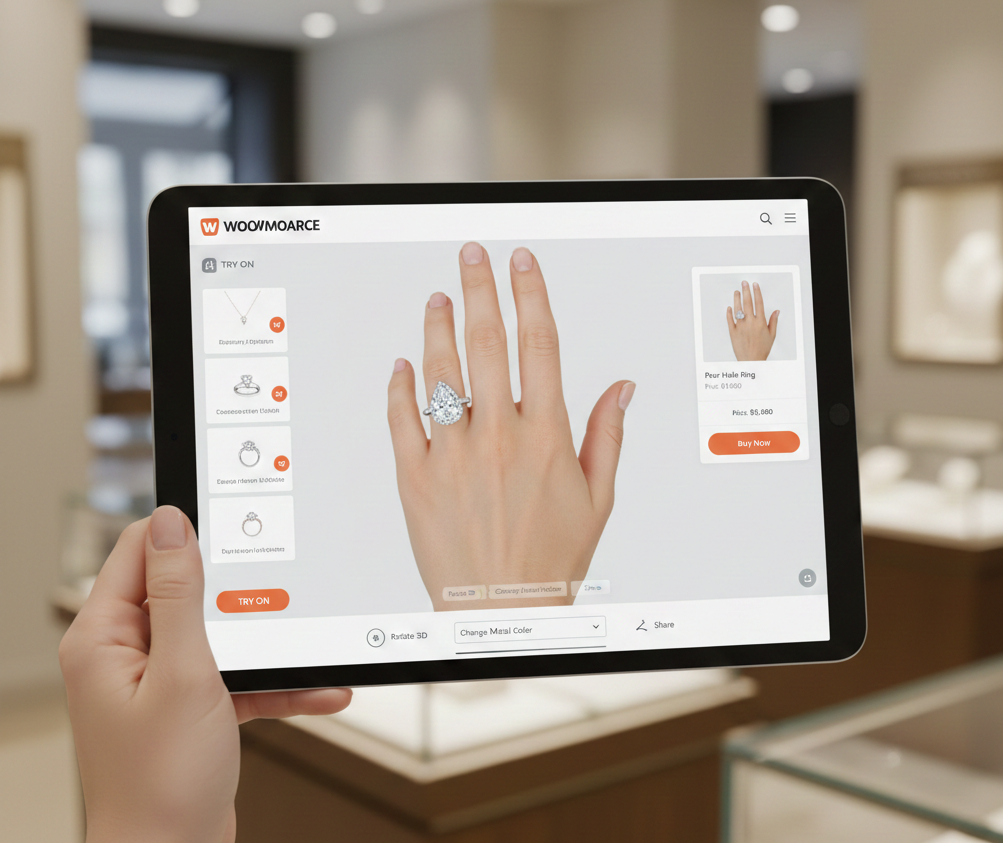
Jewelry Try On WooCommerce: How to Add a PDP Try‑On Button in Minutes
You want faster sales and fewer returns — and jewelry try on WooCommerce is one fast win. This short guide shows a no‑code, link‑based way to add a PDP try‑on button (or modal/iframe) using tryitonme.com shareable links — no SDKs, no APIs, and no heavy engineering.
Quick Summary
- Zero‑code, link‑based try‑on via tryitonme — add a per‑product URL and open it in a modal, iframe, or new tab.
- Three embed options: modal (recommended), inline iframe, or open-in-new-tab as fallback.
- Place the button near Add to Cart (hook: woocommerce_after_add_to_cart_button) and save the link in ACF or SKU mapping.
- Track events (Try‑On Opened, Engaged, Add‑to‑Cart) via GTM/GA4; QA on staging before launch.
Who this guide is for & search intent
This is for you if you manage a WooCommerce store, are a merchandiser, theme editor, or e‑commerce manager who needs a practical how‑to for embedding a virtual try‑on on product detail pages (PDPs). In short:
- You: store owner, product manager, or developer doing light theme edits.
- Goal: Add a PDP try on button, place it near Add to Cart, and QA it.
- Expectation: A clear, step‑by‑step flow with non‑developer and developer options.
Why virtual try‑on for jewelry on WooCommerce matters
Virtual try on WooCommerce tools help shoppers visualize rings, earrings, necklaces and other accessories on themselves — which builds buyer confidence and reduces friction at checkout. For a business outcome perspective, see the iJewel3D overview of how jewelry VTO improves engagement and conversion by showing previews and photo/AR options.
Plugin and tool examples like JewelFit demonstrate users rotating and resizing items before purchase — a behaviour that strengthens conversion intent.
Why tryitonme is the Right Fit for Your Business
- Zero‑code, link‑based deployment — you receive a unique shareable try‑on link per product (no SDK or API needed). See tryitonme.
- Fast onboarding — purchase a 6‑month package, send standard product photos, the tryitonme team/AI handles AR processing, and you receive the ready‑to‑use try‑on link in under 3 business days. (Onboarding: tryitonme, pricing overview: cermin.id pricing.)
- Easy to embed — links work in modals, iframes or as standalone pages so you can test quickly.
- Works across web, mobile and social — a simple link fits anywhere.
- Book a Demo
High‑level benefits (for merchants)
- Better PDP engagement: Try‑on tools keep visitors interacting with product pages longer (see JewelFit example).
- More confident buyers: Visual previews reduce hesitation and can lower return rates (see iJewel3D). Measured uplift and ROI examples for rings: cermin.id ROI rings.
- Faster rollout and lower tech risk: Link‑based delivery avoids complex SDK/API integration (context: WooCommerce Virtual Try‑On).
Prerequisites — what you need before you start
Checklist (prep before embedding try‑on links):
- WooCommerce admin access.
- tryitonme account and per‑product try‑on links (get started at tryitonme).
- Product photos and SKU mapping for each item.
- Basic familiarity with WordPress theme editor or a page builder (Elementor).
- Optional: ACF or another custom product field plugin to store try‑on links inside product data.
- For WooCommerce plugin context, see WooCommerce Virtual Try‑On.
Overview of embed options (quick comparison)
Three practical ways to surface your tryitonme links — all work because the try‑on is delivered via a URL.
Option A — Modal / lightbox (recommended)
Why: Keeps shoppers on the PDP, preserves context, and looks polished. How: Button opens the tryitonme link inside a lightbox (FancyBox, Magnific Popup, etc.). Lightbox examples: video demo.
Pros: Smooth UX, low friction; recommended for conversions. Cons: Requires a lightbox plugin and correct CORS/iframe policies if using an iframe modal.
Option B — Inline iframe
Why: Embed the try‑on directly on the PDP so it’s always visible. Pros: Persistent visibility and stronger visual cue. Cons: Larger performance footprint; needs height/scroll handling and lazy load. Example plugin patterns: Codecanyon example.
Option C — New tab link (fallback)
Why: Quickest, simplest rollout — button opens the tryitonme URL in a new tab. Pros: Fast to implement. Cons: Leaves PDP; slightly higher friction but ideal as a rollout fallback. Quick example: YouTube example.
Where to place the PDP try‑on button (UX guidance)
- Primary placement: Next to Add to Cart (use the hook
woocommerce_after_add_to_cart_button). Guidance: WooCommerce Virtual Try‑On and UX examples: video and cermin.id UX. - Secondary placements: Under product gallery, near price or product actions.
- Mobile: Sticky bottom bar or thumb‑reach area.
- Copy and cues: Short CTAs — “Try On”, “See on Me”, or “Virtual Try‑On” — and add a camera icon for clarity.
- Accessibility: Ensure readable labels and aria attributes (see accessibility notes below).
Step‑by‑step implementation guide (core how‑to)
This section outlines both developer and non‑developer paths.
Create tryitonme try‑on link for each product
- Sign up or request a demo at tryitonme.com.
- Purchase the 6‑month package appropriate to your SKU count, send the required standard product photos, and the tryitonme team/AI will process each item and return a unique, ready‑to‑use try‑on link in under 3 business days.
Store the product try‑on link in WooCommerce
Option A — ACF custom field: Create a product field “Try‑On Link” that saves the tryitonme URL.
Option B — SKU mapping: Keep a spreadsheet mapping SKU → tryitonme link for bulk uploads.
Embed the PDP try‑on button (three methods)
Method A — Shortcode / Gutenberg block (non‑dev)
Use a simple shortcode that reads the ACF try‑on link and outputs a button. Shortcode approaches and dynamic content patterns are commonly used in WooCommerce: WooCommerce and cermin.id examples.
Method B — Theme hook (developer)
Add to child theme functions.php or a snippets plugin (illustrative example):
add_action('woocommerce_after_add_to_cart_button', 'add_tryon_button');
function add_tryon_button() {
    global $product;
    $link = get_field('try_on_link', $product->get_id()); // ACF
    if ($link) {
        echo '<a href="' . esc_url($link) . '" class="tryon-btn" data-fancybox aria-label="Open virtual try‑on — uses device camera">Virtual Try‑On</a>';
    }
}
Recommended hooks: woocommerce_after_add_to_cart_button or woocommerce_single_product_summary depending on theme.
Method C — Page builder (Elementor)
Add a Button widget and set its URL to dynamic ACF field “Try‑On Link.” Configure click behavior to open in a lightbox plugin or new tab. Elementor dynamic content guidance aligns with WooCommerce workflows: WooCommerce resources.
Non‑developer flow (quick win)
Add ACF Try‑On Link → Create an Elementor button tied to that field → Configure a lightbox plugin (FancyBox/Magnific) to open the link in modal.
Theme edits & safe deployment practices
- Use a child theme or a snippets plugin instead of editing parent theme files.
- Prefer hooks (like
woocommerce_after_add_to_cart_button) to template overrides. - Test in a staging environment and check common themes (Storefront, Astra, GeneratePress, Flatsome) for hook compatibility.
- If you must edit templates, keep backups and version control.
Styling, responsive design & accessibility
Practical front‑end tips and sample styles (apply in your child theme or block CSS):
/* Example minimal button CSS (adjust to your theme) */
.tryon-btn { padding:12px 24px; border-radius:4px; text-decoration:none; display:inline-block; }
@media (max-width:768px) { .tryon-btn { width:100%; text-align:center; }}
Modal iframe suggestion: width:100%; height:80vh; and set loading="lazy" for performance.
Accessibility notes:
- Add aria-label, e.g.
aria-label="Open virtual try‑on — uses device camera". - Ensure keyboard focus is trapped inside modal while open and provide an accessible close control.
- Provide upload fallback and clear instructions for camera permissions — see iJewel3D accessibility notes.
QA checklist (functional, cross‑browser, accessibility, analytics)
- Button displays only for products with a try‑on link.
- Opens tryitonme link in modal/iframe/new tab as configured.
- Camera permission flow works on iOS and Android (test Chrome, Safari, Firefox, Edge).
- Upload fallback available if camera blocked.
- Lazy load iframe to prevent page slowdowns.
- Accessibility: aria labels, focus trap, screen reader text present.
- Analytics events fire; all checks pass on staging before production sign‑off.
Tracking & conversion optimization
Events to track: Try‑On Opened, Try‑On Engaged (time or interactions), Try‑On Add‑to‑Cart, Purchase after Try‑On.
Example GTM dataLayer push (on click/open):
dataLayer.push({
  'event': 'tryon_open',
  'product_id': '1234',
  'sku': 'ABC-123'
});
Use GA4 via GTM to capture conversions and run A/B tests. For measurement patterns and WooCommerce analytics context see: cermin.id analytics and WooCommerce Virtual Try‑On.
Troubleshooting & debugging tips
- Modal blocked: ensure the lightbox plugin allows external URLs and check browser popup settings.
- Camera permission denied: show clear fallback to upload images and guide users to enable camera permissions.
- Missing try‑on link: confirm ACF field or SKU mapping is populated.
- Reproduce on staging, capture browser console logs, screenshots, and exact device/browser versions before contacting support.
Short example implementation scenarios
- No‑code (fastest): Add ACF field “Try‑On Link” → In Elementor, add a Button widget → Set URL to dynamic ACF field → Configure FancyBox lightbox → Done.
- Developer (hook): Create shortcode that reads ACF field → Add via
woocommerce_after_add_to_cart_buttonhook → Style button via CSS. - Inline iframe: Add an iframe block to template:
<iframe src="TRYITONME_LINK" width="100%" height="80vh" loading="lazy"></iframe>→ Lazy load and test performance.
Copy and creative guidance for PDPs
- Button text options: “Try On”, “See on Me”, “Virtual Try‑On”.
- Supporting line: “Try it on using your device camera — no app required.”
- Tooltip on first use: “This uses your camera locally — no images stored without your consent.”
- Visual cue: small camera icon beside button helps recognition. See UX plugin examples: JewelFit.
Security, privacy & legal notes
Camera access is client‑side; do not store camera streams without explicit consent. See privacy context for jewelry VTO: iJewel3D.
Update your privacy policy with a line about camera permission and any image processing, and confirm tryitonme’s storage/processing practices by contacting tryitonme.
Final checklist before launch
- QA passed (functional, cross‑browser, accessibility).
- Analytics and GTM events in place.
- Fallbacks for camera denied/no‑JS.
- PDP copy and marketing assets updated.
- Internal training completed for support staff.
Suggested assets to include in the post
- Screenshot: tryitonme dashboard creating a link (caption: “Generate per‑product try‑on links in tryitonme”).
- Screenshot: WooCommerce product edit showing ACF Try‑On Link field.
- GIF/video: User flow opening the modal and placing a ring on camera.
- Code bundle: Shortcode/snippet and CSS (example shown above).
- Download: Printable QA checklist.
Call to action & next steps
Ready to test one product? Start a tryitonme trial or request a demo — then embed a PDP try on button, run a quick A/B test, and measure uplift.
FAQ
What is tryitonme and why should I use it?
Tryitonme provides link-based virtual try-ons without the need for SDKs or API integration; it’s perfect if you want to quickly add a try-on PDP without a large engineering team. See tryitonme for details.
How do I save a per-product try-on link in WooCommerce?
Use ACF to create a product field named “Try-On Link,” or manage a SKU→link spreadsheet for bulk uploads. The ACF option works well with Elementor and shortcodes.
Embed: modal, iframe, or new tab — which is best?
Lightweight modals (FancyBox/Magnific) are usually best for UX because they maintain the context of the PDP. Inline iframes are useful if you want them to be always visible. New tabs are the quickest fallback during rollout.
Can try-ons be tracked in analytics?
Yes — push an event to the dataLayer on open/engage/add-to-cart and capture it in GTM/GA4 (e.g., dataLayer.push({event:’tryon_open’,’product_id’:’1234′});).
What about privacy and camera permissions?
Camera access is client-side. Ensure your privacy policy explains camera usage and image handling. Provide a fallback upload policy if the user declines camera permissions. See privacy note: iJewel3D.
How do I debug if the modal or camera is having issues?
Make sure the lightbox accepts external URLs, check the browser console for CORS/iframe errors, test on staging across different browsers/operating systems, and capture screenshots and logs before contacting support.