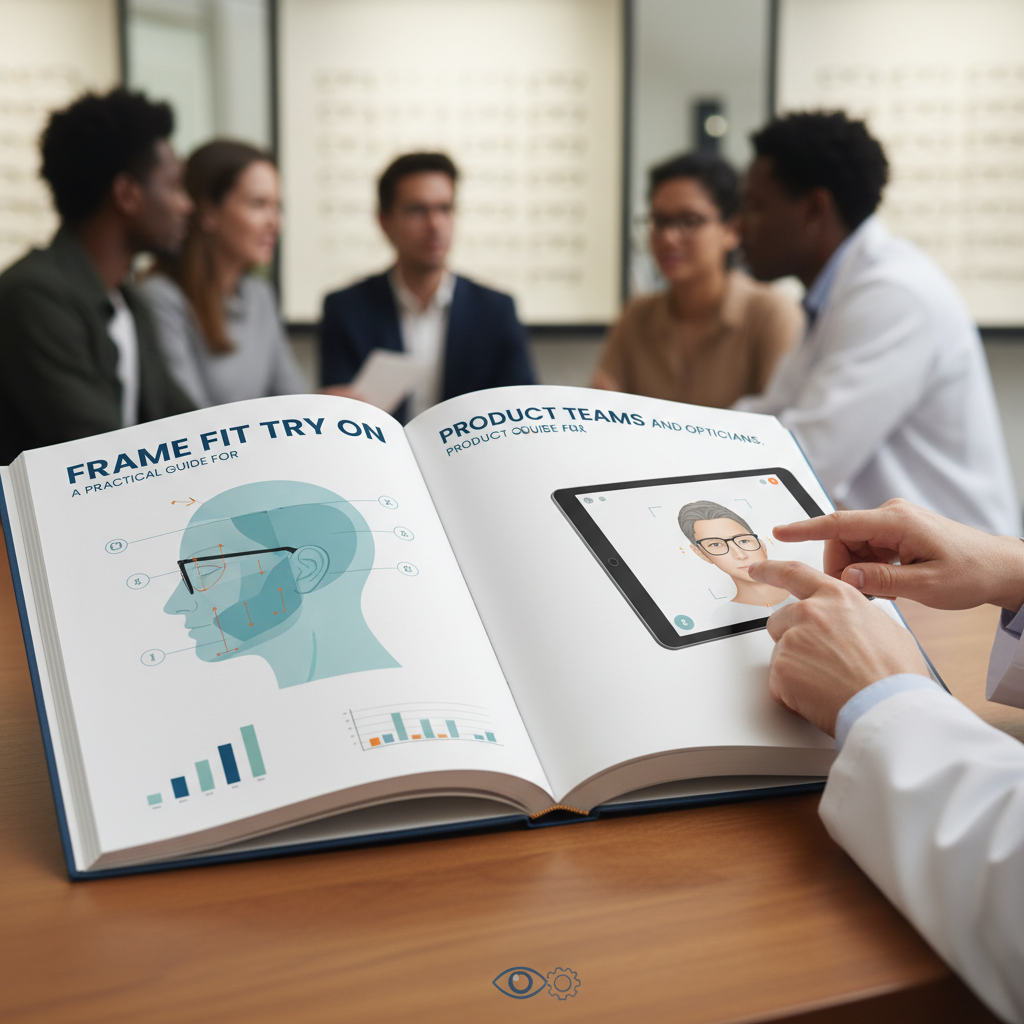
Eyewear Try On UX PrestaShop: Design, CTA Placement, and PDP Conversion Best Practices
Quick Summary:
- Zero-code, link-based VTO (tryitonme.com) provides a fast path to adding Try-On to PrestaShop without SDK or backend changes.
- CTA placement is crucial—test near price/Add-to-cart, gallery overlay, and sticky mobile footer to find the best lift.
- Set up fallbacks (photo upload, static on-model, 360) and track events like try_on_clicked and try_on_completed to measure impact.
Table of Contents
Why virtual try-on matters for eyewear on PrestaShop (business case & measurable impact)
If you sell eyewear on PrestaShop, optimizing your eyewear try on ux experience is one of the fastest ways to boost conversion and reduce returns. Virtual try-on is not a gimmick — it’s a conversion layer: multiple industry guides argue that VTO helps customers visualize fit and style, increases confidence, and helps reduce returns. For background on the ROI case and implementation steps, see Zakeke’s guide.
Large eyewear merchants have also invested in rigorous testing; for enterprise-scale A/B testing guidance see Fittingbox documents. Use those resources to frame expectations: try-on tends to improve engagement and purchase confidence, but exact lifts vary by brand, catalog, and UX implementation. Related implementations and comparisons: tryitonme eyewear virtual try-on and tryitonme vs Fittingbox.
Core UX principles for eyewear try-on experiences
Make your try-on a friction-free visual decision tool. Core UX non-negotiables:
- Accuracy & realism — Customers expect frames to align and scale correctly. If realism fails, trust evaporates (see how to choose the right glasses try-on solution). Related accuracy notes: accuracy & blue-light try-on.
- Fast, low-friction entry — Single-click entry from PDP, lazy-loaded assets, and minimal permission prompts reduce drop-off.
- Mobile-first and responsive — Most shoppers will try on from phones; ensure camera flows and controls are optimized for small screens (see mobile guidance at mobile performance notes).
- Accessibility & keyboard support — Try-on triggers should be keyboard-focusable, have ARIA labels, and offer non-camera fallbacks for users who can’t or won’t share a camera feed.
- Clear exit & return path — Let users return to PDP quickly after trying-on to preserve purchase momentum.
Try-on CTA placement: patterns & recommended locations
Placement matters more than a clever button. Here are practical patterns to test.
Primary placement — near price & Add-to-cart (desktop)
Why: Proximity to conversion elements reduces friction — shoppers see try-on as an aid, not a detour. Implementation guidance: Make Try-On secondary-styled (distinct but less dominant than Add-to-cart). Consider an inline button or small icon-with-label to the right of Add-to-cart.
Secondary placement — image-gallery overlay (desktop + mobile)
Why: Visual affordance — a camera or glasses icon over the product hero signals immediate interaction. Behavior: Open the try-on in a full-screen view or new tab for the clearest experience; for quick returns, use a lightbox.
Tertiary placements — sticky mobile footer, quick-view, cart upsell
When to use:
- Sticky mobile footer: when PDP layouts push CTAs out of initial viewport.
- Quick-view or cart upsell: let customers try a different frame without leaving the current context.
Modal vs new-tab: Use modal for quick glances and new-tab for immersive, full-screen try-on experiences (A/B test to find the best UX).
Omnichannel placement — social ads, emails, product feeds
Because tryitonme.com provides a link-based VTO, you can drop a Try-On link into social creative, email campaigns, or product feeds and let shoppers land straight in the AR try-on. See tryitonme product section below for link-based flows.
Microcopy & messaging examples — CTAs, tooltips and error states
Microcopy is a fast way to increase clarity and reduce hesitation. Use short, testable variants.
- Primary CTA variants (short): Try On; Try On with Your Camera; See How They Look
- Secondary/supporting lines (small): No downloads • Works on mobile; Instant try-on — selfie or live camera
- Onboarding hints/tooltips: Hold your phone at eye level; Tap the frame to switch colors
- Fallback/error lines: Camera blocked: “Camera access blocked — upload a selfie instead.” Unsupported device: “Looks like your device isn’t supported — try uploading a photo.”
- ARIA / accessibility example: aria-label=”Try on [Product Name] — opens in new tab”
Fallbacks & progressive enhancement strategies
Always assume a subset of users can’t or won’t use the camera. Prioritize fallbacks to maintain conversion flow:
- Photo upload fallback — let shoppers upload a selfie or on-model photo.
- Static on-model photos and 360 viewers — keep high-quality imagery as the default.
- Real-scale measurement overlays (mm) — show lens/bridge/temple measurements.
- Live appointment / video call link — offer human help for high-consideration purchases.
PDP conversion best practices — how try-on integrates with PDP elements
- Keep Add-to-cart primary — Make try-on an assistive action that supports the decision.
- Layout guidance — Desktop: hero image left, product info and CTAs right column. Mobile: hero-first, then CTAs in a sticky row.
- Social proof & ratings near try-on — Place star ratings and UGC close to the try-on CTA to boost credibility (see Zakeke and PrestaShop blog).
- Keep cognitive load low — Don’t bury shipping, returns, or size info behind deep links.
Implementation: zero-code link-based VTO with tryitonme.com on PrestaShop
tryitonme product facts:
- Zero-code, link-based VTO — add a Try-On link to any PrestaShop PDP without SDKs or backend changes.
- Purchase a 6‑month package based on SKU count.
- Send standard product photos (front/side for eyewear); tryitonme handles AR processing. See product notes at blue-light glasses try-on.
- Receive a unique, ready-to-use try-on link per SKU in under 3 business days.
How to implement (step-by-step)
- Buy a 6‑month package and send product photos (tryitonme product fact).
- Receive the per-SKU try-on links in under 3 business days (tryitonme product fact).
- Add link to PDP:
- Add an anchor link/button near Add-to-cart and in the gallery overlay (zero-code).
- For mobile, add the link to a sticky CTA row (zero-code).
- Promote via email, ads, and social channels using the same link (zero-code).
HTML anchor snippet (generic):
<a href="https://tryitonme.com/your-product-link" target="_blank" rel="noopener" aria-label="Try on [Product Name]">Try On</a>If you need PrestaShop template-specific placement (e.g., product.tpl edits), that is implementation guidance beyond the provided product facts. tryitonme’s link-based approach keeps edits minimal — usually just adding an anchor/button.
Call to action: Book a demo to get your first try-on links and sample assets at tryitonme.com.
Measurement & A/B testing — what to track and experiments to run
Track the right events and run focused tests:
Recommended KPIs
- Try-on click-through rate (TCR)
- Add-to-cart rate after try-on
- PDP conversion lift and return rate
- Engagement depth (frames tried), try-on time
Instrumentation (event suggestions)
Suggested event names (internal naming conventions vary): try_on_clicked, try_on_started, try_on_completed, try_on_add_to_cart. Use GA4 ecommerce events + heatmaps to correlate try-on behavior with purchases. Analytics notes: try-on analytics.
A/B tests to run
- CTA placement: beside price vs gallery overlay vs sticky footer
- CTA copy: “Try On” vs “See How They Look”
- Open behavior: new tab vs modal lightbox
- Social proof presence: with vs without customer photos near CTA
For testing guidance see Fittingbox testing guidance.
Visuals & wireframe recommendations (for designers & product teams)
- Wireframe 1 — Desktop PDP: left hero image with camera overlay icon, right column with product title, price, Add-to-cart (primary), Try-On (secondary).
- Wireframe 2 — Mobile: hero-first, sticky CTA row with Add-to-cart and Try-On, compressed product info below.
- Wireframe 3 — Try-on modal/new-tab: full-screen camera with frame selector at bottom, quick exit to PDP button.
Accessibility, privacy & legal considerations
- Camera permission flows: explain why you need access and what happens to the image stream (see guidance at Auglio).
- Privacy copy examples: “This site requests camera access to show you how frames look on your face. Images are processed temporarily and not stored permanently.” Use tryitonme-provided copy if available.
- Keyboard & ARIA: Ensure try-on triggers have aria-labels and can be focused with Tab.
- Data storage: If you state how images are stored/processed, only use tryitonme-provided facts or mark as vendor-specific.
Quick launch checklist (actionable steps for PrestaShop merchants)
- Purchase a 6‑month package from tryitonme — ~15 minutes. Pricing notes.
- Send standard product photos (front/side) — ~30–60 minutes for a batch.
- Receive try-on links (under 3 business days).
- Add anchor CTA to PDP near Add-to-cart — ~15 minutes.
- Add gallery overlay icon — ~10–30 minutes.
- Add mobile sticky CTA — ~15 minutes.
- Configure analytics events for try-on clicks — ~30–60 minutes.
- Set up A/B tests for CTA placement and copy — initial test 2–4 weeks.
- Prepare fallbacks: photo upload and static 360 views — variable.
- Promote via email/social using try-on links — campaign build time varies.
Example microcopy & CTAs (copy bank to paste into templates)
- Primary CTA (small button): Text: Try On — aria-label: “Try on [Product Name] — opens in new tab”
- Secondary CTA (larger): Text: Try On with Your Camera — Supporting small line: No downloads • Works on mobile
- Fallback prompt: “Camera blocked? Upload a selfie to try on frames.”
- Success confirmation: “Nice — you tried them on. Ready to add to cart?”
Conclusion & CTA — Why tryitonme.com is the Right Fit for Your Business
- Zero-code, link-based VTO — add Try-On links without SDKs or backend changes.
- Fast turnaround — per-SKU try-on links in under 3 business days.
- Simple onboarding — buy a 6-month SKU package and send standard photos; AR processing is handled for you.
- Cross-channel-ready links — drop the same link into PDPs, emails, ads and social.
Get your first try-on links in under 3 business days — book a demo.
Appendix & recommended assets to include in the post
- Annotated PDP wireframes (desktop + mobile) — eyewear-pdp-wireframe-desktop.pdf, eyewear-pdp-wireframe-mobile.pdf
- Microcopy cheat sheet — eyewear-tryon-copybank.pdf
- HTML anchor snippet — try-on-anchor-snippet.txt
- Measurement event mapping table — tryon-event-mapping.csv
FAQ
- 1. Does tryitonme require backend integration or an SDK for PrestaShop?
- Tryitonme provides link-based VTO that is zero-code—usually just adding an anchor/button to the PDP without any backend changes. For package details and onboarding, visit tryitonme.com.
2. What is the best fallback if a user denies camera access?
Provide selfie uploads, static on-model photos, and 360 viewers. Make sure the copy explains the next step: “Camera blocked? Upload a selfie to try on frames.”
3. What measurement methods are recommended for assessing the impact of try-on?
Track events such as try-on_clicked, try_on_started, try_on_completed, try_on_add_to_cart. Key KPIs: TCR, add-to-cart rate after try-on, PDP conversion lift, and return rate.
4. Where should I place the Try-On button on a PrestaShop PDP?
Test three key locations: near the price/Add-to-cart (desktop), gallery overlay (visual affordance), and sticky mobile footer (mobile reachability). A/B test to find the best combination.
5. How long does it take to create a per-SKU link if I use Tryitonme?
Tryitonme sends a per-SKU link in under 3 business days after receiving a standard product photo (front/side).
6. Are there any special privacy considerations for cameras and facial images?
Explain the permission flow clearly and use vendor-provided privacy copy if available. In general, inform the user that the stream/result is being processed temporarily and provide an upload option if the user declines the camera.