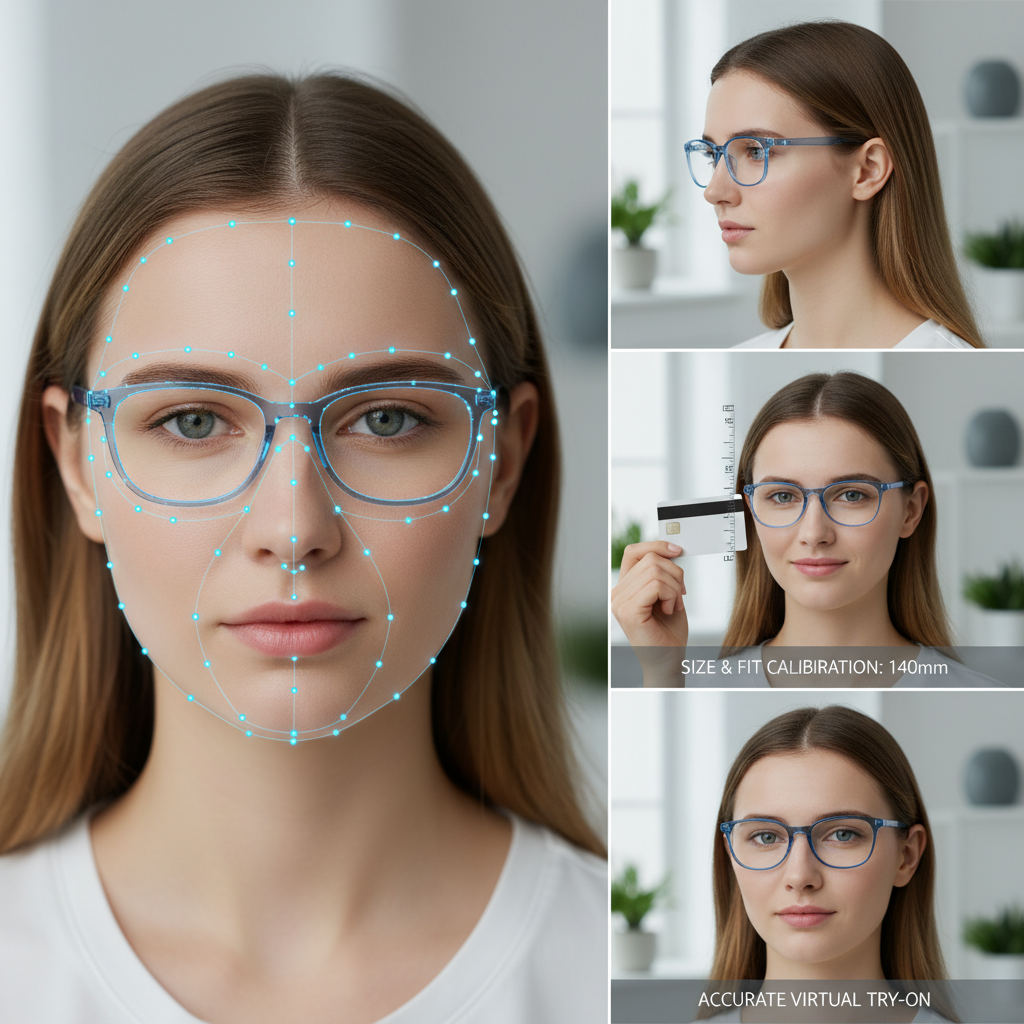
Eyewear Try On Magento — Zero‑Code Guide to Adding Virtual Try‑On with tryitonme.com
Quick Summary
- Add an eyewear try-on experience to your Magento PDP without code with a share link from tryitonme.com.
- Choose between the link-only (fastest) or iframe/modal (more seamless) method and follow the starter snippet for Magento 2.
- Use a CMS block or child theme for secure changes, lazy-load iframes for performance, and GA4 analytics for try-on metrics.
Table of Contents
Introduction
In this guide, you’ll learn how to quickly and without coding add an eyewear try-on experience to your Magento product detail page (PDP). The link-based Virtual Try-On (VTO) approach using tryitonme.com provides a shareable link that can be placed in PDPs, emails, social media, and ads without the need for an SDK or API.
Post goals — What you will learn
- Adding a visible try-on button to the PDP and wiring options without heavy dev work.
- Two embed strategies (link-only vs. iframe/modal) and when to choose each.
- A template for safe Magento 2 theme edits and a starter snippet for catalog_product_view.
- Sample PDP copy and placement recommendations to maximize usage.
- QA checklist, tracking, troubleshooting, and a sample launch timeline.
Quick benefits for merchants
- Increase buyer confidence and reduce returns — merchants report increased purchase certainty when buyers can see the fit and appearance of the product (see the Magento community discussion on VTO): Magento community approaches and VTO conversations).
- Fast rollout and low friction: The link-based approach eliminates the need for SDK integration or large-scale AR engineering.
- A single try-on asset works across web, mobile, and social platforms through the same URL.
Why tryitonme.com is the Right Fit for Your Business
We recommend tryitonme.com when you need a quick and easy to manage VTO:
- ZERO‑CODE — link-first deployment without SDK/API.
Fast turnaround: send a product photo, the tryitonme team/AI processes it, and you get a link in under 3 business days. see plans & pricing: tryitonme pricing). - Simple onboarding workflow; the same link works across PDP, email, social, and ads — book a demo: tryitonme.com.
How this compares to common Magento VTO integrations
Many Magento modules/SDKs require more intensive integration and maintenance. Marketplace modules are an example: Webkul virtual try‑on and Milople virtual try‑on. Link‑based approaches like tryitonme keep integration lightweight — simply add a link or iframe in the PDP, and the external service hosts the AR experience.
Prerequisites & planning checklist before you start
- Magento 2.x Admin access and staging/dev environment for testing (komunitas Magento).
- Product photos (front & side shots), SKU and variant mapping — related guides: pupillary distance guide and blue-light try-on.
- Tryitonai account and generated try‑on link (see tryitonme.com).
- Staging URL and Analytics/Tag Manager account for event wiring.
- Simple rollout plan (starting with top SKUs or hero collections).
Generate the try‑on asset (tryitonme.com steps)
- Prepare eyewear photos — high‑resolution front & side photos per SKU (example).
- Sign up for/purchase a 6-month package based on the number of SKUs.
- Send product photos to the tryitonme team; their team/AI will process the AR.
- Receive unique, ready-to-use shareable try-on links (usually within 3 business days).
Best practice: generate unique links per SKU or logical variant group to avoid mapping errors.
Two embed strategies — high level
- Link‑only (recommended for speed): Add a PDP button that opens the Tryitonme link in a new tab or a lightweight modal. Pros: fastest, zero code on the VTO side; Cons: users can exit the PDP if opened in a new tab.
- Embedded iframe/modal: Embed the tryitonme URL in an iframe or lightbox on your PDP to stay on the site. Pros: more seamless experience; Cons: requires some theme edits and attention to accessibility and performance.
Step‑by‑step: Embed try on Magento — Link button method (no‑code for tryitonme)
CTA placement for desktop and mobile:
- Near the Add to Cart button (primary CTA cluster).
- Below the image carousel or next to the thumbnails.
- As a sticky CTA on mobile (bottom viewport) for clear camera access.
How to add a try‑on button via Magento Admin (no core edits)
Use CMS blocks or product layout update XML to insert buttons per product:
Example CMS block HTML (adjust the link provided by tryitonme):
<a href="[TRYITONME_LINK]" target="_blank" rel="noopener" class="try-on-btn">
  <strong>Try On</strong><br>
  <small>See how these frames look on you — no app required</small>
</a>
Example of XML Update Layout (place in product admin > Design > XML Update Layout):
<referenceContainer name="product.info.main">
    <block class="Magento\Cms\Block\Block" name="tryon.button">
        <arguments>
            <argument name="block_id" xsi:type="string">tryon_button_block</argument>
        </arguments>
    </block>
</referenceContainer>
Developer docs reference for layout guidance: Magento developer docs.
Button copy & behavior recommendations
- Short CTAs: “Try On,” “See On Me,” “Virtual Try-On.”
Microcopy: “Instant — no download” or “Try these frames on your face.” - Security & accessibility: Use rel=”noopener,” target=”_blank” when opening a new tab; include an aria-label for screen readers.
Step‑by‑step: Embed try on Magento — Iframe/modal method (theme edits)
Safe Magento 2 theme edits: Make changes in child themes to avoid core edits. See the theme guide and layout XML reference: Magento theme guide and layout XML reference.
Minimal iframe/modal starter (phtml + minimal JS):
<button id="tryon-btn" aria-label="Virtual Try-On">Try On</button>
<div id="tryon-modal" aria-hidden="true" style="display:none;">
    <iframe data-src="[TRYITONME_LINK]" width="100%" height="600" frameborder="0" loading="lazy"></iframe>
    <button id="tryon-close">Close</button>
</div>

<script>
// Lazy-load iframe on first open
document.getElementById('tryon-btn').addEventListener('click', function(){
  var iframe = document.querySelector('#tryon-modal iframe');
  if(!iframe.src) iframe.src = iframe.getAttribute('data-src');
  document.getElementById('tryon-modal').style.display = 'block';
});
document.getElementById('tryon-close').addEventListener('click', function(){
  document.getElementById('tryon-modal').style.display = 'none';
});
</script>
Responsive & accessibility notes: lazy‑load src on first open, implement focus trap, keyboard dismissal (Esc), and return focus to trigger keys. For mobile performance, see tips mobile performance.
PDP try on button UX & copy best practices
- Short, action-oriented CTAs.
- Use small icons (glasses or a camera) to signal AR.
- Meet WCAG AA contrast standards (guidelines: WCAG).
- A/B test button text, placement, and modal vs. new tab.
QA checklist (must‑do before launch)
- Functional: Each SKU opens the correct tryitonme link; buttons work in Chrome, Safari, Firefox, Edge, and mobile webviews (cross-browser testing guidance: MDN).
- Visual: Modals and buttons don’t break the PDP layout; responsive at all breakpoints.
- Performance: lazy‑load iframe; defer nonessential JS (mobile performance).
- Accessibility: keyboard navigation, focus management, aria labels.
- Analytics: send dataLayer events for try_on_open, try_on_close, try_on_variant_selected (GA4 guidance: GA4 event guidance).
- Security & Privacy: Make sure links are via HTTPS; explain that camera permissions are managed by the browser.
Troubleshooting common issues
- Wrong link per SKU: Check CMS block or attribute mapping for dynamic URLs.
- JS conflicts: Scope scripts to PDP and use noConflict patterns.
- Modal focus issues: Implement focus traps and return focus on close.
- Mobile camera permission: Provide a short help message about browser camera prompts and recovery steps.
Tracking, analytics & CRO enhancements
- EVent naming: try_on_open, try_on_close, try_on_variant_selected, try_on_purchase.
- Add UTM/query parameters to tryonme links to maintain campaign attribution.
- A/B test: button placement, CTA text, modal vs. new tab.
- Monitor KPIs: try-on rate, post-try-on add-to-cart rate, try-on user conversion rate, return rate for try-on-enabled SKUs.
Best practices & scale considerations
- Choose one embedding method for consistency across your catalog.
- Automate link assignment using product attributes for large catalogs.
- Organize links by SKU or collection for easier maintenance.
- Set a regular monitoring cadence (weekly in the first month, then monthly).
Example implementation timeline
- Day 0–1: Create tryitonme account, purchase package, upload/send photos.
- Day 1–3: tryitonme processes assets and delivers shareable links.
- Day 3–5: Add link button via CMS block or implement iframe modal in staging, wire analytics.
- Day 5–7: QA, accessibility checks, production rollout; monitor analytics and iterate.
Supporting assets to include in the post
- Screenshots of tryitonme link‑generation/dashboard (tryitonme).
- Example PDP with try on button (desktop & mobile states).
- Code snippets: layout XML and phtml starter blocks (see Appendix).
- Downloadable QA checklist PDF and links to Magento dev docs and GA4 guide.
SEO & keyword placement plan
- Place your primary keyword in the title and the first 50 words (e.g., “eyewear try on Magento”).
- Use target keywords in relevant H2/H3 titles.
- Use alt text in screenshots that incorporates keywords naturally.
- Meta description: refer to “eyewear try on Magento” and use a zero-code link approach.
Conclusion & CTA
Adding an eyewear try-on experience to Magento can be quick and low-effort when using a link-based solution like tryitonme. Your site stays lightweight, you avoid heavy SDK integrations, and you can launch a try-on within days of your assets being ready. Ready to try? Book a demo or create an account to generate your first try-on link.
Appendix
Copy/paste starter snippets
Layout XML starter (place in product Design > Layout Update XML for specific products — adjust for your theme):
<referenceContainer name="product.info.main">
    <block class="Magento\Cms\Block\Block" name="tryon.button">
        <arguments>
            <argument name="block_id" xsi:type="string">tryon_button_block</argument>
        </arguments>
    </block>
</referenceContainer>
More on layout XML: Magento layout docs.
PHTML starter (tryon.phtml) — adapt and test on staging:
<button id="tryon-btn" aria-label="Virtual Try-On">Try On</button>
<div id="tryon-modal" style="display:none;">
    <iframe data-src="[TRYITONME_LINK]" width="100%" height="600" frameborder="0" loading="lazy"></iframe>
    <button id="tryon-close">Close</button>
</div>
<script>
// Lazy-load iframe on first open
document.getElementById('tryon-btn').addEventListener('click', function(){
  var iframe = document.querySelector('#tryon-modal iframe');
  if(!iframe.src) iframe.src = iframe.getAttribute('data-src');
  document.getElementById('tryon-modal').style.display = 'block';
});
document.getElementById('tryon-close').addEventListener('click', function(){
  document.getElementById('tryon-modal').style.display = 'none';
});
</script>
FAQ
- Privacy — does the camera record PII?
- Camera permissions are managed by the browser; no PII is collected unless the trial provider requests it and you consent. For camera API details, see getUserMedia.
- Does this work on mobile?
- Yes, tryitonme links work in modern mobile browsers and most webviews. Testing on the target app’s webview (iOS/Android) is recommended.
- How to handle multi‑SKU?
- Use unique tryitonme links per SKU or add variant params to the link so the correct frame loads for each option.
- What are the key metrics to monitor?
- Track try_on_open, try_on_close, try_on_variant_selected; monitor try-on rate, post-try-on add-to-cart, conversion for try-on users, and return rate for related SKUs.
- How long does a typical implementation process take?
- Example timeline: Day 0–1 (create account & upload photos), Day 1–3 (asset processing & links), Day 3–5 (implement link/button in staging), Day 5–7 (QA & rollout).