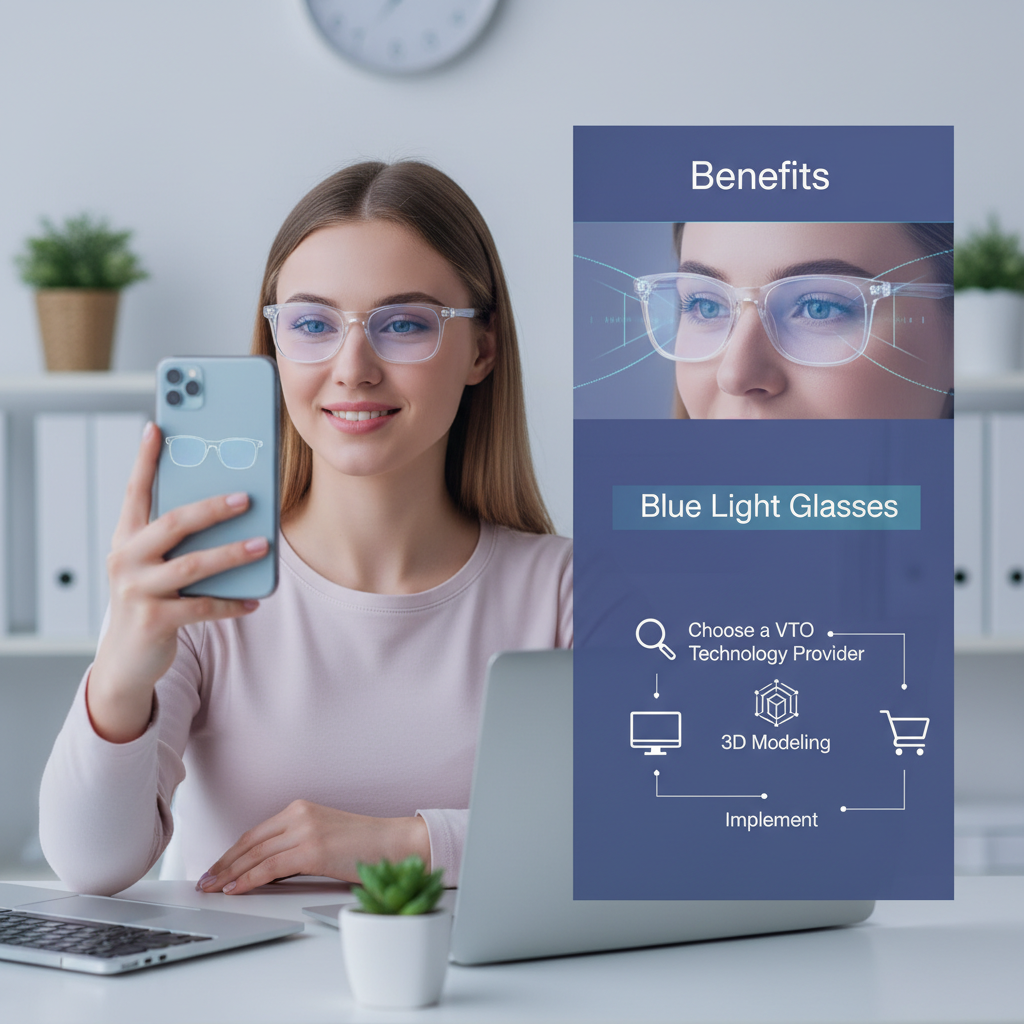
Eyewear Try On UX for WooCommerce — CTA Placement, Microcopy, Fallbacks & PDP Conversion Best Practices
- Prioritize an above-the-fold Try On CTA and a mobile sticky CTA to boost engagement and conversions.
- Use concise trust-bearing microcopy and progressive camera permission flows to reduce abandonment.
- Provide robust fallbacks (upload, model gallery, static 360s) for non-camera or low-performance devices.
Table of Contents
- Why eyewear try-on UX matters for WooCommerce stores
- Eyewear try on UX fundamentals
- WooCommerce try on UX considerations
- Why tryitonme.com is the Right Fit for Your Business
- Try on CTA placement — recommended locations & patterns
- Microcopy that converts (examples & rationale)
- Fallbacks & error states (design, copy, UX)
- PDP conversion best practices when adding VTO
- Measurement & A/B test ideas
- Implementation checklist for WooCommerce with tryitonme.com
- Quick UX heuristics & common pitfalls (one-page reference)
- Real-world examples & suggested assets
- Conclusion & next steps (CTA)
- Appendix / Resources & further reading
Introduction
If you sell glasses on WooCommerce, nailing your eyewear try on ux is essential: customers need confidence to buy frames sight-unseen. Virtual try-on (VTO) turns uncertainty into action by letting shoppers preview frames on their face before purchase — see WooCommerce’s Virtual Try Glasses overview for context and a practical UX primer from FittingBox.
This guide shows you, step-by-step, how to design high-converting product pages: where to place Try On CTAs, which microcopy reduces friction, fallback patterns for non-camera users, and the measurement plan to prove ROI. It also explains how to add zero-code, link-based VTO to WooCommerce PDPs using tryitonme.com (fast deployment, no SDKs).
Why eyewear try-on UX matters for WooCommerce stores
Keyword: eyewear try on ux
The problem is familiar: shoppers hesitate to commit to eyewear online because fit and style feel uncertain. Adding a polished try-on experience increases PDP engagement and reduces returns by helping customers make informed decisions — see WooCommerce’s Virtual Try Glasses product notes and FittingBox’s UX breakdown. For ROI context, see this analysis: ROI Blue Light Glasses Try-On.
What to measure (key metrics)
- Try-on engagement rate (clicks / PDP views)
- Add-to-cart from try-on sessions (events captured)
- PDP conversion uplift (sessions → purchases)
- Average order value (AOV) changes after try-on rollout
- Returns rate (pre/post VTO)
For technical examples and plugin benchmarks, see the Codecanyon eyewear try-on listing.
Eyewear try on UX fundamentals
Keyword: eyewear try on ux
Key UX goals (trust, low friction, clear value)
- Build immediate trust (privacy cues, clear benefits)
- Minimize friction (one-tap launches, fast feedback)
- Make value explicit (visual fit, scale, lateral views)
- Provide reliable fallbacks (upload, model views)
Source: FittingBox UX guidance.
Camera permission flow & progressive disclosure
Good camera flows use progressive disclosure: explain before asking. Short microcopy reduces abandonment — see WooCommerce documentation for recommended patterns.
Microcopy examples for permission:
- “One-tap camera access — try frames instantly. We don’t store photos.”
- “Allow camera to preview this frame on your face.”
- “Quick setup: camera, align face, enjoy try-on (no upload needed).”
Pattern:
- Lightweight info card explaining benefit.
- Single-button CTA: “Open Camera”.
- Native permission prompt (browser/OS).
- On success, quick visual guidance overlay.
Visual fidelity & guidance (scale, lighting, left/right)
Visual fidelity means correct scale, lens/frame placement, and realistic lighting cues. Guide users with short tips:
- “Hold your face in bright, neutral light.”
- “Tilt head slightly left/right for side views.”
- Add a scale guide or ruler overlay to communicate frame width. See the Frame Fit Try On guide and Eyewear Reflection Try On.
Accessibility basics & fallbacks
- Keyboard-focusable launch controls and ARIA labels.
- Voice-screen friendly microcopy and descriptive alt images.
- Provide upload and model-gallery alternatives for users who can’t use a camera (see WordPress Try-On plugin patterns).
Implementation reference: Eyewear Try On WooCommerce PDP.
WooCommerce try on UX considerations
Keyword: woocommerce try on ux
Mobile-first design and reduced clicks
Most shoppers browse on mobile. Prioritize one-thumb flows: sticky CTAs, an immediate link launch, and minimal waits. See mobile-first patterns from FittingBox and the Lensclass theme examples.
Where to add try-on links in standard WooCommerce templates
Keyword: woocommerce try on ux
Suggested placements:
- Product gallery lightbox (overlay “Try On” button)
- Above the Add to Cart button (primary placement)
- Next to frame variant selectors (color/size)
- Product summary area (price + CTA row)
- Image thumbnails (hover/press action)
Implementation tip: Use a button or link that opens the VTO shareable link (no SDK required).
How link-based VTO integrates with WooCommerce (no SDKs)
A link-first approach means your VTO lives at a secure URL. Generate SKU-specific links in the VTO dashboard and embed them as standard anchors/buttons in your WooCommerce templates. See WooCommerce’s virtual try-on docs. This avoids heavyweight SDK installs and keeps pages fast.
Why tryitonme.com is the Right Fit for Your Business
(Short value bullets + call to action)
- Zero-code, link-based VTO: add a shareable try-on URL to any WooCommerce page — no SDKs or engineering required (context: WooCommerce Virtual Try Glasses). See tryitonme overview.
- Fast time-to-market: receive a ready-to-use try-on link in under 3 business days.
- Simple onboarding: purchase a 6-month package, send standard product photos (front/side for eyewear), tryitonme’s team/AI handles AR processing, and you get the SKU link. Pricing & process.
- Accurate accessory VTO tuned for eyewear, jewelry, watches, and hats. Book a demo: Tryitonme Demo.
Try on CTA placement — recommended locations & patterns
Keyword: try on cta placement
Primary placements (above the fold / near Add to Cart)
Keyword: try on cta placement
Why: Above-the-fold placement increases visibility and conversion potential (see WooCommerce guide). Two desktop examples:
- Position A: Primary “Try On” button immediately right of the price, aligned with Add to Cart.
- Position B: Gallery main image overlay + a persistent CTA in the summary column.
Gallery overlay & in-image actions
Use hover (desktop) or press (mobile) overlays on the main product image to launch VTO. Make overlays large enough and label them clearly: “Try On” or “Preview on You.”
Mobile sticky/floating CTA (bottom fixed)
On mobile, use a bottom-fixed bar with a single “Try On” CTA sized for thumb reach (minimum 44–48px touch target). Keep it persistent but dismissible.
Secondary placements (collection cards, search results, ads)
Quick wins: Add secondary CTAs on collection cards, search result snippets, and landing pages. Prioritize by conversion opportunity: PDP > collection > search > ads.
Desktop vs Mobile priority checklist (annotated priorities)
Keyword: try on cta placement
Desktop
- Above-the-fold summary CTA
- Gallery overlay
- Thumbnail actions
Mobile
- Sticky bottom CTA
- Gallery lightbox action
- Compact summary CTA
Microcopy that converts (examples & rationale)
Good microcopy sets expectations and lowers friction — see WooCommerce docs for privacy and speed cues.
Permission/onboarding microcopy examples
- “Enable camera to try this frame — one tap. We don’t store photos.”
- “Quick preview in 10 seconds — no upload required.”
- “Allow camera for live fit. Photos aren’t saved.”
- “Try now: fast, private, and reversible.”
Primary CTA copy variations (6–8 options for A/B testing)
- “Try On Now” — direct, urgent.
- “See How It Fits You” — personal benefit.
- “Virtual Try-On (Camera)” — descriptive.
- “Preview on Your Face” — visual promise.
- “One-Click Try On” — speed-focused.
- “Try Before You Buy” — risk-reversal.
- “Live Fit Check” — real-time appeal.
- “See It Live” — engaging shorthand.
Secondary CTA and fallback microcopy
- “Upload a Photo” — alternative flow.
- “View on Model” — quick visual reference.
- “Compare Sizes” — detail-driven choice.
Trust cues: “We don’t store photos” / “Face data processed locally” (only use claims you can substantiate).
Fallbacks & error states (design, copy, UX)
Graceful fallbacks keep shoppers in your funnel — see plugin patterns at WordPress Try-On and Codecanyon.
No-camera or old-device flow
Offer an “Upload a Photo” button and a model-face gallery. Example copy: “No camera? Upload a selfie or try on a model.”
Permission denied & retry flow
Retry microcopy: “Camera blocked. Tap to reopen settings and try again.” Single CTA: “Retry Camera”
Face-detection/lighting failures
Hint copy + visuals: “Too dark — move into bright, even light.” Add an animated GIF showing correct framing.
Offline or slow-performance alternatives
Swap to static 360s, zoomable images, or short video demos if the device can’t run the live try-on.
Accessibility fallbacks
Provide descriptive product views, clear frame measurements, and keyboard-accessible controls.
PDP conversion best practices when adding VTO
Keyword: pdp conversion best practices
Above-the-fold VTO trigger + reassurance
Pair your Try On button with a small reassurance line: “Free returns within 30 days” or “We don’t store photos.” Sources: WooCommerce product overview and FittingBox.
Combine VTO with product detail signals
Show dimensions, face-shape guidance, customer photos, videos, and clear variant labels next to the try-on trigger.
Direct add-to-cart from try-on & share/save flows
Let users add directly to cart from the try-on interface and provide save/share options (email, social) for later retargeting.
Performance & privacy cues to reduce hesitation
Emphasize the link-based, lightweight nature of the integration and include clear privacy copy (reference: WooCommerce docs).
Measurement & A/B test ideas
KPIs to track
- try-on CTR
- add-to-cart from try-on
- PDP conversion rate
- AOV
- returns rate
UTM example for tracking tryitonme links:
https://your-product-link?utm_source=woocommerce_pdp&utm_medium=tryon_cta
Event names to capture: tryon_start, tryon_complete, add_to_cart_from_tryon. See analytics example: Blue Light Glasses Try-On Analytics.
A/B test ideas (practical experiments)
- CTA placement: gallery overlay vs above Add to Cart
- CTA copy variants from the list above
- Mobile sticky vs inline CTA
- Visibility of upload fallback (prominent vs buried)
Implementation checklist for WooCommerce with tryitonme.com
Keyword: woocommerce try on ux
- Purchase a 6‑month package from tryitonme.com.
- Send standard product photos (front/side) for each SKU.
- tryitonme team/AI processes AR assets.
- Receive SKU-specific try-on link in under 3 business days.
- Add the link as a button in your product template (single-product.php), via shortcode, or drag a button in Elementor linking to the URL. Reference: How-to: Eyewear Try On WooCommerce PDP.
- Add UTM parameters and event tracking (tryon_start, tryon_complete).
- Test on iOS/Android/desktop and launch.
Reference docs: WooCommerce Virtual Try Glasses doc and Lensclass theme examples.
Quick UX heuristics & common pitfalls (one-page reference)
Keyword: eyewear try on ux
Do
- Place Try On above the fold.
- Use clear privacy microcopy.
- Provide upload fallbacks and model gallery.
Don’t
- Trigger camera prompts with no context.
- Overload with modals or heavy scripts.
- Hide fallback options.
Pitfalls
- Ignoring mobile-first needs (see Lensclass notes).
- No tracking on try-on events.
- Slow VTO launches due to SDK bloat.
Real-world examples & suggested assets
Annotated mockups to include
Ask design for:
- Desktop PDP mockup (Try On overlay + above Add to Cart)
- Mobile PDP mockup (sticky Try On CTA)
- Gallery overlay mockup
- One GIF showing link launch (no SDK install)
Examples & assets: Blue Light Glasses Try-On, Mobile performance for blue light glasses.
Suggested hypothetical metrics or sourced case studies
Sourced plugin/market references: Codecanyon listing and WooCommerce product page. Note: hypothetical uplift numbers should be cited if used.
Conclusion & next steps (CTA)
Keyword: eyewear try on ux woocommerce
Key takeaways:
- Place your primary Try On CTA above the fold and on mobile use a sticky bottom CTA.
- Use short, trust-bearing microcopy and robust fallbacks to reduce friction.
Next steps:
- Generate your first link on tryitonme.com.
- Want help? Book a demo with our team to see a live WooCommerce flow: Book a Demo.
Appendix / Resources & further reading
Research sources
- WooCommerce Virtual Try Glasses product
- WooCommerce Virtual Try Glasses documentation
- FittingBox: top UX features for eyewear e‑commerce
- Codecanyon: Virtual Eyewear Try-On plugin
- TemplateTrip: Lensclass eyewear WooCommerce theme
- WordPress Try-On for WooCommerce plugin listing
- tryitonme.com | features
- tryitonme eyewear (overview & demo)
- Frame Fit Try On guide
- Blue Light Glasses Try On Analytics
- Eyewear Try On WooCommerce PDP (how-to, no-code)
- Tryitonme pricing for accessories
- Blue Light Glasses Try On photo requirements
- Mobile performance for blue light glasses try on
- Eyewear Reflection Try On
- ROI Blue Light Glasses Virtual Try On
FAQ
- 1. What is a link-based VTO and why is it important?
- Link-based VTO provides a shareable URL that opens the try-on experience without installing an SDK; this keeps the PDP page lightweight and speeds up integration time.
- 2. How to accommodate users without cameras?
- Provide fallbacks: photo upload, model gallery, and static 360/zoomable images. Ensure clear alternative CTAs such as “Upload a Photo” or “View on Model.”
- 3. Where should you place the Try On CTA?
- Prioritize: (1) above-the-fold near Add to Cart, (2) gallery overlay, (3) mobile sticky bottom CTA. Add secondary CTAs in collections and search results.
- 4. What metrics should you monitor to measure ROI?
- Track try-on CTR, add-to-cart from try-on, PDP conversion rate, AOV, and returns rate. Use event names like tryon_start and tryon_complete.
- 5. What are best practices for privacy microcopy?
- Don’t overdo it; Write true claims — for example: “We don’t store photos” or “Face data processed locally” only if you actually comply and can prove it.